
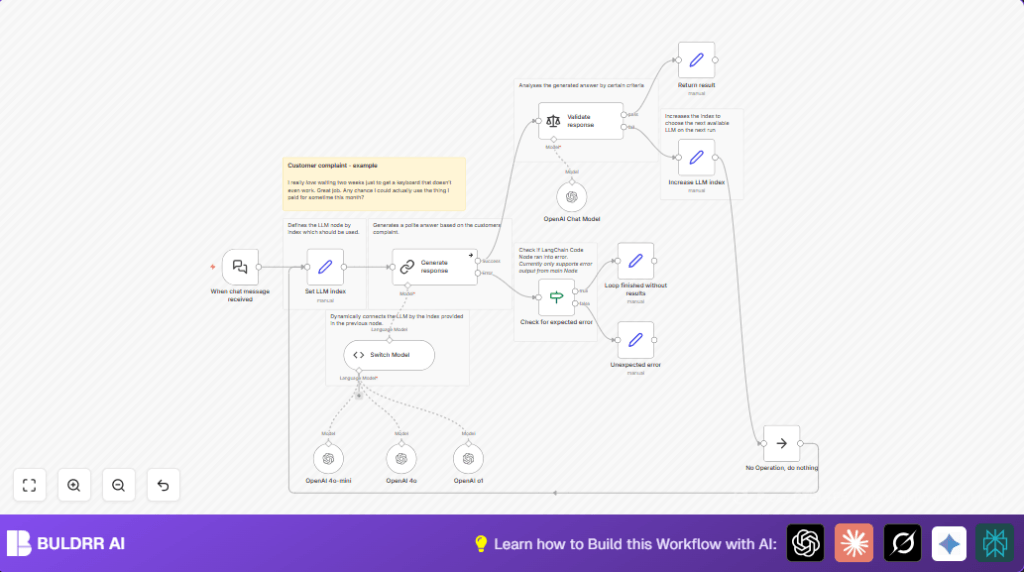

What This Workflow Does
This workflow receives customer complaint messages and picks the best reply automatically. It uses many AI models to write polite answers and checks if the answers are good. If one model’s reply is bad, it tries the next until a good one is found or stops with a polite fallback.
The workflow saves time for support teams and helps keep customers happy. It avoids manual corrections by testing several AI models per message. The final answer is always polite and clear, matching the customer’s tone.
Who Should Use This Workflow
This workflow is useful for any customer support team facing hard customer messages. It helps teams that want quick, polite replies without writing each one by hand.
If support agents want to cut down review time and avoid bad AI replies, this workflow is a good fit. It works well with teams using n8n automation and OpenAI models.
Tools and Services Used
- n8n Automation: Runs and controls the workflow.
- OpenAI GPT Models: Generates possible replies (e.g., gpt-4o-mini, gpt-4o, o1).
- Langchain Nodes in n8n: Handles chat triggers, model queries, and sentiment checks.
- Sentiment Analysis: Validates if replies are polite, empathetic, and helpful.
- JavaScript Code Node: Switches between different AI models using a dynamic index.
Beginner Step-by-Step: How To Use This Workflow in n8n Production
Step 1: Get the Workflow File
- Find and download the workflow JSON file from this page.
Step 2: Import Into n8n Editor
- Open n8n editor (self-hosted or cloud).
- Go to the main menu, choose “Import from File”.
- Select the downloaded JSON workflow file.
Step 3: Configure Credentials and Settings
- Add OpenAI API credentials with access to required GPT models in the credentials manager.
- Check and update any node IDs, emails, Slack channels, Google Sheets folders, or database tables used in the workflow.
- Review code or prompt text in the Code node or Langchain prompt settings to ensure they match your needs.
Step 4: Test the Workflow
- Send a sample customer chat message to the webhook URL created by the Webhook node or Langchain chat trigger.
- Watch the workflow run and check the output response.
Step 5: Activate the Workflow
- Turn on the workflow toggle in n8n to run automatically for incoming messages.
- Monitor runs to catch errors or tweak prompts as needed.
This setup is ready for production and can save hours for customer support teams.
For those running on a server, consider self-host n8n to control data and API keys securely.
Inputs, Processing Steps, and Output
Inputs
- Incoming customer complaint message via Langchain chat trigger.
- Current model index to know which GPT to use next.
Processing Steps
- Start with a default model index (0) using a Set node.
- Code node uses this index to pick one GPT model dynamically.
- Send the customer message to the chosen GPT model with a prompt that asks for polite, empathetic replies.
- Check the reply using sentiment analysis to verify tone and content.
- If reply is bad, increase the model index and retry with the next GPT.
- If all models fail, return a simple polite message saying no good answer was found.
Output
- Validated, polite customer reply from the best working GPT model.
- Fallback message if no GPT gives a good answer.
Edge Cases and Failure Handling
If the Code node finds an invalid or missing model index, workflow sends an error message without crashing.
If validation fails repeatedly, the workflow tries all models once then replies with a fallback message.
Error handling nodes catch unexpected issues and return friendly messages.
Customization Ideas
- Add more GPT or other AI models by creating extra Langchain LLM nodes and linking them to the Code node.
- Change the sentiment analysis prompt to check other qualities like formality or detail.
- Adjust the main prompt in the generate response node to address different customer topics like returns, refunds, or order tracking.
- Connect Slack or Email nodes after the final response node to notify teams of answers or failures.
Code and Prompts Used
The dynamic model selector code in the Code node looks like this:
let llms = await this.getInputConnectionData('ai_languageModel', 0);
llms.reverse();

const llm_index = $input.item.json.llm_index;
if (!Number.isInteger(llm_index)) {
  throw new Error("'llm_index' is undefined or not a valid integer");
}

if(typeof llms[llm_index] === 'undefined') {
  throw new Error(`No LLM found with index ${llm_index}`);
}

return llms[llm_index];
This code picks the GPT model connected to the workflow by index from incoming data.
The prompt sent to the GPT to generate a reply:
You’re an AI assistant replying to a customer who is upset about a faulty product and late delivery. The customer uses sarcasm and is vague. Write a short, polite response, offering help.
The sentiment analysis prompt includes criteria to check if the reply:
- Acknowledges the issue politely.
- Has an empathetic tone.
- Proposes a helpful resolution.
Pre-Production Checklist
- Verify OpenAI API keys cover all GPT models to be tested.
- Send sample sarcastic complaints to test the chat webhook.
- Monitor that the Set node correctly initializes the model index.
- Check responses in the final result node for politeness and relevance.
- Backup the workflow before enabling it live.
Deployment Guide
Enable the workflow in n8n once setup is complete.
Use the webhook URL to send real customer messages from your chat app.
Watch workflow runs in n8n interface to verify no errors occur.
Adjust model selection or validation prompts if replies are poor or inconsistent.
Consider running on self-host n8n for better control and data security.
Summary
✓ You get automated customer replies that are polite and helpful.
✓ Workflow tries multiple GPT models to find best reply.
✓ Validation stops bad or off-tone answers.
→ Saves support staff time reviewing AI responses.
→ Reduces risk of sending poor replies to customers.
→ User-friendly fallback if no model passes checks.
