
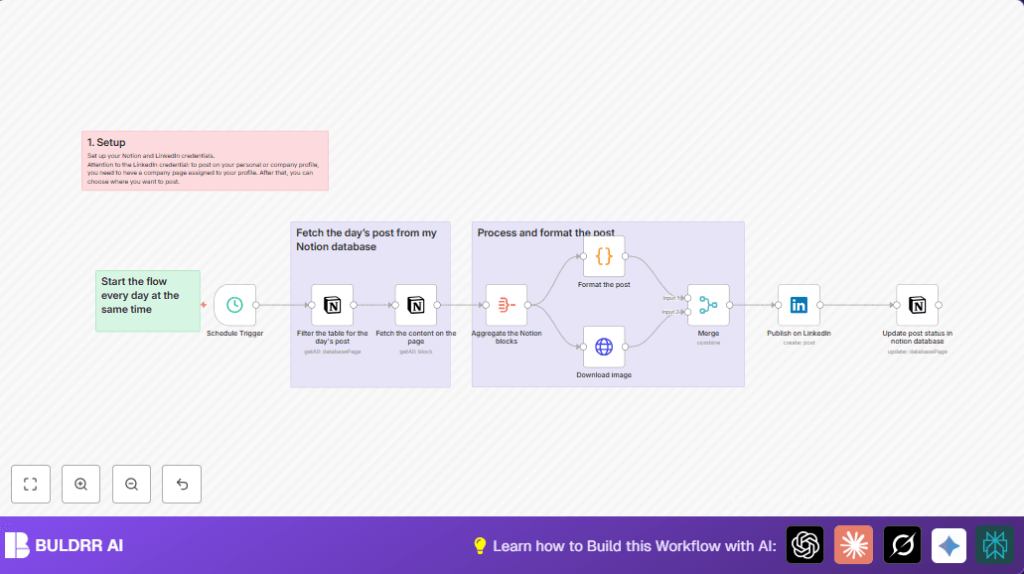

What This Automation Does
This workflow runs every day at 3 PM to post your scheduled content from Notion to LinkedIn automatically.
It stops you from doing repetitive copying, formatting, and image downloading.
After running, it posts correctly formatted text and an image to LinkedIn and marks the post as published in Notion.
Who Should Use This Workflow
This automation fits people who manage social media posts stored in a Notion database.
It helps if you post daily and want to avoid mistakes and save time.
Tools and Services Used
- n8n: Runs the automation workflow.
- Notion API: Fetches posts and content blocks from your database.
- LinkedIn OAuth2: Authorizes posting on LinkedIn profiles or company pages.
- HTTP Request in n8n: Downloads images for LinkedIn posts.
Workflow Inputs, Processing Steps, and Output
Inputs
- Your Notion database with posts having a “Date” and “Status” property.
- LinkedIn OAuth2 account with posting rights.
- Scheduled time set in the workflow (3 PM by default).
Processing Steps
- The Schedule Trigger fires daily at 3 PM.
- Notion node queries posts with today’s date.
- Fetch content blocks and image URLs from the selected post.
- Aggregate node collects all text and images into arrays.
- Code node formats the text for LinkedIn.
- HTTP Request downloads the first image.
- Merge node joins text and image data.
- LinkedIn node posts the content with the image.
- Notion node updates the status to “Published”.
Output
- A published LinkedIn post with formatted text and image.
- Updated Notion database marking the post as completed.
Beginner Step-by-Step: How to Use This Workflow in n8n
Importing the Workflow
- Click the Download button on this page to save the workflow file.
- Open the n8n editor where the automation will run.
- Go to the menu and select “Import from File.”
- Choose the downloaded workflow file and import it.
Setting Up Credentials
- In n8n, open the Credentials section.
- Add your Notion API Key under Notion credentials.
- Add LinkedIn OAuth2 credentials with necessary posting permissions.
Adjusting Workflow Settings
- Check nodes for IDs or URLs that may need changing for your workspace or LinkedIn company page.
- Make sure the Date filter matches your Notion date format.
- Review the Code node if you want to tweak post formatting.
Testing and Activating
- Run the workflow once manually to check it fetches, formats, and posts correctly.
- If all works, turn on the workflow by toggling the Active switch.
- The workflow will now post automatically daily at the set time.
- Consider self-host n8n for reliable, always-on running.
Customizations
- Change the posting time by updating the hour in the Schedule Trigger node.
- Switch from posting to a personal profile to a company page by updating the LinkedIn node’s “person” field.
- Edit the JavaScript in the Code node to add hashtags, mentions, or change text styling.
- Add support for multiple images by expanding the image download and merge steps.
- Insert logging nodes before and after posting to keep records of all actions.
Troubleshooting
- No posts fetched for today: Check if the date format in Notion matches the filter expression
{{$today.format("yyyy/mM/dd")}}Adjust format if needed.
- LinkedIn post permission error: Confirm LinkedIn OAuth2 credentials have post rights and company admin access.
- Image download issues: Verify image URLs in Notion are accessible and public.
Pre-Production Checklist
- Check Notion API Key has access to the correct database.
- Confirm LinkedIn OAuth2 credentials are authorized properly.
- Ensure Notion database has “Date” and “Status” properties setup.
- Run manual test of workflow to confirm it works end-to-end.
- Backup Notion content before testing to prevent accidental change.
Deployment Guide
After testing succeeds, activate the workflow to run daily.
Watch execution logs for early error detection.
Using self-host n8n helps keep the workflow running without interruption.
Summary
✓ Saves time by automating daily LinkedIn posting.
✓ Removes manual copying and formatting work.
✓ Ensures posts go out on schedule every day.
✓ Updates Notion to track published posts automatically.
✓ Supports text formatting and image attachments.
✓ Easy to import and configure inside n8n.
