
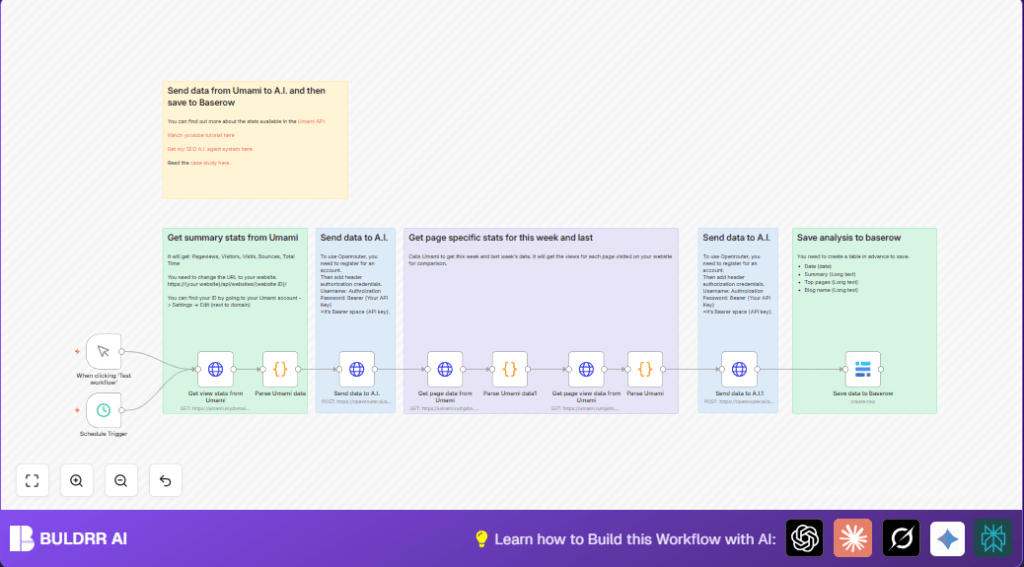

What this workflow does
This workflow automatically gets website data from the Umami API every week. It looks at key numbers like pageviews, visitors, and bounces. Then, it sends this data to an AI that gives simple SEO advice. Finally, it saves the AI results into a Baserow database. This saves time and finds SEO tips faster.
The workflow compares data from this week and last week. It shows which pages improved or dropped. That helps find what makes the blog better or worse.
Who should use this workflow
This is for blog owners or small website managers. It helps if you want SEO tips but do not want to check your analytics manually. You do not need coding skills.
You should have an Umami account with API access, and accounts for Openrouter AI and Baserow to save data.
Tools and services used in the workflow
- Umami Analytics API: To get website statistics data.
- n8n Automation Platform: To connect API calls, process data, and run the workflow.
- Openrouter AI API: To analyze SEO data and generate recommendations.
- Baserow Database: To store the AI-generated SEO reports and track them over time.
- HTTP Header Authentication: Used in n8n for secure API access.
How the workflow works: Inputs, processing, and outputs
Inputs
- Umami API Key and website ID to fetch analytics data.
- Openrouter API Key to access the AI model.
- Baserow API token with table details to save results.
Processing steps
- Fetch last 7 days summary stats with HTTP Request node.
- Parse summary data and convert it to an URL-encoded JSON string with a Code node.
- Send summary data to Openrouter AI via HTTP Request POST for SEO insights.
- Get detailed page view data for this week and last week separately.
- Parse each week’s page data into encoded strings using Code nodes.
- Send both encoded weekly page datasets to AI for side-by-side SEO analysis and suggestions.
- Save both AI reports into Baserow using the Baserow node with fields for date, summary, top pages, and blog name.
Outputs
- Markdown tables with SEO summaries and page comparisons from AI models.
- Stored SEO insights in Baserow for tracking long term website growth.
- Automated workflow runs weekly without manual data pull or analysis.
Beginner step-by-step: How to use this workflow in n8n production
Step 1: Import the workflow
- Download the workflow file by clicking the “Download” button on this page.
- Open the n8n editor you use (cloud or self-host n8n).
- Click the menu to “Import from File” and select the downloaded workflow.
Step 2: Add your credentials and IDs
- Go to n8n credentials section and add your Umami API Key using HTTP Header Auth credentials.
- Add your Openrouter API Key similarly as a separate HTTP Header Auth credential.
- Add the Baserow API token credential and verify the database table is set as required.
- In the workflow, replace placeholders with your real
websiteIDand domains in the HTTP Request nodes. - Check if the timezones in the URLs match your local time for proper data ranges.
Step 3: Test the workflow
- Run the Manual Trigger node to test the entire flow.
- Check each node output to make sure you get expected JSON data and AI responses.
- Fix any errors due to incorrect keys or data formatting before moving on.
Step 4: Activate for production
- Activate the workflow by toggling the activation switch in n8n.
- Confirm the Schedule Trigger node is set to run weekly (every Thursday).
- Monitor the workflow runs on schedule and adjust credentials or IDs if errors happen.
Customization ideas for the workflow
- You can change the Schedule Trigger node to run daily or monthly if you want.
- Update timezone strings in HTTP Request URLs to match your preferred zone.
- Replace AI model names in Openrouter API calls for faster or more detailed SEO advice.
- Add new fields like bounce rate or session duration in Baserow and map them in the workflow.
- Include a Slack notification after saving data to get alerts about new SEO reports.
Possible errors and how to fix them
- 401 Unauthorized means API key is invalid or missing. Recheck key in n8n credentials and add “Bearer ” prefix if needed.
- If AI responses are empty or wrong, check data encoding in Code nodes. Make sure the API data is formatted correctly.
- Saving data to Baserow can fail if fields do not match. Verify table columns and credentials setup.
Summary of results from using this workflow
✓ Saves over 3 hours each week of manual analytics work.
✓ Finds SEO trends and improvement points missed before.
✓ Automatically stores SEO insights for easier tracking.
✓ Runs reliably every week without user effort.
✓ Makes simple SEO advice easy to understand and act on.
