
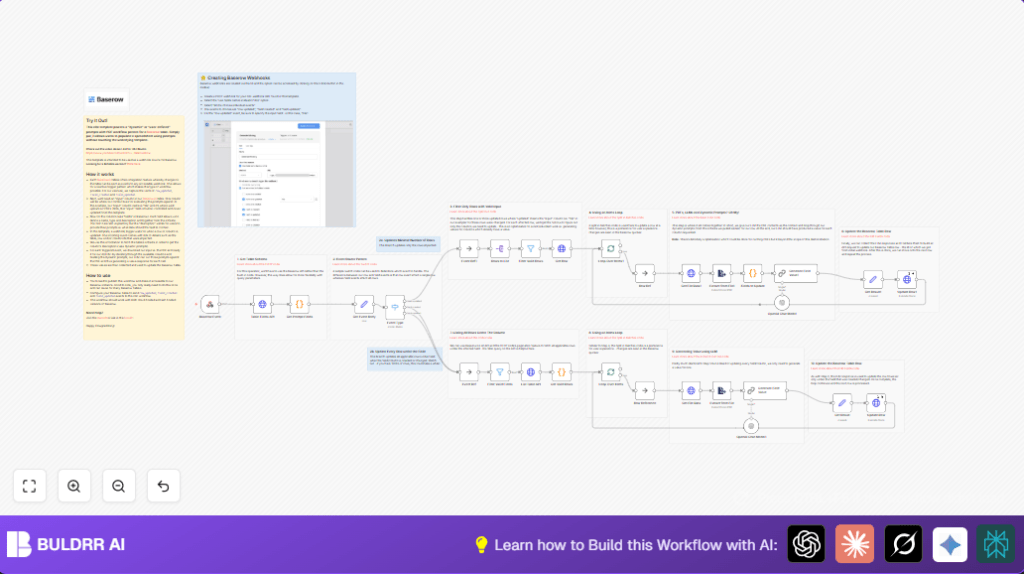

What This Automation Does
This workflow watches for changes in Baserow like row updates and new or changed fields.
When a PDF file is added or updated in a row, it downloads that PDF, extracts the text, and asks AI to find answers for specific columns.
The AI uses instructions saved inside column descriptions to find the right data.
Then, the workflow updates the Baserow row with new field values found by AI.
This saves time and lowers mistakes from manual typing.
Who Should Use This Workflow
People who get many PDF reports and must enter info into Baserow tables.
Also, teams that add new columns over time and want all rows updated automatically.
Users who want to avoid errors from manual typing will gain the most.
Knowing basic n8n use helps, but full coding skill is not needed.
Tools and Services Used
- Baserow API and Webhooks: Sends event data and lets the workflow update table rows and fields.
- n8n Automation Platform: Runs the whole workflow using various nodes, like Webhook, HTTP Request, Code and AI nodes.
- OpenAI Chat Model (ChatGPT): Reads PDF text and column prompts to generate values for database fields.
- Extract From File node: Extracts plain text from PDF documents for AI input.
You can run this on cloud or self-host n8n for data privacy.
Beginner Step-by-Step: How to Use This Workflow in n8n
Download and Import Workflow
- Download the ready-made workflow file by clicking the Download button on this page.
- Open your n8n editor (assumed you are already logged in).
- Import the workflow using “Import from File” in the main menu.
Configure Credentials and Parameters
- Set up your openai API key in n8n credentials if not done yet.
- Add your Baserow API credentials in n8n, often as HTTP Header Auth credentials.
- Update table IDs, field names, or other configuration values inside the workflow nodes if your setup is different from default.
- If your PDF file column uses a different name than “File”, update those nodes that refer to the file column accordingly.
- Check the prompt texts inside the column descriptions in Baserow to match your extraction needs.
Testing the Workflow
- Try uploading a sample PDF to your Baserow table’s file column and update that row to trigger the workflow.
- Watch the workflow execution in n8n to confirm steps like downloading PDF, extracting text, AI processing, and row update work as expected.
- If errors appear, use the Troubleshooting section below for common fixes.
Activate for Production Use
- Once testing is successful, switch the workflow to active mode in n8n.
- Confirm the webhook URL registered in Baserow matches the active workflow’s webhook in n8n.
- Monitor executions to ensure data stays synced as names or data change.
Workflow Inputs, Processing, and Outputs
Inputs
- Webhook POST requests from Baserow when rows or fields change.
- PDF files attached in a specified column (default “File”).
- Schema info fetched dynamically: field names, IDs, and column prompts stored in descriptions.
Processing Steps
- Detect event type: row updated or field schema changed.
- Fetch all table fields and their prompts from Baserow API.
- Filter fields that have a prompt (description) to extract.
- If rows updated, fetch just those rows; if fields changed, fetch all rows with files in the input column.
- Download each PDF file using the URL in the row.
- Extract plain text using the Extract From File node.
- For each prompt field, send a message to OpenAI Chat Model with the extracted PDF text and the prompt from the field description.
- Capture AI’s response for each field, expecting clean value or “n/a”.
- Prepare and send a PATCH update to Baserow with new field values for each row.
- Process rows one at a time using SplitInBatches to prevent overload and keep updates smooth.
Output
- Updated Baserow rows with AI-extracted field values keeping the database current.
- Reduced manual data entry work and fewer mistakes from human input.
- Automatic backfill or modification of rows after new field creation or changes.
Possible Edge Cases and Failures to Watch For
- Rows missing PDF file URLs will not be processed; check input column name and data completeness.
- OpenAI API limits or invalid API keys can block extraction; verify credentials and usage quotas.
- Webhook URL mismatches cause workflow not to trigger; confirm Baserow webhooks are configured correctly.
- New fields without descriptions (prompts) won’t extract data; ensure descriptions contain clear prompts.
- Very large tables may slow down processing; consider using batch limits or splitting tables.
Customization Ideas
- Change the PDF input column name in filtering and file download nodes to match your Baserow setup.
- Add more field columns in Baserow with descriptive prompts; the workflow automatically uses these without code changes.
- Enable additional file formats by changing the Extract From File operation if needed.
- Add caching logic to avoid redownloading the same file multiple times, improving speed for repeated runs.
Summary of Benefit
✓ Saves hours manually typing data from PDFs.
✓ Avoids errors by letting AI read and fill data fields.
✓ Updates only changed rows or all rows if schema changes.
✓ Uses simple dynamic prompts inside column descriptions.
✓ Works with common automation tools like n8n and OpenAI.
