

What this workflow does
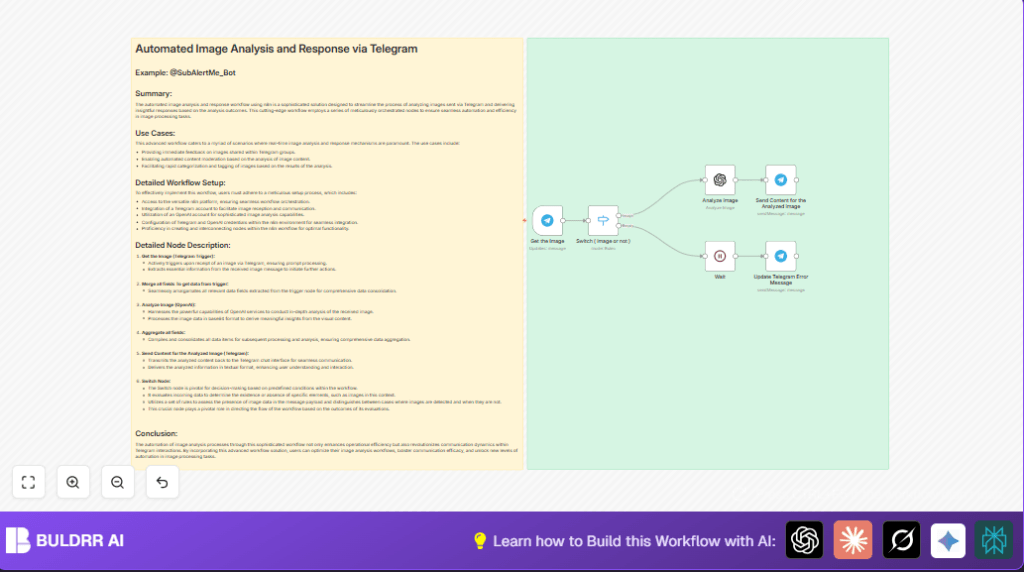
This workflow watches Telegram chats and reacts when someone sends an image.
It checks if the message has a photo and stops if it does not.
If an image is present, it sends the photo to OpenAI to analyze and describe it.
Then it sends back a message with the analysis to the same Telegram chat.
If no image is found, it tells the user to upload a valid photo.
Who should use this workflow
This is for people managing Telegram groups or chats where members share pictures.
If manual image checking wastes time or causes errors, this helps by automating image understanding.
No technical experience is needed to run it inside n8n.
Tools and Services Used
- Telegram Bot API: Receives messages and photos from users.
- OpenAI API (Langchain Image node): Analyzes photos sent by users.
- n8n Automation Platform: Orchestrates the workflow nodes and logic.
Inputs, Processing, and Outputs
Inputs
- Incoming Telegram messages containing user photos.
Processing Steps
- The Telegram Trigger node listens for new messages.
- A Switch node checks if the incoming message contains a photo.
- If no photo, a Wait node delays briefly, then a Telegram message node tells the user to upload an image.
- If photo exists, the OpenAI Image Analyze node receives the photo in base64 format.
- OpenAI returns descriptive analysis of the image content.
- A Telegram message node sends the analysis back to the chat.
Outputs
- Text replies in Telegram chats that describe and analyze the images sent by users.
- Error messages prompting users to upload valid images when needed.
Beginner step-by-step: How to build this in n8n
Import the workflow
- Download this workflow file using the Download button on this page.
- Open your n8n editor.
- Use the menu option “Import from File” and upload the downloaded workflow.
Configure credentials and settings
- Add your Telegram API credentials in the Telegram nodes.
- Insert your OpenAI API key in the OpenAI node credentials.
- Verify that the Telegram Trigger node has correct permissions to get images.
- Check if IDs like chat IDs, user IDs, or message fields match your Telegram setup; update them if needed.
Test and activate
- Send an image to your Telegram bot or account to test if the workflow triggers.
- Watch the execution and confirm the reply message with the image analysis arrives.
- Turn the workflow from draft to active mode in n8n to start using it live.
For hosting the workflow long term, consider using self-host n8n for better control and uptime.
Handling edge cases and failures
If the workflow says “No image found in the message,” the Switch node could be checking for the wrong field or the Telegram Trigger lacks the download permission.
Check the Switch node condition uses {{$json.message.photo}} properly.
If OpenAI gives an error or no useful text, make sure the image is correctly downloaded and base64 encoded.
Verify OpenAI API key is valid and API usage limits are not exceeded.
Customization ideas
- Change the error reply text in the Telegram message node to fit the chat’s style.
- Add more rules in the Switch node to check for captions or other media types.
- Introduce a language detection node to translate or adjust prompts dynamically.
- Save image analysis results in databases like Google Sheets for history and review.
- Try swapping OpenAI with other AI services if preferred.
Summary of benefits
✓ Saves many hours by automating image reading and replying.
✓ Reduces mistakes from manual image understanding.
✓ Keeps Telegram conversations faster and more helpful.
✓ Simple to set up inside n8n with little coding.
