

What This Workflow Does ⚙️
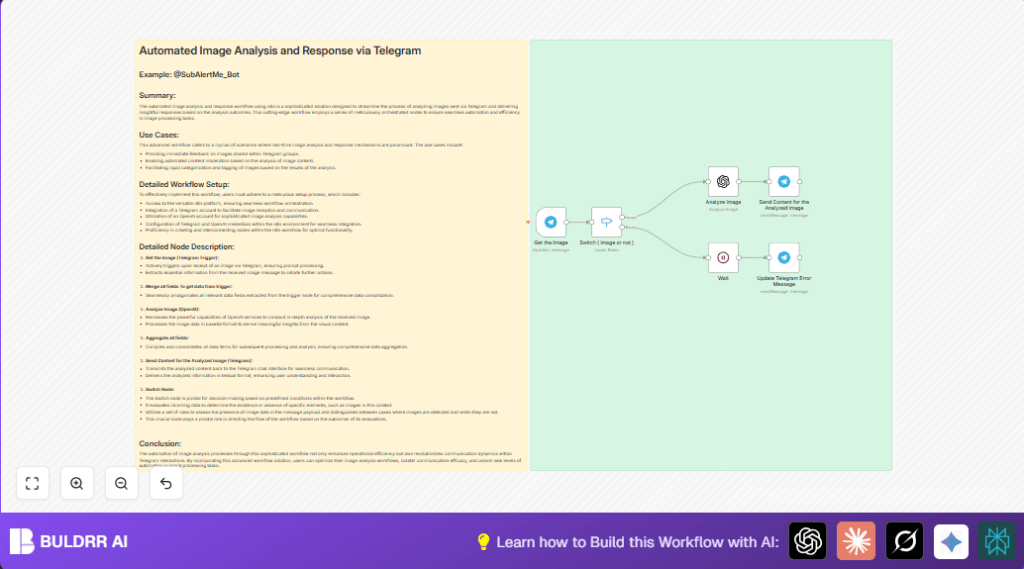
This workflow watches for photos sent in a Telegram chat. It takes each photo, changes it into base64 format, and sends it to OpenAI for analysis. Then, it sends back a simple text message explaining what the image is about. If there is no photo, it waits 3 seconds before asking the user to upload one.
The main problem it solves is saving time by automating image checks and replies in Telegram. Users get quick feedback without waiting for manual reviews.
This workflow runs automatically and never misses when an image is sent. It splits messages with and without photos to do the right action.
Tools and Services Used
- Telegram Bot API: Receives user messages.
- OpenAI Image Analysis API: Processes images and returns descriptions.
- n8n Automation Platform: Manages the workflow and nodes.
- Base64 Encoding: Converts image files for OpenAI processing.
Inputs → Processing Steps → Output
Inputs
- Photos sent as Telegram messages.
- Non-photo messages triggering error response.
Processing Steps
- Telegram Trigger node listens for all incoming messages and downloads images.
- Switch node checks if the message includes a photo.
- OpenAI node takes base64 photo and generates a text summary.
- Telegram Send Message node replies with the image analysis.
- If no photo, Wait node delays response by 3 seconds, then Telegram node sends error prompt.
Output
- Instant text messages describing uploaded images.
- Polite prompts asking for a photo when none is sent.
Beginner Step-by-Step: How to Use this Workflow in n8n
1. Import Workflow File
- Download the workflow file using the Download button on this page.
- Open the n8n editor and click “Import from File”.
- Select the workflow file to load it.
2. Configure Credentials and IDs
- Add Telegram and OpenAI API Keys in the Credentials section.
- Check if the Chat ID or other specific IDs match your Telegram chat.
- Update any other settings like emails or folder IDs if used.
3. Test the Workflow
- Send a test image to your Telegram bot or group.
- Ensure the workflow triggers and you get a reply with the analysis.
4. Activate Workflow for Production
- Toggle the workflow switch ON to start live operation.
- Monitor for errors in logs and fix if needed.
- Consider self-host n8n for better control if not using cloud.
Edge Cases and Failure Handling
- If a message has no photo, the Switch node routes it to a Wait node which pauses 3 seconds.
- After waiting, a Telegram node sends “Please Upload an Image” message to keep users polite but informed.
- If the image data is missing, common cause is Telegram Trigger lacking the download setting.
- Incorrect expressions for extracting Chat ID cause failures in sending replies.
- OpenAI errors often arise from API key problems or bad base64 input.
Customization Ideas ✏️
- Edit the Telegram reply message to add greetings or instructions.
- Change Wait node timing for longer or shorter delays on error prompts.
- Expand OpenAI image analysis to use more detailed prompts.
- Add a Google Sheets node to save analysis results for review or training.
- Adjust Switch node rules to detect videos or other media.
Pre-Production Checklist ✅
- Ensure Telegram and OpenAI API Keys are connected and have permissions.
- Test Telegram bot receives images and triggers workflow.
- Verify Switch node properly routes messages with and without photos.
- Confirm OpenAI returns expected text analysis.
- Test reply messages go to correct Telegram chats.
- Backup the workflow in n8n before changes.
Deployment Guide
Turn ON the workflow in n8n after successful tests.
Watch workflow logs for any unexpected errors.
Scale up OpenAI plan and n8n hosting if message traffic grows.
Summary
✓ Saves time by automating photo analysis in Telegram.
✓ Gives instant explanations of images for users.
✓ Handles cases without images politely.
✓ Runs without manual checks or delays.
→ Helps speed replies and improve group engagement.
