

What this workflow does
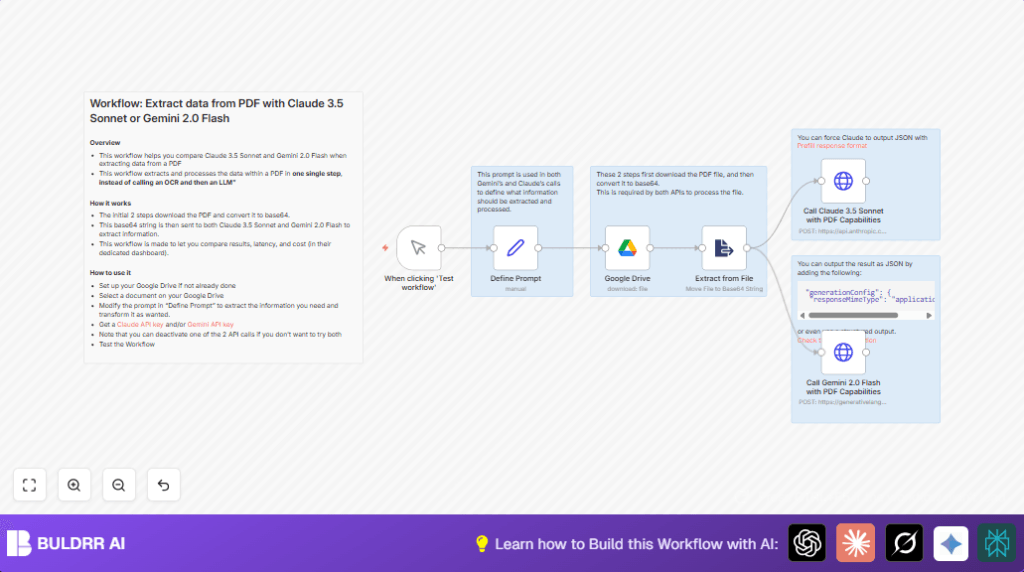
This workflow takes a PDF file from Google Drive and pulls out specific data like VAT numbers.
It uses two AI models at once — Claude 3.5 Sonnet and Google Gemini 2.0 Flash — to read the PDF and find the info you ask for.
The result is faster, easier, and less error-prone extraction of data from invoices.
The workflow cuts down on manual steps by sending the PDF in base64 straight to the AI for direct extraction.
This removes the need to use separate OCR processing and multiple tool integrations.
Who should use this workflow
Anyone who needs to grab information from PDFs stored in Google Drive regularly.
This is great if you want to save time on repetitive data extraction like VAT numbers from invoice PDFs.
You do not need to be a tech expert. Basic familiarity with n8n and API keys is enough.
If you want to compare two AI providers to find what works best for your documents, this is helpful too.
Tools and services used
- Google Drive API: Downloads PDF invoices.
- n8n: Runs the workflow and handles data flow.
- Claude 3.5 Sonnet API (Anthropic): Extracts info from base64 PDFs.
- Google Gemini 2.0 Flash API: Processes the same PDF to extract data.
Beginner step-by-step: How to use this workflow in n8n production
Download and import
- Click the Download button on this page to save the workflow file (.json).
- Inside the n8n editor, choose “Import from File” and upload the saved workflow.
Configure credentials and settings
- Add your Google Drive OAuth2 credentials in n8n credential settings.
- Enter your Claude 3.5 Sonnet API key in the appropriate HTTP Request node.
- Enter your Google Gemini 2.0 Flash API key in its HTTP Request node.
- Find the Google Drive node and replace the sample
fileIdwith your actual PDF file ID from Google Drive. - Open the Define Prompt node and update the
promptfield if you want to extract other information beyond VAT numbers.
Test and activate
- Run the workflow once using the Manual Trigger node to check if everything works and outputs the data.
- If results are good, activate the workflow for regular use or schedule it inside n8n.
If self hosting n8n, visit self-host n8n for help with setup and scaling.
Inputs, processing, and output explained
Inputs
- Google Drive PDF file specified by file ID.
- User-defined prompt telling AI what data to extract.
Processing Steps
- The PDF file is downloaded from Google Drive.
- It is converted from binary to a base64-encoded string inside n8n.
- This base64 PDF and prompt are sent in parallel HTTP requests to Claude 3.5 Sonnet and Google Gemini 2.0 Flash APIs.
- Each AI endpoint reads the PDF and extracts requested data.
- Outputs from both AI models are returned to compare and choose the best.
Output
Structured text or JSON containing extracted data like VAT numbers.
The user can review outputs side by side for accuracy, latency, and cost trade-offs.
What to do if errors happen
- Google Drive file not found or permission denied: Check if the file ID is correct.
Re-authorize Google Drive OAuth2 credentials in n8n. - Invalid authentication on HTTP Request nodes: Make sure API keys for Claude and Gemini are active and entered correctly.
Verify API scopes in platform consoles. - Empty or malformed AI responses: Confirm the prompt and JSON body formats follow the workflow examples exactly.
Test with simple prompts first.
Customization ideas
- Edit the prompt text in the Define Prompt node to extract info other than VAT, like invoice dates or supplier names.
- Disable one AI provider’s HTTP Request node to reduce API calls and costs.
- Modify request bodies to ask for JSON responses for easier parsing, using
"generationConfig": { "responseMimeType": "application/json" }. - Replace the
fileIdin the Google Drive node with your own PDF file ID for your documents. - Add extra logging nodes after API calls to keep records of outputs.
Final summary
→ Automates data extraction from PDF files on Google Drive using AI.
→ Combines two AI models to improve accuracy and let user compare results.
→ Removes complex OCR and manual processing steps.
→ Easy to set up, runs inside n8n with minimal technical skill.
→ Helps you save time, reduce errors, and customize extraction needs.
