
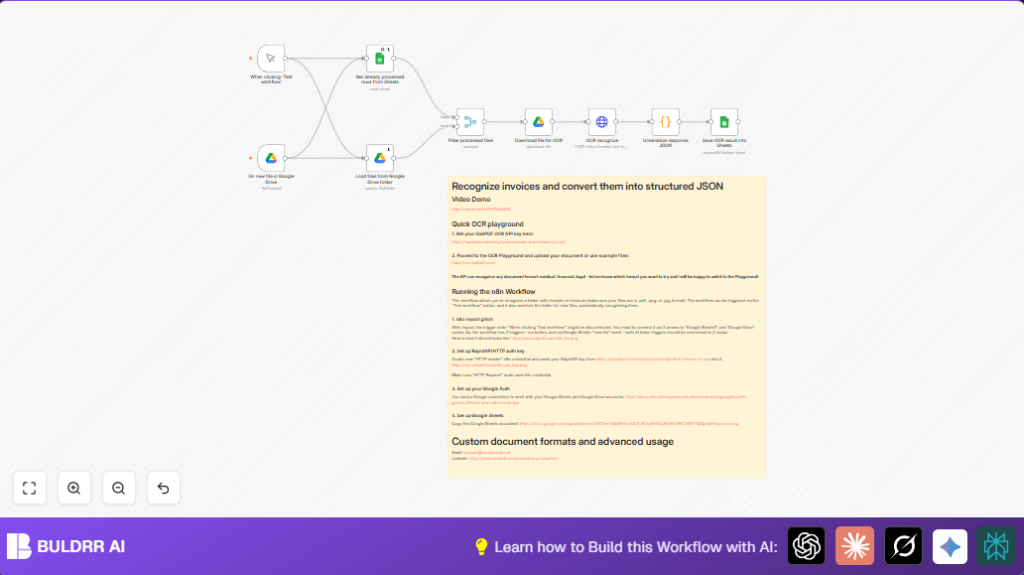

What this workflow does
This workflow watches a Google Drive folder for new receipts or invoices and gets info from them automatically using OCR.
It stops repeating already done files and adds the extracted data into a Google Sheets document.
The main problem it solves is slow, error-prone manual data entry of financial documents.
The outcome is fast, more accurate data collected in sheets without manual typing.
Inputs, processing, and output
Inputs
- New or existing receipt and invoice files (PDF, PNG, JPG) from a Google Drive folder.
- Previously processed file info from Google Sheets to avoid duplicates.
- OCR API key for accessing the OakPDF Receipt and Invoice OCR API.
Processing steps
- Watch the Google Drive folder for new files using the Google Drive Trigger node.
- List all files in the folder to get metadata.
- Get already processed file records from Google Sheets.
- Compare file lists and skip files already processed.
- Download new files for OCR using the Google Drive node.
- Send files to OakPDF OCR API via HTTP Request node to extract text.
- Parse the OCR JSON response using a Code node to get structured data.
- Append or update the extracted data into a Google Sheets document.
Output
Structured invoice and receipt data organized in Google Sheets.
Who should use this workflow
This workflow works best for people who get many digital invoices and receipts.
It helps those who want to stop typing data manually and avoid mistakes in finance record keeping.
It also suits users that want to automate data extraction without deep technical skills.
Tools and services used
- n8n: Runs the automation workflow.
- Google Drive API: Watches and downloads files from a Drive folder.
- Google Sheets API: Reads and writes structured data.
- OakPDF Receipt and Invoice OCR API: Extracts text and data from receipts and invoices.
- RapidAPI: Hosts the OCR API and manages API keys.
Beginner step-by-step: How to use this workflow in n8n
Step 1: Download and import workflow
- Click the Download button on this page to save the workflow file.
- Open your n8n editor where you want to use automation.
- Use the “Import from File” option and select the saved workflow file.
Step 2: Configure credentials and settings
- Add your Google Drive and Google Sheets OAuth credentials in n8n.
- Enter your OakPDF OCR API key from RapidAPI in the HTTP Request node credentials.
- Update folder IDs for Google Drive nodes to the folder where receipts and invoices will be stored.
- Update Google Sheets document ID and sheet name if needed.
Step 3: Test the workflow
- Use the Manual Trigger node to run the workflow once and check it works correctly.
- Make sure file downloads, OCR calls, parsing, and Google Sheets updates run without errors.
Step 4: Activate for production
- Enable the Google Drive Trigger in the workflow to start automatic processing on new files.
- Monitor n8n logs if anything needs fixing.
- You can visit self-host n8n to run your own server if you want control over the environment.
Customizations
- Change documentType in the HTTP Request node body to “receipt” if focusing on receipt files.
- Add more Google Drive Trigger nodes to watch multiple folders.
- Edit the Code node to extract more or different data fields from OCR JSON results.
- Use a Webhook node instead of manual trigger to automate external file push events.
Troubleshooting
- 401 Unauthorized error: Check if your OakPDF API key in the HTTP Request node is correct and not expired.
- No new file processing: Verify your Google Drive folder ID in the Google Drive Trigger matches your upload folder.
- Google Sheets update errors: Confirm sheet ID, name, and column mappings in the Google Sheets node are accurate.
Pre-Production Checklist
- Make sure Google Drive folder ID is accessible with your n8n credentials.
- Confirm the OCR API key from RapidAPI is valid and set.
- Run the workflow once with the Manual Trigger to check end-to-end.
- Check the Google Sheets document is shared with n8n Google account and has right columns.
- Ensure no duplicate entries happen after processing.
Deployment Guide
Turn on the workflow in n8n to enable the Google Drive Trigger.
Files added in the watched folder will start processing automatically.
Use the manual trigger for testing or troubleshooting anytime.
Check workflow logs in n8n for problems or to confirm smooth running.
Summary / Results
✓ Saves about 5 hours per week by removing manual data entry.
✓ Reduces mistakes in financial document data.
✓ Automatically keeps receipts and invoices organized in Google Sheets.
✓ Works with PDFs, PNGs, and JPGs.
✓ Easy to test, customize, and run in n8n.
