
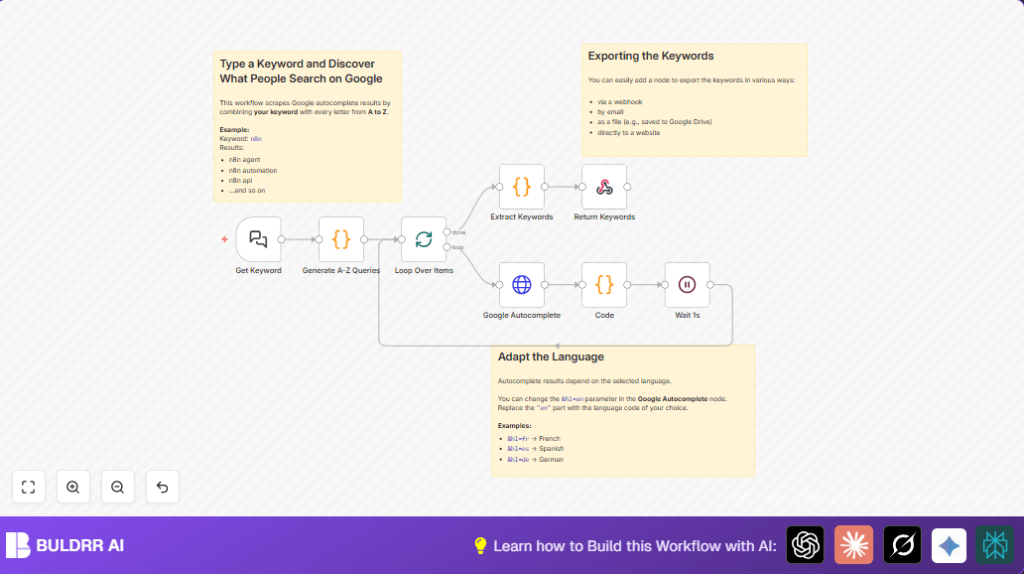

What This Workflow Does
This workflow takes one base keyword from your chat input.
It adds every letter from a to z after the keyword.
Then it asks Google autocomplete for each of these new phrases.
It waits between batches to avoid getting blocked.
In the end, it collects all keyword suggestions into one list.
You get a combined list of many keyword ideas fast.
This saves time and finds more keywords than typing by hand.
It avoids errors and respects Google’s limits.
Inputs, Processing Steps, and Output
Inputs
- Chat input keyword: The base word you want to research, entered via Langchain Chat Trigger node.
Processing Steps
- Generate 26 queries adding letters a-z after the base keyword using a Code node.
- Split these into batches of 10 with SplitInBatches node to control request rate.
- Call Google autocomplete API for each query with HTTP Request node.
- Pause 1 second between batches using a Wait node to avoid IP blocks.
- Extract keyword suggestions from API response JSON with Code node.
- Merge all keyword arrays into one large list in a final Code node.
Output
- The workflow returns a single JSON list of keywords via Respond to Webhook node.
Who Should Use This Workflow
The workflow is for anyone who researches keywords manually and wastes time.
Anyone wanting more complete keyword lists from Google autocomplete should use it.
It helps digital marketers, bloggers, and SEO beginners.
Tools and Services Used
- n8n: To design and run the automation workflow.
- Langchain Chat Trigger Node: To input the base keyword interactively.
- Google Autocomplete API: No API key needed, it provides keyword suggestions publicly.
- HTTP Request Node: To call Google’s autocomplete endpoint with each query.
- Code Nodes: To generate query lists and parse responses.
- Wait Node: To delay requests during batch processing and avoid blocking.
Beginner Step-by-Step: How to Use This Workflow in n8n
Step 1: Import the Workflow
- Download the workflow file using the Download button available on this page.
- Open n8n editor where the user is already working.
- Use the Import from File option in n8n to load the workflow JSON.
Step 2: Configure Workflow After Import
- Check if credentials or API keys are needed and add them if requested.
- Update any placeholders like email addresses, channel IDs, folder paths, or table names if the workflow exports data.
- Review the Code node that generates queries to confirm the base keyword input is mapped correctly.
Step 3: Test the Workflow
- Trigger the Langchain Chat Trigger by entering a sample keyword.
- Observe the workflow process, outputs, and error messages if any.
Step 4: Activate for Production Use
- Once testing is successful, enable the workflow in the n8n editor.
- Use the input trigger to automatically run the workflow when you need keyword research.
- Consider linking outputs to email or file nodes for easy access.
For users running self-host n8n, keep monitoring API rate limits and errors during runs.
Common Edge Cases and Errors
HTTP 429 Rate Limit Errors
This happens when queries to Google autocomplete are too fast.
To fix, increase wait time in the Wait node to 2+ seconds.
Reduce batch size if necessary in the SplitInBatches node.
Empty or Wrong Keyword Lists
Sometimes the Google API response format may change.
Review the Code node that parses JSON.
Make sure it matches the current response structure exactly.
Test the API manually if needed.
Customization Ideas
- Change autocomplete language by editing the &hl=en parameter in the HTTP Request node to any language code.
- Adjust batch size in the SplitInBatches node to balance speed and API safety.
- Add nodes to export data automatically like Email Send or Google Sheets.
- Link output to other workflows for content creation or paid ad campaigns.
Summary and Outcome
✓ Saves hours of manual keyword entry every week.
✓ Finds more keyword variations by adding letters a-z automatically.
✓ Runs safely without breaking Google’s API limits.
✓ Returns big lists of keyword suggestions in one go.
✓ Works directly from chat input with flexible outputs.
→ A helpful tool for anyone doing SEO or keyword research.
→ Easy to import, test, and activate inside n8n.
→ Flexible to customize and integrate with other services.
