

What This Automation Does
This n8n workflow takes keyword queries and returns many clean Google autocomplete suggestions automatically.
It stops marketers from copying suggestions by hand.
The workflow fetches data from Google and organizes keyword lists fast.
This saves time and stops human mistakes.
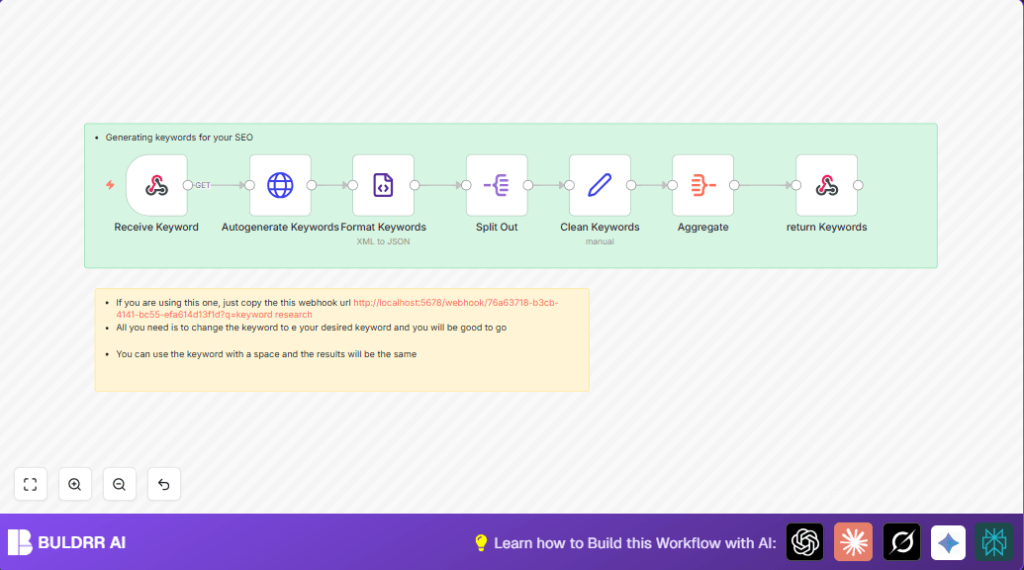
When running, the workflow gets query words from a webhook.
Then it talks to Google’s autocomplete API.
It changes Google’s XML reply to JSON format to work inside n8n.
Next, it breaks out each suggestion into items.
After cleaning keywords, it bundles them into one list.
Finally, it sends the full keyword list back to the caller.
Beginner step-by-step: How to use this workflow in n8n production
Step 1: Import the workflow
- Download the workflow file using the Download button below.
- Open n8n editor.
- Use the Import from File option to add this workflow.
Step 2: Configure the workflow
- Check that the Webhook node path is unique and correct.
- Add any needed credentials or API keys if any external nodes require them (not mandatory here).
- Update any IDs, emails, Slack channels, Google Sheets tables, or folders in nodes if you customize later.
Step 3: Test the workflow
- Trigger the webhook URL with a query parameter
?q=your+keywordin a browser or HTTP client. - Watch the execution in the n8n editor and verify keywords are returned.
Step 4: Activate for production
- Turn on the workflow to “Active” in n8n so it listens to webhook calls.
- Use the webhook URL in your marketing tools or integrations.
If self hosting n8n, see self-host n8n for stable server setup.
Inputs → Processing Steps → Output
Inputs
- Keyword query sent as HTTP GET with parameter
qto the webhook URL.
Processing Steps
- Webhook node receives the query.
- HTTP Request node calls Google autocomplete API with the query.
- XML node parses the XML response into JSON.
- Split Out node breaks keyword suggestions into individual items.
- Set node cleans keywords and extracts the main text.
- Aggregate node combines all cleaned keywords into a single array.
Output
- Respond to Webhook node sends back the full array of keywords as JSON.
Who Should Use This Workflow
This automation is best for digital marketers who do SEO keyword research.
Non-technical people who need quick keyword ideas can use it.
It helps anyone who wants to stop manual copying and get lists fast.
Tools & Services Used
- n8n: Automation platform to build and run workflow.
- Google Autocomplete API: Provides keyword suggestions as XML.
- HTTP Request node: Calls Google API with dynamic query.
- XML node: Converts XML response to JSON.
- Split Out node: Splits keyword list items.
- Set node: Cleans and extracts keywords.
- Aggregate node: Combines keywords into a list.
- Respond to Webhook node: Sends final keyword list back.
Customization Ideas ✏️
- Change
gl=USin HTTP Request URL to other country codes to get localized keywords. - Add
hl=enorclient=firefoxparameters to Google API for language or client tweaks. - Store keywords to Google Sheets or Airtable after aggregation for tracking.
- Send keywords via email or Slack using service nodes to notify teams.
- Add extra cleaning steps to remove duplicates or filter keywords.
Troubleshooting ????
- Webhook not receiving requests
This happens if the webhook is inactive or URL is wrong.
Activate the webhook and test URL carefully. - HTTP Request returns empty or bad XML
Could be wrong URL or empty input query.
Check URL expression and that webhook passes correct query. - Aggregate node fails to combine keywords
May be wrong field names or no data.
Check field names in Set node and debug logs.
Pre-Production Checklist ✅
- Test webhook URL with different keywords.
- Verify HTTP Request node returns proper XML.
- Confirm XML node parses correctly to JSON.
- Ensure Split Out node separates suggestions.
- Check that aggregate returns full final list.
- Backup workflow JSON for easy restore.
Deployment Guide
Activate the Webhook node to listen for requests.
Watch execution in n8n dashboard.
Use logs to debug errors.
Schedule tests if running in production.
Summary
✓ Saves hours spent copying keyword suggestions manually.
✓ Prevents human mistakes in keyword research.
✓ Provides clean, aggregated Google autocomplete keywords.
✓ Easy to trigger remotely via webhook.
✓ Can be extended with storage or notifications.
→ Delivers fast, reliable keyword lists for SEO work.
