
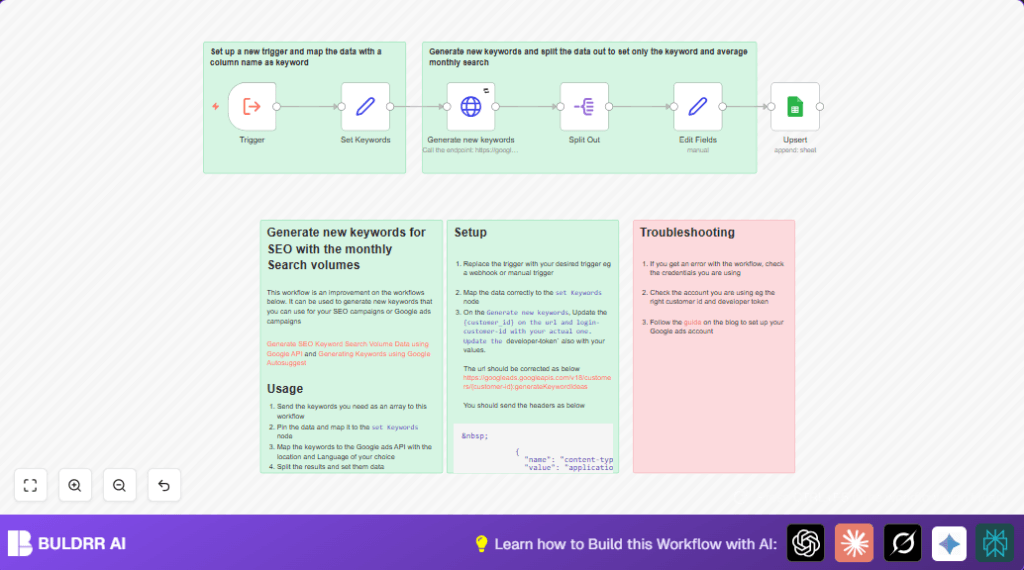

What This Workflow Does
This workflow takes a list of starting keywords and finds new keyword ideas from Google Ads API.
It also gathers important info like monthly search numbers, how hard the competition is, and top bids for ads.
All results go into a Google Sheet so you can look and use them easy.
It saves a lot of time because no manual searching or copying needed.
Who Should Use This Workflow
This is good for people who need fresh keyword ideas fast.
Especially for beginners with many clients who want fresh SEO or ad keywords every week.
If you spend lots of time looking keywords one by one, this helps to get many at once.
Tools and Services Used
- n8n platform: Runs the automation and connects nodes.
- Google Ads API: Provides new keyword ideas and stats.
- Google Sheets: Stores and shows keywords with details.
- Google OAuth2 credentials: Securely access Google Ads and Sheets APIs.
Inputs, Processing, and Outputs
Inputs
- An array of seed keywords placed in the starting trigger node.
- Google Ads API credentials like developer-token, customer-id, and login-customer-id.
- Google Sheets details: spreadsheet ID and sheet name to save results.
Processing
- The trigger node grabs the keyword array and sends to the Set Keywords node.
- The HTTP Request node calls the Google Ads API with those keywords.
- The API responds with keyword ideas plus monthly searches, competition, and bids.
- The Split Out node separates each keyword idea for easy handling.
- The Edit Fields node extracts and changes names of key info, converts numbers for bids.
- The Upsert node adds or updates rows in Google Sheets with keyword data.
Outputs
- Google Sheet filled with new keyword ideas and their search and competition info.
- Separated keyword items ready for other workflows or reports if linked onward.
Beginner Step-by-Step: How to Use This Workflow in n8n
1. Import the Workflow
- Download the provided workflow file using the Download button on this page.
- Open your n8n editor and click “Import from File.”
- Select the downloaded file to load the workflow into your workspace.
2. Add Credentials and IDs
- Find the Google Ads API credentials stored in n8n or add new ones with developer-token, customer-id, and login-customer-id.
- Check the HTTP Request node labeled Generate new keywords and update the URL replacing {customer-id} with your actual ID.
- In the Upsert Google Sheets node, enter your spreadsheet ID and sheet name.
3. Test the Workflow
- Run the workflow once manually or trigger it to see if new keywords come back and update the sheet.
- Check for any errors related to credentials, API call, or sheet access.
4. Activate for Production
- After successful tests, enable or activate the trigger node (like manual or webhook) so the workflow runs automatically when started.
If using self hosting n8n or running on a VPS, see self-host n8n for help with setup.
Customization Ideas
- Change the country by editing
geoTargetConstantsin the API call body. - Set different languages by adjusting the
languageproperty in the HTTP request JSON. - Get more keyword ideas per run by increasing
pageSizebut watch API limits. - Use another data store instead of Google Sheets, like Airtable or a database node.
- Replace the trigger node with a webhook to start the workflow from another app.
Edge Cases and Troubleshooting
- 401 Unauthorized or Invalid Credentials: Check that developer-token, customer-id, and login-customer-id are correct and active in the Google Ads API credentials.
- Empty Results from Keyword Ideas: Make input keywords broader or fix geoTarget and language constants for better coverage.
- Google Sheets Not Updating: Confirm the sheet name and ID are correct and the Google Sheets credential has write permission.
Summary
✓ Automatically create keyword ideas with search volume and competition figures.
✓ Save data cleanly in Google Sheets without manual effort.
→ Helps quickly find new keywords based on input seeds.
→ Reduces manual work and errors in keyword research.
→ Sets up repeatable runs inside n8n with easy triggers.
