

What This Automation Does
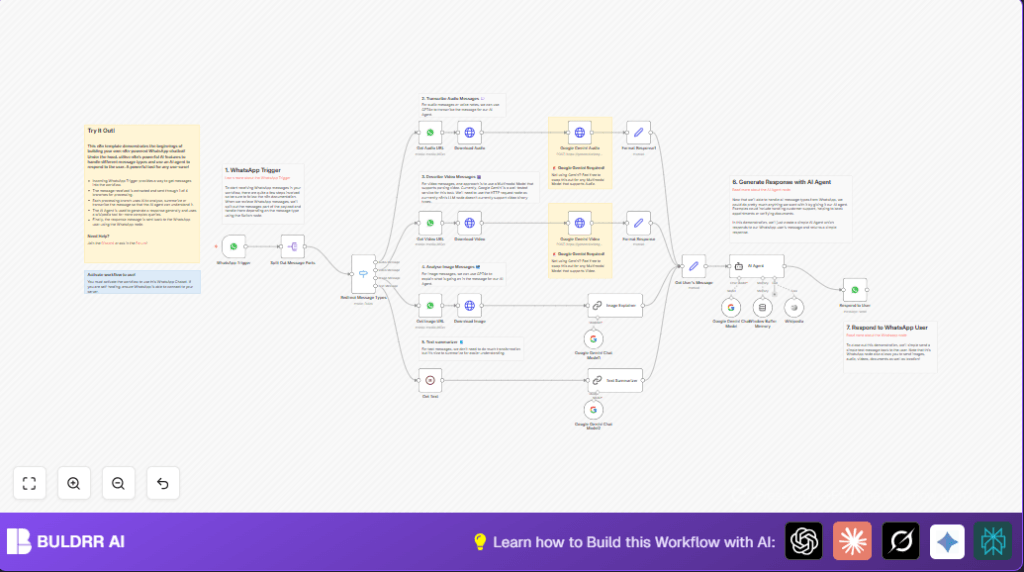
This workflow listens to WhatsApp messages coming in, then handles each message by type.
It can understand audio, video, images, and text messages automatically.
Audio and videos get transcribed or described through Google Gemini AI.
Images get explained by GPT-4o AI.
Text messages are summarized.
The workflow then replies to the sender with a smart, clear answer based on these insights.
This helps customer support save many hours by replying fast without manual work.
Who Should Use This Workflow
Any business receiving many WhatsApp messages daily.
Especially those with mixed message types like voice notes, videos, or photos.
Teams wanting to respond quickly but without hiring more staff.
Users looking to automate message understanding and replies easily.
Tools and Services Used
- WhatsApp API: Receives and sends WhatsApp messages.
- Google Gemini API: Transcribes audio and describes video content.
- GPT-4o AI model: Analyzes images and summarizes text.
- n8n Workflow Automation: Runs the workflow logic and nodes.
Inputs, Processing Steps, and Output
Inputs
- WhatsApp messages of types text, audio, video, or image.
- Message media IDs for fetching files.
Processing Steps
- Trigger on new WhatsApp messages via WhatsApp Trigger.
- Split multiple messages with Split Out.
- Detect each message type in a Switch node.
- For audio/video: Fetch URL with WhatsApp node, download with HTTP Request, then send binary data to Google Gemini API for transcription/description.
- For images: Fetch and download, then analyze using GPT-4o LangChain AI node.
- For text: Summarize message using LangChain AI summarizer node.
- Gather all processed info with a Set node.
- Use Window Buffer Memory node for conversation context keyed by phone number.
- Run AI Agent node to generate replies based on all data and memory.
- Send reply back with WhatsApp Send node.
Output
- AI-generated, context-aware text replies sent to WhatsApp users automatically.
Beginner Step-by-Step: How to Use This Workflow in n8n Production
Step 1: Download and Import
- Download the workflow file using the Download button on this page.
- In your n8n editor, click “Import from File” and select the downloaded workflow file.
Step 2: Add Credentials
- Open the imported workflow, add your WhatsApp API OAuth credentials to the WhatsApp Trigger and WhatsApp Send nodes.
- Enter your Google Gemini API Key in the relevant HTTP Request nodes for audio and video processing.
- Set your GPT-4o API credentials in the AI chain nodes for image analysis and text summarization.
Step 3: Update IDs and Variables
- If needed, update phone numbers, message type field names, or any custom IDs in the Set or Switch nodes.
- Check all prompts in AI nodes and copy-paste if instructions need changes for user tone or style.
Step 4: Testing
- Send test WhatsApp messages of different types (text, audio, video, image) to confirm the workflow triggers and processes correctly.
- Watch n8n execution history for any errors or failed nodes.
Step 5: Activate for Production
- When testing passes, activate the workflow toggling it ON inside your n8n environment.
- Ensure the WhatsApp webhook URL is updated in WhatsApp Business API to point to your running n8n instance.
- If using self-host n8n, make sure the server is reachable publicly with valid HTTPS.
Customization Ideas
- Replace Google Gemini with other AI APIs in HTTP Request nodes.
- Have the bot send images or audio back by enabling multimedia responses in WhatsApp Send node.
- Change summarizer node prompts for different styles, like formal or casual tones.
- Adjust conversation memory session keys in Window Buffer Memory to organize chats differently.
- Expand message type handling by adding new conditions and nodes for documents or location messages.
Troubleshooting
- Problem: “Webhook doesn’t get WhatsApp messages.”
Cause: WhatsApp is not set to send messages to the webhook URL.
Fix: Register the WhatsApp Trigger webhook URL inside WhatsApp API settings. Check credentials. - Problem: “Google Gemini API calls fail or error.”
Cause: Wrong HTTP request format or bad API key.
Fix: Check POST body JSON structure and headers. Confirm API Key is valid and permissioned. - Problem: “AI Agent outputs wrong or blank answers.”
Cause: Missing or incorrect data in Set node input or memory.
Fix: Verify all expected variables are assigned properly and memory is linked.
Pre-Production Checklist
- Confirm WhatsApp API credentials are correct and webhook status is active.
- Test each kind of message on WhatsApp to see the workflow handle it right.
- Check Google Gemini API Keys and enough quota remains.
- Review AI Agent node prompt and memory setup for correct context handling.
- Test reply sending via WhatsApp Send node on real numbers.
- Backup workflow file and credential settings before enabling live.
Deployment Guide
After activating the workflow inside n8n, it will start handling WhatsApp messages automatically.
If self-hosting n8n, ensure your server is public and webhook URL is accessible.
Watch execution logs and output texts in n8n for smooth running.
Update API keys and tokens often to avoid downtime.
Conclusion
This WhatsApp chatbot workflow in n8n copies and understands many message types fast.
It uses AI to make short summaries and transcriptions, so responses come quick without extra staff.
This automation saves time, reduces errors, and keeps customers happy.
Next you can add CRM links, booking tools, or document checks with AI to make the bot more helpful.
You can change or grow this workflow to fit your own business needs.
Use it to get WhatsApp chats managed smartly and easily.
Summary
✓ Saves hours daily by handling WhatsApp multimedia messages automatically.
✓ Uses Google Gemini AI to transcribe audio and describe videos.
✓ Uses GPT-4o AI for image reading and text summarizing.
✓ Sends smart replies back without manual typing.
✓ Keeps chat memory to answer better next messages.
✓ Easy for beginners to set up by importing the workflow in n8n.
✓ Can be customized for different AI models and response styles.
