

What This Automation Does
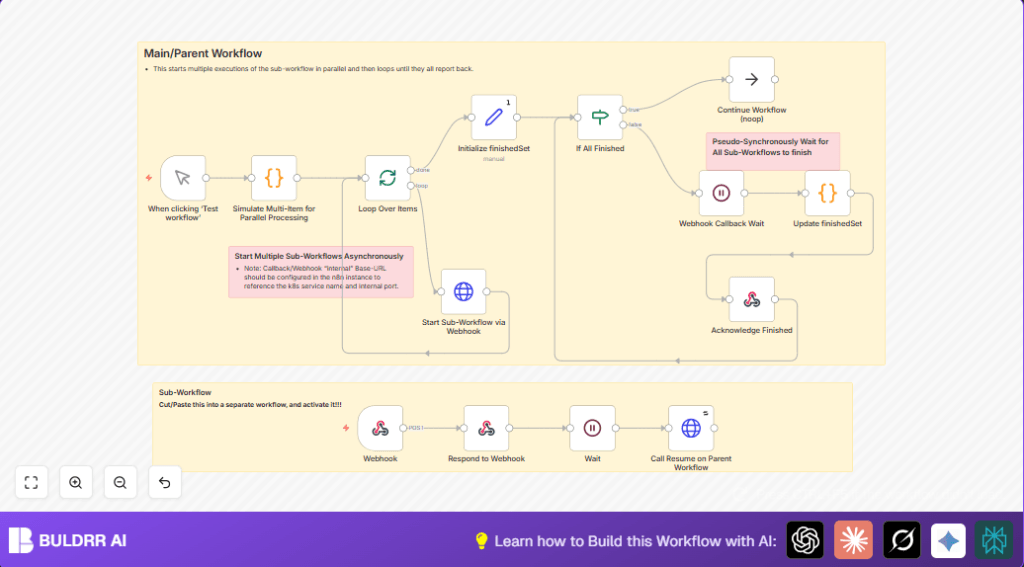
This workflow starts many n8n sub-workflows at the same time and waits for all their results before moving on.
It solves slow manual running and tracking of parallel tasks.
The result is a single workflow that knows when all subtasks are done, so you save time and avoid errors.
It gets a list of tasks as input, starts them together, then waits for each to call back via webhook.
The workflow keeps a list of finished tasks to track progress and only continues when all are complete.
- Starts many workflows at once: Sends HTTP POST requests to start each sub-workflow.
- Tracks tasks done: Uses a variable array to store which tasks finished.
- Waits for callbacks: Uses a webhook wait node to pause and resume when sub-workflows call back.
- Avoids conflicts: Retry and delays in callbacks prevent clashes when multiple complete together.
- Simulates input: Uses a code node to make fake task data for demo and testing.
How the Workflow Works (Input → Process → Output)
Input
The workflow starts with a manual trigger and a Code node that produces an array of task request IDs.
This simulates having many tasks to process in parallel.
Processing Steps
- The SplitInBatches node takes each task item and processes them one by one.
- A Set node initializes an empty array named finishedSet to store IDs of finished sub-workflows.
- An HTTP Request node sends POST requests to start sub-workflows using the webhook URL with each requestId.
- A Webhook Callback Wait node waits for each sub-workflow to call back indicating completion.
- A Code node updates the finishedSet array with each new callback ID, avoiding duplicates.
- An If node checks if all tasks finished by comparing finishedSet length to total tasks.
- The workflow either waits for more callbacks or proceeds to the next step when all done.
Output
The workflow only proceeds when all child workflows have reported completion.
This ensures downstream steps get full, correct data.
Who Should Use This Workflow
This workflow fits users who need to handle many parallel tasks inside n8n.
It helps when managing multiple workflows that must complete before moving on.
It is good for operations teams, developers, or automation builders wanting to improve time or accuracy.
It works well when sub-workflows send webhook callbacks to report their status.
Tools and Services Used
- n8n Manual Trigger node: Start the workflow manually.
- n8n Code node: Simulates an input list of tasks.
- n8n SplitInBatches node: Loops over each task to process.
- n8n Set node: Creates variables to track finished tasks.
- n8n HTTP Request node: Posts data to start sub-workflows.
- n8n Webhook Callback Wait node: Waits for sub-workflows to call back when done.
- n8n If node: Compares finished tasks to expected total.
- n8n Respond to Webhook node: Confirms callbacks were received.
- Environment variable WEBHOOK_URL: Base URL for webhook endpoints.
Beginner Step-by-Step: How to Use This Workflow in Production
Download and Import the Workflow
- Download the workflow file using the Download button on this page.
- Open your n8n editor and use “Import from File” to bring in the workflow.
Configure After Import
- Add any required credentials or API keys in n8n for HTTP Request nodes.
- Update the environment variable
WEBHOOK_URLif needed to match your n8n instance’s URL. - Check and update any IDs, emails, Slack channels, folders, or database tables if mentioned.
- Review the simulated input code in the Code node that creates request IDs and adjust if real input is available.
Testing and Activation
- Run the workflow once using the manual trigger to verify it starts sub-workflows and waits for callbacks.
- Make sure sub-workflows are active and their webhook endpoints are reachable.
- When testing succeeds, activate the workflow to run automatically based on your need.
- The workflow will now handle parallel task orchestration and completion tracking without manual checks.
For hosting n8n on your own server, see self-host n8n for setup tips.
Customizations
- Add a logging step after updating finishedSet to store completed task IDs externally.
- Change the number of parallel workflows by adjusting the batch size in the SplitInBatches node.
- Send different tasks to different sub-workflows by changing the HTTP Request URL dynamically with expressions.
- Add an Error Trigger node to alert a Slack channel or email if a sub-workflow fails.
- Set a timeout in the webhook wait node to handle cases where callbacks do not arrive.
Troubleshooting
- Webhook Callback Wait node not resuming: Check method is POST and response mode is Response Node.
- finishedSet not updating: Ensure Code node checks for duplicates before pushing new IDs.
- Race conditions on callbacks: Use retry and delay in HTTP Request that triggers sub-workflows to avoid multiple quick resume calls.
