
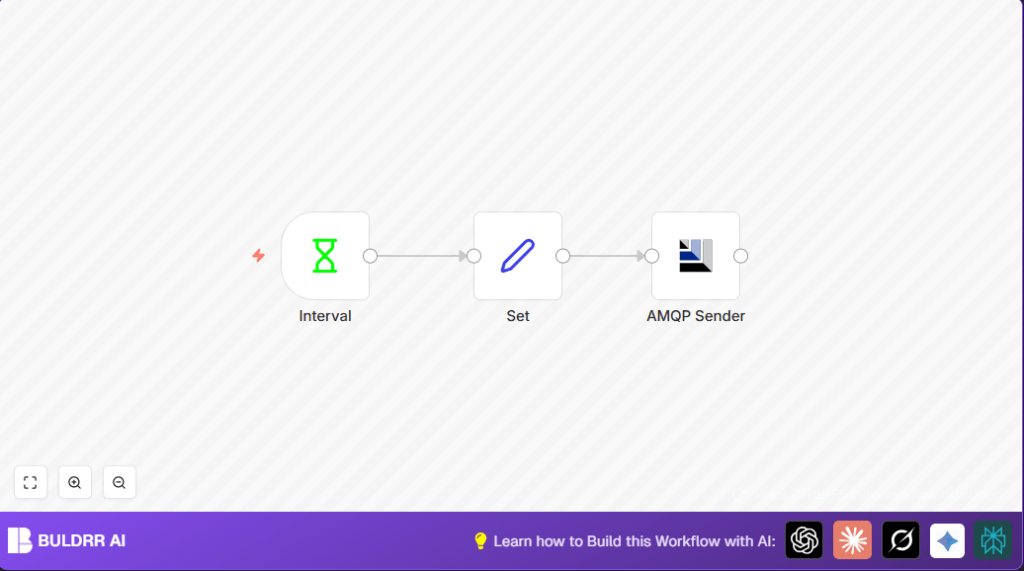

What This Workflow Does
This workflow creates and sends fake factory machine data again and again.
It helps solve the problem of testing data systems without real machines.
It makes random temperature and uptime numbers, adds a time, and sends them to a message queue.
This lets you check if data collection systems work well before using real sensors.
Inputs → Processing → Output
Inputs
- No external input needed to run.
- The workflow starts on a regular timer.
Processing Steps
- Interval node triggers every set time, like every 10 seconds.
- Set node makes a new data object with:
- Machine name “n8n_cr8”.
- Temperature number between 0 and 99.
- Uptime number between 0 and 99.
- Current timestamp in milliseconds.
- AMQP node takes the data and sends it to the message queue “berlin_factory_01”.
Output
- JSON messages in the AMQP queue with fake telemetry info.
- Sample output: { “machine_id”: { “name”: “n8n_cr8”, “uptime”: 72 }, “temperature_celsius”: 54, “time_stamp”: 1685203200000 }
Who Should Use This Workflow
Users who need to test or develop machine data systems.
Those who want automatic, ongoing fake data to check processing or monitoring tools.
This helps avoid making data by hand or missing errors before production.
Tools and Services Used
- n8n Editor: To build and run the workflow.
- Interval node: To start the workflow often at set times.
- Set node: To create the telemetry data with random values.
- AMQP node: To send messages to the RabbitMQ queue.
- RabbitMQ or AMQP broker: Receives machine data messages.
Step-by-Step to Use This Workflow in n8n Production
Download and Import
- Click the Download button on this page to get the workflow file.
- Open n8n editor.
- Use the “Import from File” option to load the workflow file.
Configure Credentials and IDs
- Add your AMQP broker username, password, host, and port in the n8n credentials.
- Check the AMQP node has the queue set to “berlin_factory_01” or change it to your queue.
- If needed, update the machine name or other IDs in the Set node.
Test and Activate
- Run the workflow once manually to see if data is sent to the queue.
- Verify your RabbitMQ or AMQP system receives the messages.
- Activate the workflow to let it run on schedule automatically.
Optional
- If self hosting n8n, make sure network access to AMQP broker is stable. See self-host n8n for help.
Common Mistakes and Troubleshooting
- Using wrong format in the Set node expressions causes numbers to not change.
- If AMQP errors, check username, password, host, and port.
- Wrong queue name stops messages from being received.
- Make sure AMQP broker is running and accessible from n8n server.
Customization Ideas
- Change the interval in the Interval node for faster or slower data.
- Add new fields in Set node like pressure or vibration with random numbers.
- Use different AMQP queues for other factory lines.
- Add a Function node between Set and AMQP to change data format.
- Use a Switch node to send data only at certain times.
Pre-Production Checklist
- Check broker is running and reachable.
- Verify credentials in n8n for the AMQP connection.
- Confirm the trigger interval suits testing needs.
- Confirm the Set node expressions generate correct random values.
- Test message arrival on the AMQP queue.
- Backup your workflow in n8n before going live.
Deployment Guide
Turn on the workflow to run continuously in n8n.
Monitor the queue for steady data flow.
Check execution logs in n8n for errors.
If self hosting n8n, maintain good uptime and network to AMQP broker. See self-host n8n.
Summary
✓ Saves time by automating machine data creation.
✓ Avoid mistakes from manual data entry.
✓ Tests AMQP data ingestion with real-like payloads.
→ Workflow runs repeatedly, making fake temperature and uptime numbers with time.
→ Sends data continuously to AMQP queue for system validation.
Code Expressions to Use in the Set Node
Here are examples of expressions for random values in the Set node fields.
= {{Math.floor(Math.random() * 100)}}Use this in temperature_celsius and machine_id.uptime.
Use = {{Date.now()}} to set the time_stamp to the current time.
