
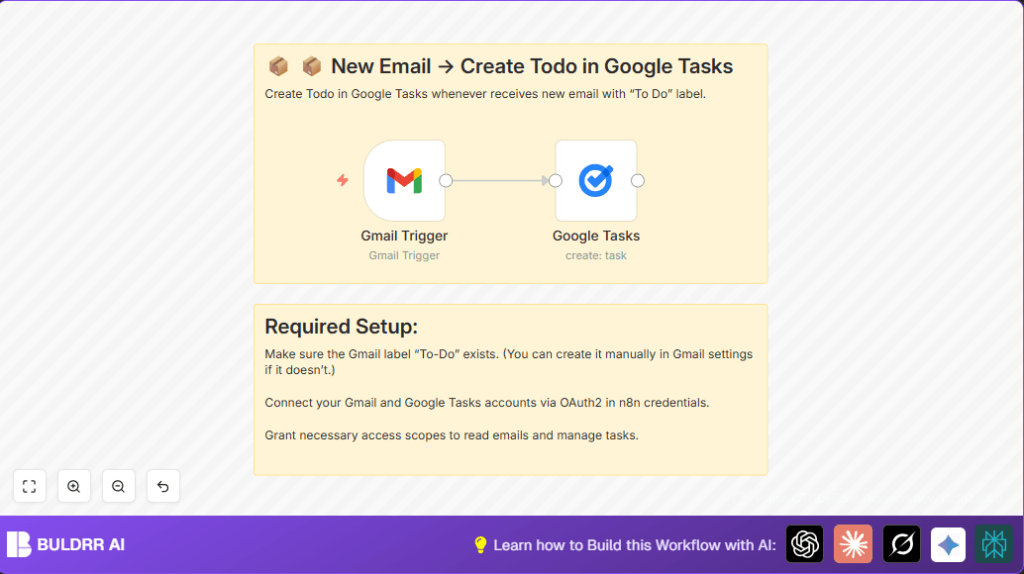

What This Workflow Does
Convert Emails Into Action Items — Never Let One Fall Through the Cracks
You know that feeling when an important email gets buried,
you forget to follow up, and a week later the opportunity is gone?
This workflow eliminates that completely.
The moment you label any Gmail email as “To-Do,” this n8n
workflow automatically converts it into a Google Tasks action
item — with the subject as the task title, the email snippet
as notes, and a due date set for the next day.
No more re-reading emails to remember what needed doing.
No more sticky notes or manual task entry.
No more important emails falling through the cracks.
Label it → Task created → Nothing gets missed.
The Emails That Most Often Fall Through the Cracks
This workflow is built for the exact emails that feel important
in the moment but get buried by the next morning:
→ A client reply asking for a quick update
→ A vendor quote that needs a decision by Friday
→ An introduction email you meant to follow up on
→ An invoice approval sitting in your inbox waiting
→ A job application response that needs a reply today
Every one of these has one thing in common — you read them,
thought “I’ll deal with this later,” and later never came.
The fix is one click: label the email “To-Do” in Gmail.
This workflow handles everything after that — task created,
due date set, notes saved. The email stays in Gmail.
The action item lands in your task manager. Nothing lost.
Who Should Use This Workflow
People who put “To-Do” labels on Gmail emails and want to make tasks fast.
It is good for anyone who uses Google Tasks and wants to avoid typing tasks again.
Tools and Services Used
- Gmail: Email service with a “To-Do” label to mark tasks.
- Google Tasks: Task management to add new tasks automatically.
- n8n: Automation platform to connect Gmail and Google Tasks.
- OAuth2 Credentials: Used to connect n8n securely to Gmail and Google Tasks.
How This Workflow Works (Inputs → Process → Output)
Inputs
New emails in Gmail with label “To-Do.
Processing Steps
- Watch Gmail inbox every minute for emails with “To-Do” label.
- Get email subject and a short part of the message (snippet).
- Create a Google Task using subject as the task title.
- Add snippet as task notes.
- Set task due date to one day after the current date.
Output
New tasks in Google Tasks for each labeled email.
Beginner Step-by-Step: How to Use This Workflow in n8n
Step 1: Import the Workflow
- Download the workflow file using the Download button on this page.
- Open n8n editor.
- Click “Import from File” and select the downloaded file.
Step 2: Configure Credentials
- Add your Gmail OAuth2 credential or service account with Gmail API access.
- Add Google Tasks OAuth2 credential to allow task creation.
Step 3: Update Settings If Needed
- Check the Gmail Trigger node’s filter query is
label:To-Do.
- Check the Gmail Trigger node’s filter query is
- Change Google Tasks node due date expression if you want a different due date.
Step 4: Test the Workflow
- Run the workflow once to make sure it creates a test task from a labeled email.
- Check Google Tasks for the new task.
Step 5: Activate the Workflow
- Toggle the workflow’s active switch in n8n editor’s top right corner.
- Let it watch your Gmail inbox regularly and create tasks automatically.
For better data control or to run this workflow on a private server, consider using self-host n8n.
Customization Ideas
- Change the Gmail label filter to include other labels like
label:Urgentorlabel:FollowUp.
- Change the Gmail label filter to include other labels like
- Modify the task due date by changing the expression, for example, make it 3 days later with
plus(3, day).
- Modify the task due date by changing the expression, for example, make it 3 days later with
- Add more task details like priority or links by editing Additional Fields in the Google Tasks node.
- Add a Gmail Send node after tasks creation to send confirmation emails.
Using This With Click Up, Notion, or Asana Instead of Google Tasks
This workflow uses Google Tasks by default — but many teams
run their task management in Click Up, Notion, or Asana.
Here’s exactly how to swap the destination:
→ Click Up
Replace the Google Tasks node with the Click Up node in n8n.
Map the Gmail subject → Task Name, snippet → Task Description,
and set the List ID to your target Click Up list.
Use the Due Date field and set it to +1 day from trigger time.
→ Notion
Replace the Google Tasks node with the Notion node.
Set the action to “Create Page” inside your Tasks database.
Map Gmail subject → Title property, snippet → Notes property.
Add a Date property and set it to tomorrow’s date automatically.
→ Asana
Replace the Google Tasks node with the Asana node.
Set action to “Create Task” and map subject → Task Name,
snippet → Notes. Set the assignee and project ID for your
team’s workflow board.
In all three cases, the Gmail Trigger stays exactly the same —
only the destination node changes. The label-to-task logic
works identically regardless of which tool you use.
Troubleshooting
Problem: No tasks created although emails are labeled “To-Do.”
Cause: Label name misspelled or missing from Gmail Trigger query.
Fix: Check exact label spelling and that emails have the label. Confirm Gmail Trigger filter query is label:To-Do.
Problem: Google Tasks node shows authentication errors.
Cause: OAuth2 credential expired or missing required permission.
Fix: Reauthenticate Google Tasks OAuth2 credential with correct scopes in n8n.
Pre-Production Checklist
- Confirm “To-Do” label exists and is applied to some emails.
- Test that Gmail Trigger captures labeled emails.
- Verify new tasks appear in Google Tasks after running workflow.
- Check OAuth2 credentials are valid and have needed scopes.
- Backup important data before fully using the workflow.
Deployment Guide
Turn on the workflow in n8n after testing.
Watch execution history for errors at first.
Note that polling Gmail every minute uses Google API limits; monitor quotas to prevent problems.
Summary of Results
✓ Saves time by automatic task creation from emails.
✓ Reduces missed tasks by syncing Gmail labels to Google Tasks.
✓ Keeps task list clear with email subject and snippet.
✓ Easy to set up with standard Gmail and Google Tasks accounts.
