
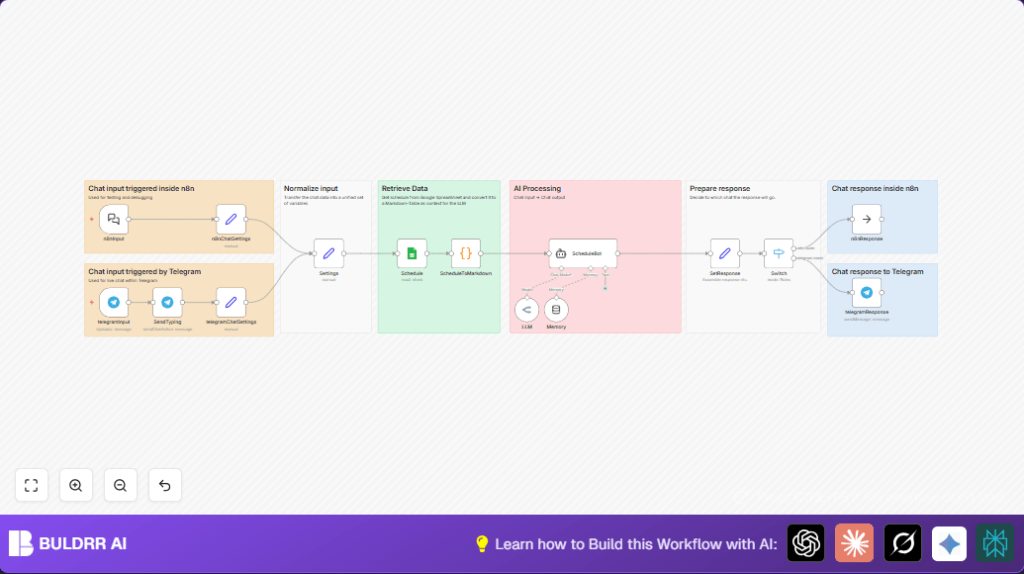

What This Automation Does
This workflow creates a Telegram bot that answers meetup schedule questions fast.
The bot reads the latest schedule from Google Sheets and formats it for AI to understand.
It uses AI to reply with correct, clear schedule info directly in Telegram.
This saves many hours every week and stops wrong info from being shared.
Tools & Services Used
- Telegram Bot API: Receives user messages and sends replies.
- Google Sheets API: Reads the meetup schedule data.
- OpenRouter AI LLM: Generates intelligent schedule responses.
- n8n Workflow Automation: Connects all parts and runs the process.
- LangChain: Helps AI use schedule data as context for replies.
How the Workflow Works (Inputs → Processing → Output)
Inputs
- User sends a schedule question in Telegram chat.
- Or user sends a message inside n8n chat (internal).
Processing Steps
- Telegram Trigger catches user message.
- SendTyping node shows the bot as typing.
- Set nodes extract message text and chat ID, mark input source.
- Google Sheets node fetches current schedule data.
- Code node turns schedule data into a markdown table.
- LangChain Agent node uses this table in AI prompts.
- AI nodes with memory produce response based on chat and schedule context.
- Switch node decides reply channel based on input source (Telegram or internal).
Output
- AI reply sent back to Telegram chat or internal n8n interface.
- User sees fast, accurate answers about meetup schedules.
Who Should Use This Workflow
This workflow fits meetup organizers who answer lots of schedule questions.
It helps communities using Telegram to get real-time, correct updates.
Non-technical users can run it with simple setup and no manual lookups.
Beginner Step-By-Step: How to Use This Workflow in n8n
Download and Import
- Click the Download button on this page to get the workflow file.
- Inside n8n editor, choose “Import from File” and load the downloaded workflow.
Configure Credentials and Settings
- Add your Telegram Bot API credentials in the telegramInput and other Telegram nodes.
- Connect Google Sheets OAuth credentials in the Schedule node.
- Insert your OpenRouter API Key into the AI LLM node.
- Update the Google Sheets URL in the Settings node if the schedule is in a different spreadsheet.
Adjust Code or Prompts if Needed
- If you want to tweak how the schedule is shared, copy code below from the ScheduleToMarkdown node.
- Modify system message in ScheduleBot node to change AI tone.
// Get all rows from the input (each item has a "json" property)
const rows = items.map(item => item.json);

// If no data, return an appropriate message
if (rows.length === 0) {
 return [{ json: { markdown: "No data available." } }];
}

// Use the keys from the first row as the header columns
const headers = Object.keys(rows[0]);

// Build the markdown table string
let markdown = "";

// Create the header row
markdown += `| ${headers.join(" | ")} |\n`;

// Create the separator row (using dashes for markdown)
markdown += `| ${headers.map(() => '---').join(" | ")} |\n`;

// Add each data row to the table
rows.forEach(row => {
 // Ensure we output something for missing values
 const rowValues = headers.map(header => row[header] !== undefined ? row[header] : '');
 markdown += `| ${rowValues.join(" | ")} |\n`;
});

const result = { 'binary': {}, 'json': {} };

// Optionally, also return the markdown string in the json property if needed
result.json.markdown = markdown;

return result;
Test and Activate
- Run the workflow once manually to confirm it fetches data and replies correctly.
- Activate the workflow in n8n to make it live.
- Ensure the Telegram bot webhook is working and publicly accessible.
- If using self hosting n8n, review self-host n8n for hosting options.
Customizations
- Change the Google Sheet by editing scheduleURL in the Settings node.
- Edit AI system message in ScheduleBot to alter how detailed or friendly replies are.
- Add new chat inputs like Slack by adding nodes and expanding the Switch node.
- Send markdown text directly to users if preferred, by changing SetResponse node output.
Troubleshooting Common Issues
Telegram Bot Not Replying
If the bot does not answer, check the Telegram Trigger node setup and bot API keys.
Make sure “message” updates are enabled in the trigger.
Google Sheets Data Not Loading
Verify the spreadsheet URL and OAuth token permissions.
Ensure the sheet is shared properly for read access.
AI Responses Not Using Schedule
Confirm the markdown table passes correctly from ScheduleToMarkdown to ScheduleBot.
Check memory node uses chat ID as session key to keep context.
Pre-Production Checklist
- Telegram bot webhook is active and processing messages.
- Google Sheets data is current and accessible.
- Test AI with sample questions to verify answers.
- Check routing to Telegram and internal chat modes works.
Deployment Guide
Turn on the workflow in n8n and confirm Telegram webhook URL is reachable from internet.
Track workflow runs and fix any errors that appear in n8n UI.
Add logging nodes if chat history saving or audit needed later.
Summary
✓ Saves hours weekly by automating schedule Q&A.
✓ Gives fast, accurate meetup schedules in Telegram chats.
✓ Uses AI to understand and answer schedule questions with context.
→ Easy import, configure, and run in n8n with minimal setup.
→ Supports multiple chat inputs for flexible community use.
