

What This Automation Does
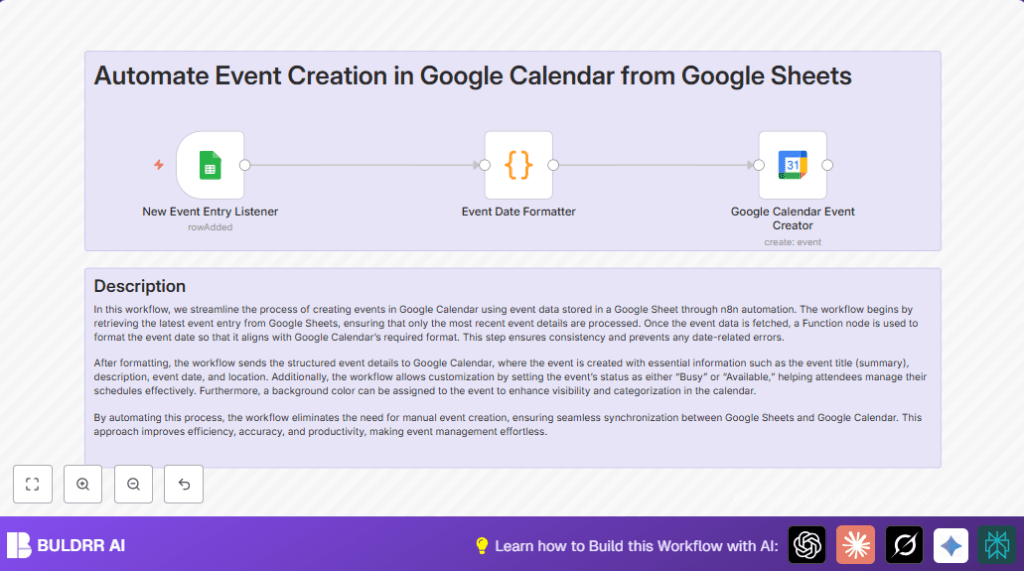
This workflow watches a Google Sheet for new event rows.
When a new event is added, it takes event details like name, description, location, and date.
The workflow changes the event start date into ISO format for Google Calendar.
It creates an all-day event on Google Calendar using these details.
The event is colored and marked as available, letting guests invite others.
This stops manual copying of events and keeps the calendar up to date without errors.
Who Should Use This Workflow
This is good for anyone who keeps events in Google Sheets.
It helps people with busy schedules avoid missing meetings or double booking.
No need to enter events twice, saving time and effort.
Tools and Services Used
- n8n: Automates workflows easily.
- Google Sheets: Where event info is stored.
- Google Calendar: Where events are created.
Inputs, Process, and Output
Inputs
- New rows added to a Google Sheet.
Processing Steps
- Google Sheets Trigger watches for new event rows.
- Function node formats the start date into ISO format.
- Google Calendar node creates all-day event using the formatted data.
Output
- An all-day event added to Google Calendar with correct details.
- Event shows as free (transparent) and allows guests to invite others.
Beginner Step-by-Step: How to Use This Workflow in n8n
Step 1: Import the Workflow
- Download the workflow using the Download button on this page.
- Open the n8n editor where you want to run the automation.
- Use the Import from File option to upload the downloaded workflow into n8n.
Step 2: Configure Credentials and Settings
- Add required credentials such as Google Sheets and Google Calendar API Keys or OAuth details.
- Update the spreadsheet ID, sheet name, calendar ID, or emails if needed to match your accounts.
- Check if the Function node’s code matches your date field names or formats exactly.
Step 3: Test the Workflow
- Add a test event row in your Google Sheet to trigger the workflow.
- Watch the workflow execute in n8n to make sure the date formats correctly.
- Verify the event appears in Google Calendar with correct details and settings.
Step 4: Activate for Production
- Turn on the workflow toggle in n8n to start listening for new events automatically.
- Ensure you keep the Google Sheets Trigger polling frequency as every minute for near real-time updates.
- Monitor n8n logs for errors and confirm events create as expected during first use.
For self hosting n8n, check the guide at self-host n8n to set up on your server.
Step Breakdown: Function Node Code Explained
The Function node grabs the last new event from Google Sheets.
It checks if the date has the current year and adds it if not.
Then it converts the start date to ISO format (YYYY-MM-DD) for Google Calendar to read correctly.
// Get the last item from the input data
const lastEvent = items[items.length - 1].json;

// Extract event information
const eventName = lastEvent["Event Name"];
const eventDescription = lastEvent["Event Description"];
const currentYear = new Date().getFullYear();
const location = lastEvent["Location"];

// Ensure the date includes the current year
const formatDateWithYear = (dateStr) => {
    return dateStr.includes(currentYear) ? dateStr : `${dateStr} ${currentYear}`;
};

// Format start date
const startDateString = formatDateWithYear(lastEvent["Event Start Date"]);

// Convert to Date object
const startDate = new Date(startDateString);

// Format to ISO (YYYY-MM-DD)
const formattedStartDate = startDate.toISOString().split("T")[0];

// Return formatted data
return [{
    json: {
        eventName,
        eventDescription,
        startDate: formattedStartDate,
        location
    }
}];
Customization Ideas
- Change event “Show me as” status from transparent (available) to busy in the Google Calendar node.
- Pick different event colors by changing the “color” field number in the Google Calendar node.
- Edit the Function node to add event end times for non all-day events.
- Add reminder notifications by filling “additionalFields” in the Google Calendar node.
Troubleshooting
Issue 1: Google Sheets Trigger does not detect new rows
Cause usually is wrong Sheet or Spreadsheet selected or polling set too slow.
Solution is to verify the Sheet ID and adjust polling frequency to every minute.
Issue 2: Date format error causes event creation failure
The cause may be missing year or unsupported date format from Google Sheets.
Fix by using the provided Function code to add the year and convert to ISO format.
Pre-Production Checklist
- Verify Google Sheets Trigger targets correct spreadsheet and sheet.
- Test with a dummy event row to see if workflow triggers.
- Confirm Function formats date as YYYY-MM-DD.
- Ensure Google Calendar event is created with right details.
- Backup original Google Sheet before active use.
Deployment Guide
Turn on the workflow in n8n to let the Google Sheets Trigger watch for new rows every minute.
Use execution logs in n8n to check if events create properly.
The workflow runs on n8n cloud or can be run on your server via self-host n8n.
Conclusion
This workflow fully automates event creation from Google Sheets to Google Calendar.
It ends double booking issues by removing manual entry steps.
The result is time saved, fewer errors, and an always updated calendar for busy users.
Users can next add notifications via Gmail or Slack for new events.
Summary
✓ Saves hours by removing manual calendar entry.
✓ Prevents event double booking and missed meetings.
→ Formats event dates for Google Calendar automatically.
→ Creates all-day, colored events set as available with guest invites.
✓ Easy to import and run in n8n with minimal setup.
