
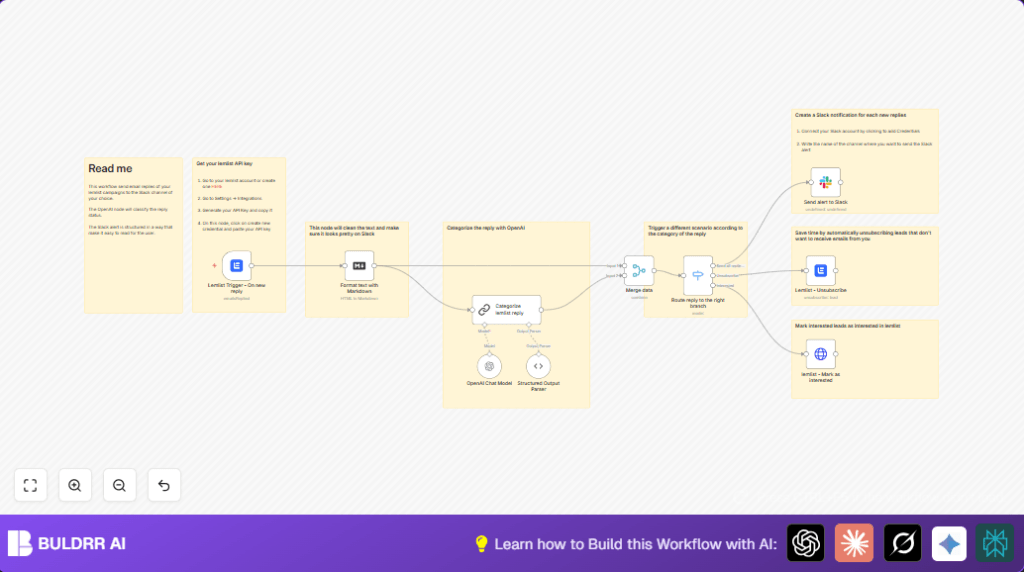

What This Workflow Does
This workflow watches for new email replies to Lemlist campaigns.
It reads and cleans the reply message.
Then it asks OpenAI GPT-4 to label the reply as Interested, Unsubscribe, Out of office, Not interested, or Other.
Depending on the label, it can unsubscribe the lead or mark them interested automatically.
It also sends a clear notification to a Slack channel with details of the reply.
This saves lots of manual checking time and helps teams act fast on replies.
More accurate reply handling means better leads and less mistakes.
Who Should Use This Workflow
This is for marketing teams running Lemlist campaigns who get many replies.
It helps sales or marketing people quickly know which leads want follow-up or want off the list.
No need for deep technical skill, just someone managing outreach replies.
Tools and Services Used
- n8n automation platform: Orchestrates the workflow steps.
- Lemlist API: Sends campaign data and updates lead status.
- OpenAI GPT-4 chat model: Categorizes email replies intelligently.
- Slack: Sends formatted notifications to team channels.
Beginner Step-by-Step: How to Use This Workflow in n8n
Step 1: Import the Workflow File
- Download the workflow file by clicking the Download button on this page.
- Open the n8n editor. Click on “Import from File”.
- Select the downloaded workflow JSON file to add it inside n8n.
Step 2: Configure Credentials and Settings
- In n8n, open each node needing access keys.
- For Lemlist nodes, enter your Lemlist API Key.
- In the OpenAI Chat Model node, add your OpenAI API Key.
- Update Slack node with the channel ID where you want alerts.
- If needed, change campaign IDs or emails in nodes to match your setup.
Step 3: Test the Workflow
- Trigger a test reply in your Lemlist campaign.
- Watch n8n execute and check Slack gets a correctly formatted notification.
- Check leads update properly in Lemlist (unsubscribe or interested).
Step 4: Activate for Production Use
- Switch the workflow status to Active in n8n.
- Verify the Lemlist webhook node is enabled and connected.
- Monitor the first few live replies to confirm proper functioning.
- Optionally check logs for troubleshooting.
If running n8n on your own server, see self-host n8n for help setting up securely.
Inputs, Processing, and Outputs
Inputs
- New email replies from Lemlist campaigns (triggered by webhook).
Processing Steps
- Lemlist Trigger detects replies live.
- Markdown node cleans original reply text.
- OpenAI Chat Model categorizes reply by reading cleaned text.
- Structured Output Parser extracts category from AI output.
- Merge node combines clean text with category.
- Switch node routes depending on category.
- For “Unsubscribe” category, Lemlist node unsubscribes lead.
- For “Interested” category, HTTP Request marks lead interested in Lemlist.
- All categories send formatted message to Slack.
Outputs
- Slack channel receives clear alerts about new replies.
- Lemlist lead status updates occur automatically.
Customization Ideas
- Change Slack channel by editing the Slack node’s
channelId. - Add more reply categories like “Follow-up” or “Support” by updating the OpenAI prompt and Switch node rules.
- Include extra lead details in Slack alerts by customizing message JSON with more fields from Lemlist.
- Switch OpenAI model to a different version if you want different balance of accuracy / cost.
- Adjust length of reply preview in Slack by changing substring count in Slack node.
Troubleshooting Common Issues
- No new replies triggering workflow: Check Lemlist webhook is activated and the webhook ID is correct. Test again with a fresh reply.
- OpenAI node returns empty or invalid category: Verify your API key is valid, the prompt matches OpenAI requirements, and the output parser schema fits the expected JSON exactly.
- Slack alert missing data or showing formatting errors: Use n8n execution debug to check data input to Slack node. Fix JSON message formatting and ensure fields exist.
Pre-Production Checklist
- Test Lemlist webhook with real reply
- Validate OpenAI categorization correctness
- Confirm Slack messages display well in target channel
- Ensure unsubscribe action only happens from correct category
- Backup workflow JSON before deploying
- Check Merge and Switch nodes route data properly
Deployment Guide
Make sure the Lemlist webhook is activated in both n8n and Lemlist settings.
Turn on the workflow status as Active in n8n.
Watch the first real replies come in and check Slack alerts and lead updates.
Set up logs inside n8n for any error tracking.
Review classification accuracy over time and update OpenAI prompt if needed.
Summary
✓ Saves many manual hours checking email replies
✓ Automatically sorts leads into interest and unsubscribe categories
✓ Sends quick, clear Slack alerts for team action
✓ Keeps lead data up to date inside Lemlist
✓ Lets teams respond to leads faster and more accurately
