

What This Automation Does
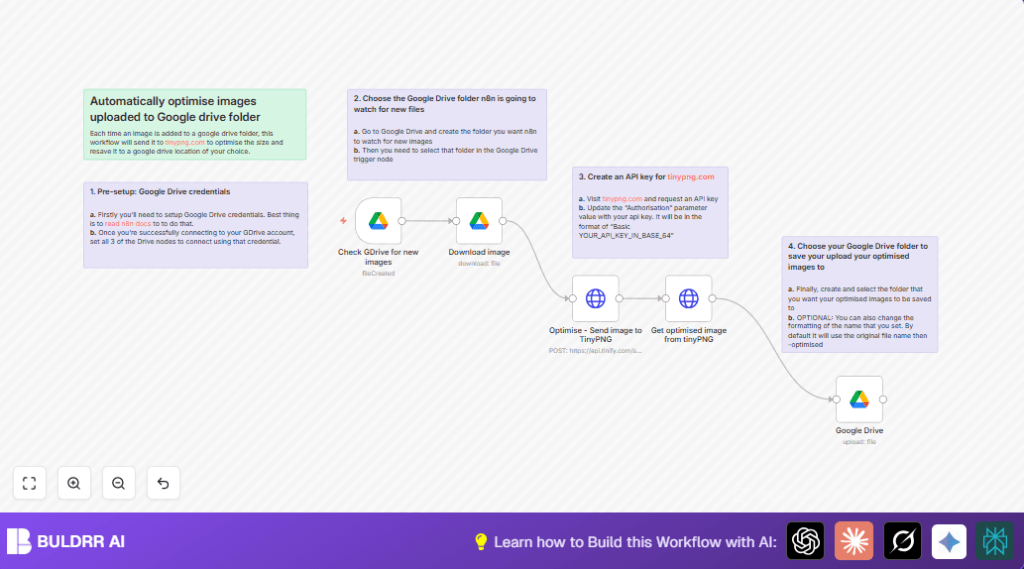
This workflow watches a Google Drive folder for new images.
When a new image is added, it downloads the file and sends it to TinyPNG for compression.
After TinyPNG makes the image smaller, the workflow downloads the compressed image and uploads it to another Google Drive folder.
This process runs automatically every minute to keep images optimized without manual steps.
Tools and Services Used
- Google Drive: Stores original and optimized image files.
- TinyPNG API: Compresses images to reduce size.
- n8n Automation: Connects Google Drive and TinyPNG to automate the workflow.
Inputs, Processing, and Outputs
Inputs
- New image files uploaded to a chosen Google Drive folder.
Processing Steps
- Trigger detects new image file in Google Drive.
- Download the image file’s binary data.
- Send image binary data to TinyPNG API with tiny image compression request.
- Receive a link from TinyPNG to download the optimized image.
- Download optimized image from TinyPNG.
- Upload the optimized image to a separate Google Drive folder with “-optimised” added to the file name.
Outputs
- Smaller, optimized image files stored in a Google Drive folder for easier sharing and storage.
Beginner Step-by-Step: How to Use This Workflow in n8n
Import Workflow
- Click the “Download” button on this page to save the workflow file.
- Open the n8n editor where you want to run the automation.
- Use the “Import from File” option in n8n to import the downloaded workflow.
Configure Credentials and Settings
- Add your Google OAuth2 credentials to access Google Drive.
- Enter your TinyPNG API Key in the HTTP Request node’s Authorization header.
- Check and update any folder IDs for the Google Drive Trigger and Upload nodes to point to the correct folders.
Test and Activate
- Upload a small test image to the monitored Google Drive folder and check if the workflow runs automatically.
- If successful, verify that the optimized image appears in the target folder with the “-optimised” suffix.
- Activate the workflow inside n8n by toggling the switch on the workflow editor screen.
This lets the workflow run all the time and process new images as they come in.
Customizations and Tips
- Change the Google Drive folder monitored by the trigger node to fit your needs.
- Filter image types (PNG, JPG, JPEG) by adding simple checks inside the workflow.
- Use dynamic folder names based on date or client name to organize optimized images better.
- Adjust file naming patterns in the upload node for branding or version control.
Troubleshooting Common Problems
Problem: TinyPNG HTTP Request returns 401 Unauthorized
Cause: API Key not correct or missing Base64 encoding.
Fix: Confirm correct API Key, use online Base64 encoding tool to encode “api:key”, then update Authorization header.
Problem: Google Drive Trigger does not detect new files
Cause: Folder ID may be wrong or Google OAuth permission issues.
Fix: Verify Google Drive folder ID matches watched folder and credentials allow file read access.
Pre-Production Checklist
- Make sure Google OAuth credentials are active and connected in n8n.
- Test TinyPNG API Key with a request and check it works.
- Upload a small image to the watched Google Drive folder to trigger the workflow.
- Look at each node’s log output to confirm data moves as expected.
- Check optimized images save correctly in the target Google Drive folder.
Deployment Guide
After testing, turn on the workflow switch in the n8n editor to start automation.
The workflow then runs every minute, optimizing new images automatically.
You can check the execution logs anytime to see the status or find errors early.
For users hosting the automation themselves, consider self-host n8n to run workflows on a private server.
Summary
✓ Automatically watches Google Drive for new images.
✓ Compresses images using TinyPNG API to save space and speed sharing.
✓ Uploads smaller images back to a separate folder with clear naming.
→ Saves hours by removing manual compression work.
→ Keeps images ready quickly for clients or collaborators.
