

What this workflow does
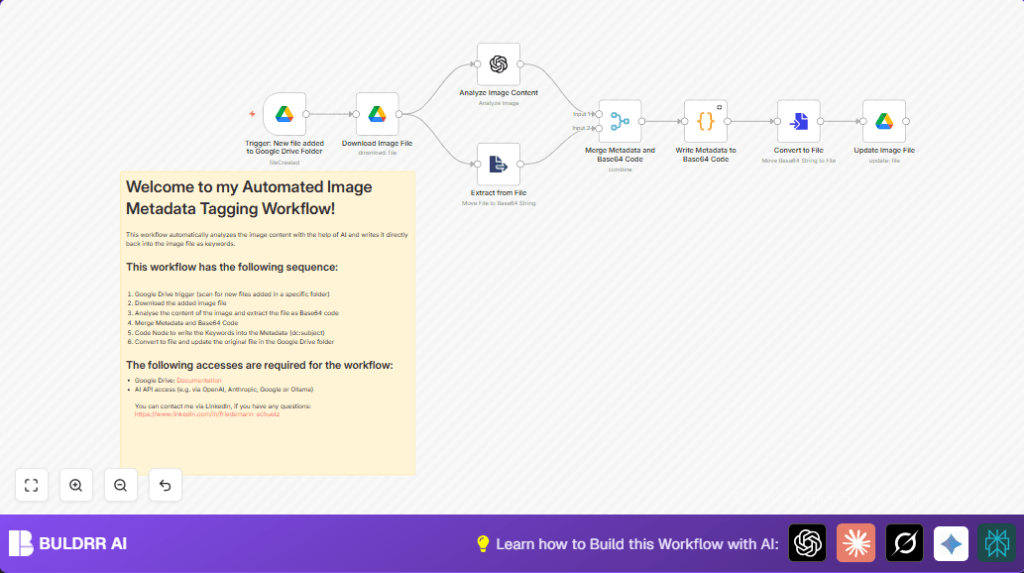
This workflow watches a Google Drive folder for new images.
It uses AI to read what is in the image and makes keywords.
Then it adds those keywords into the image’s metadata.
This saves many hours of manual work and helps find pictures fast later.
Who should use this workflow
Anyone who handles many pictures on Google Drive.
Especially if tagging images with keywords takes too long or is not consistent.
This helps content teams, marketers, and managers find images quicker.
Tools and services used
- Google Drive API: To watch folders, download, and update images.
- OpenAI GPT-4o model: To analyze image content and create descriptive keywords.
- n8n automation platform: Runs the workflow nodes and custom code.
Inputs, processing steps, and output
Input
- New image file uploaded to a specific Google Drive folder.
Processing
- Trigger activates every minute, checking new files in the folder.
- Download the new image in base64 format.
- Send the image data to OpenAI GPT-4o to get a list of keywords describing the picture.
- Convert the image file to base64 for editing.
- Use custom JavaScript code to add the keywords into the image’s XMP metadata tags.
- Convert the edited base64 data back to binary file format.
- Update the same image file on Google Drive with the new metadata.
Output
- The image is now tagged with AI-generated keywords in its metadata on Google Drive.
- This makes searching and finding images much easier.
Beginner step-by-step: How to use this workflow in n8n
Importing the workflow
- Download the workflow file using the Download button on this page.
- Inside the n8n editor, choose “Import from File” and select the downloaded file.
Configure credentials and settings
- Add your Google Drive API credentials for file access and updates.
- Add your OpenAI API key with permissions for GPT-4o model image analysis.
- Update folder IDs, file IDs, or any emails or channels if the workflow deals with them.
- Copy and paste the exact AI input prompt:
Deliver a comma separated list describing the content of this image. - Make sure the JavaScript code node contains the correct code to insert metadata tags.
Testing and activating
- Upload a test image to the specified Google Drive folder.
- Run the workflow manually or wait for trigger to activate to verify tags are added.
- If results are correct, toggle the workflow to “Active” to start automatic processing.
- For users doing self-host n8n, make sure your instance is running and workflow is enabled.
Customizations
- Change AI model by updating the modelId in the OpenAI node (e.g., to gpt-4).
- Add more metadata fields such as creator name or copyright in the JavaScript node.
- Monitor a different Google Drive folder by changing the folder ID in the trigger node.
- Alter the AI prompt to receive tags separated by semicolons or other symbols, then adjust code to split accordingly.
Common issues and fixes
- OpenAI API error or empty tags returned:
Check the API Key, ensure usage limits are not exceeded, and that image input is base64. - Permission denied on Google Drive updates:
Make sure OAuth credentials have file update rights and folder access is allowed. - Corrupted image after update:
Verify the JavaScript code is exactly as given. Even small changes can break file structure.
Pre-production tips
- Confirm Google Drive API has read and write permissions.
- Test OpenAI connection and get sample keywords from image input.
- Check the folder ID is correct and accessible in Google Drive.
- Try uploading a sample image and watch for tags to appear on metadata.
- Backup original images before running changes on real files.
Summary
✓ Saves time by automatically tagging images uploaded to Google Drive.
✓ Uses AI to understand image content and create meaningful keywords.
→ Metadata updated on original files without changing structure.
→ Easier image search for teams managing large libraries.
