

What This Automation Does ⚙️
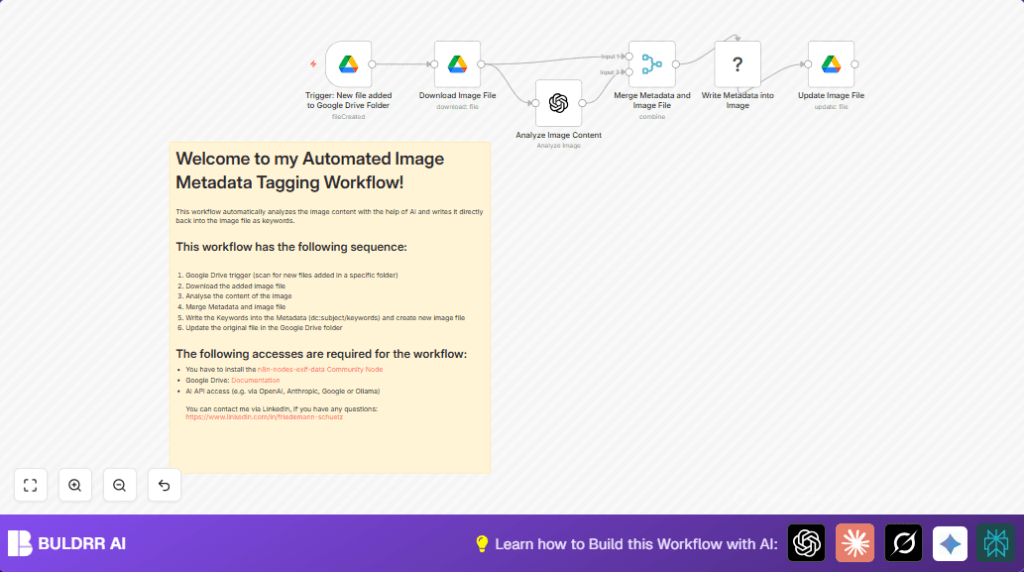
This workflow watches a Google Drive folder for new image files.
It downloads the image automatically and sends it to OpenAI for content description.
Then it adds the AI keywords into the image’s EXIF metadata.
Finally, it uploads the updated image back to Google Drive.
This removes manual tagging work and makes images easy to find.
Tools and Services Used
- Google Drive: stores and triggers on new images.
- OpenAI API: analyses images and generates keywords.
- n8n: orchestrates automation workflow.
- Exif Data community node: writes keywords into image metadata.
- Optional Self-hosting: deploy n8n on server for control. self-host n8n
Inputs → Processing → Output
Inputs
- New image files added in a specific Google Drive folder.
Processing Steps
- Trigger detects new image upload.
- Google Drive node downloads the image content.
- OpenAI (LangChain) node analyzes image base64 data and returns a comma-separated list of keywords.
- Merge node combines image data and AI keywords.
- Exif Data node writes AI-generated keywords into the image’s EXIF metadata fields: Subject and Keywords.
- Another Google Drive node overwrites the original image with updated metadata content.
Output
- Image file saved back into Google Drive folder with embedded, searchable metadata tags.
Who Should Use This Workflow
This helps anyone who stores many photos in Google Drive and wants to tag them automatically.
It’s for people who want to save time and avoid mistakes in manual image tagging.
Also good for those who want consistent searchable metadata across their photo collections.
Beginner step-by-step: How to use this workflow in n8n
Step 1: Import the Workflow
- Download the workflow file using the Download button on this page.
- Open n8n editor.
- In n8n, click on menu then select Import from File.
- Choose the downloaded workflow file to load it.
Step 2: Configure Workflow Settings
- Add Google Drive OAuth2 credentials.
- Add OpenAI API Key credentials.
- Check and update the watched Google Drive folder ID if needed.
- If any node requires emails, channels, prompt text, or file names, update those values accordingly.
- Verify that the prompt for OpenAI remains:
Deliver a comma separated list describing the content of this image.
Step 3: Test the Workflow
- Add a test image file to the Google Drive folder or trigger the workflow manually in n8n.
- Watch the execution log to ensure image metadata tags are added without errors.
Step 4: Enable Workflow for Production
- Switch the workflow toggle to active in n8n to start real-time operation.
- Monitor initial runs and adjust settings if any issue appears.
This setup guides beginners how to quickly deploy and run this automation inside n8n without building it from zero.
Customization Ideas ✏️
- Add more EXIF metadata fields like
DateTimeOriginalorArtistusing dynamic values. - Use other AI providers by replacing OpenAI node and adjusting prompt accordingly.
- Filter which image types trigger the workflow to avoid unsupported files.
- Change trigger from real-time to scheduled for batch updating images.
- Log image names and keywords to Google Sheets for tracking purposes.
Troubleshooting 🔧
- Problem: Trigger does not detect new files in folder.
Cause: Wrong folder ID or missing permissions.
Fix: Verify folder ID and ensure Google Drive credentials have read access. - Problem: OpenAI node fails or gives empty results.
Cause: Incorrect image data encoding or wrong input type.
Fix: Confirm Google Drive download output is base64 and OpenAI input type is base64. - Problem: Exif Data node does not write metadata.
Cause: Community node missing or misconfigured.
Fix: Install n8n-nodes-exif-data community node and reconfigure metadata fields.
Pre-Production Checklist ✅
- Make sure Google Drive credentials have full access for target folder.
- Upload a test image to verify the trigger fires and runs workflow.
- Check that Google Drive node exports image base64 data correctly.
- Confirm OpenAI node returns descriptive, comma-separated keywords.
- Test that Exif Data node writes metadata and the changes persist in image file.
- Back up original images before running this workflow on large data.
Deployment Guide
After testing, activate the workflow by turning on its toggle in n8n.
The workflow will then watch the configured Google Drive folder for new images and process them immediately.
Use the n8n execution logs to monitor success or catch errors in AI analysis or metadata writing steps.
Summary of Results
✓ Saves hours of manual photo tagging work.
✓ Reduces errors and inconsistent image metadata.
✓ Ensures new images in Google Drive folder are auto-tagged with AI keywords.
✓ Makes photos easier to search and organize later.
