
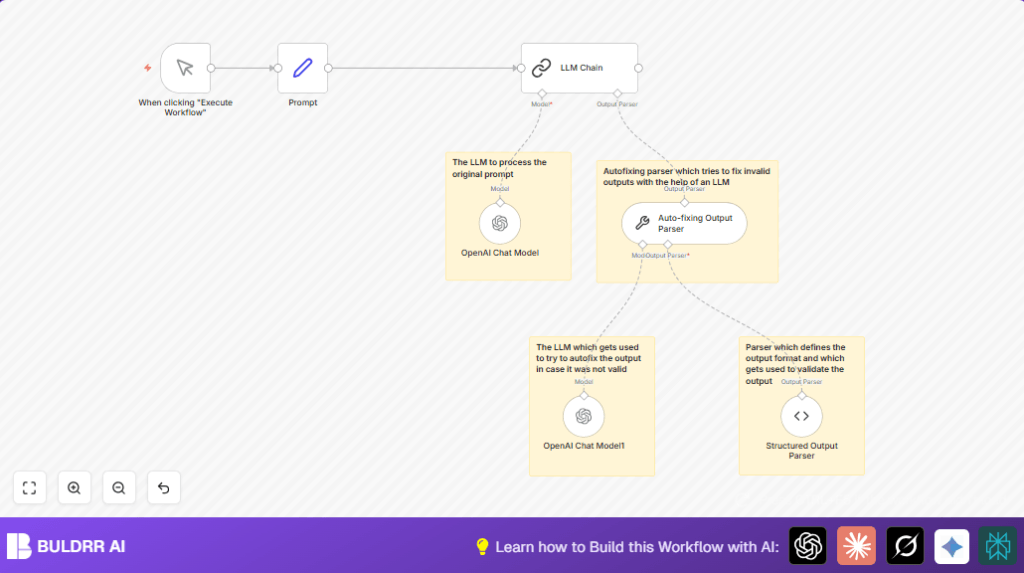

1. What This Workflow Does
This workflow sends a question to an AI language model about the biggest US states and their main cities, then cleans the AI’s response automatically.
It solves the problem of getting messy or wrong AI answers that need lots of manual fixing.
The final output is neat, structured data you can use in reports or other tools without extra work.
2. Tools and Services Used
- n8n: Automation platform to build and run the workflow.
- OpenAI API: Provides the AI Chat model for answering the prompt.
- LangChain Nodes (in n8n): Manage AI calls, process responses, parse outputs, and fix them automatically.
3. Workflow Inputs, Processing, and Output
Inputs
- A manual trigger to start the workflow.
- A text prompt asking for the 5 largest US states with their 3 biggest cities and populations.
Processing Steps
- Send the prompt to the OpenAI Chat Model node with zero temperature for consistent answers.
- Process the model response in an LLM Chain node which links the AI process tasks.
- Parse the AI response into structured JSON using a defined JSON schema.
- Detect parsing errors and use a second OpenAI Chat Model node with the Auto-fixing Output Parser to fix any malformed JSON automatically.
Output
- Clean JSON data listing states and their cities with proper population numbers.
- Data ready for use in reports or other automated workflows without manual corrections.
4. Beginner Step-by-Step: How to Use This Workflow in n8n Production
Import the Workflow
- Click the Download button on this page and save the workflow file to your computer.
- Open n8n editor where you want to use this workflow.
- Use the menu and select Import from File.
- Find and open the downloaded workflow file to load it in n8n.
Configure Credentials and Settings
- Go to Credentials Manager in n8n.
- Set up or update the OpenAI API Key credentials; make sure the key has access to the chat model.
- Check the prompt text in the Prompt node under the
inputfield to confirm or change the question you want answered. - Adjust any IDs, emails, channel names, or database connections if the workflow uses these for later steps.
Test and Activate
- Run the workflow manually by clicking Execute Workflow.
- Look at the output to confirm the structured JSON data is correct and error-free.
- When ready, toggle the workflow’s Active switch on to make it production-ready.
Use manual trigger to run the workflow anytime or connect other triggers like webhooks or schedules.
For users doing self-host n8n, the same import and setup steps apply.
5. Common Problems and Solutions
JSON Schema Validation Failed Error
This error means the AI response didn’t fit the required structure.
Try making the JSON schema more flexible or change the prompt to ask for strict JSON.
Keep the Auto-fixing Output Parser node active; it helps fix small mistakes automatically.
No Data Received from AI Model
This usually happens when the API key is wrong or you hit usage limits.
Check your OpenAI API key in Credentials Manager and confirm it’s valid.
Also confirm there is no rate limit blocking new requests.
6. Customization Ideas
- Change the prompt text in the Prompt node to get other types of data.
- Edit the JSON schema in the Structured Output Parser to fit data with extra details like capitals or coordinates.
- Select different OpenAI models in the chat nodes for cost or response style changes.
- Adjust the temperature to increase or decrease creativity in AI answers.
7. Summary
✓ This workflow automatically gets reliable, clear AI data about US states and cities.
✓ Saves time by fixing errors without manual checks.
→ Outputs JSON data easy to use in reports or other steps.
→ Works with simple triggers and can be run any time in n8n.
