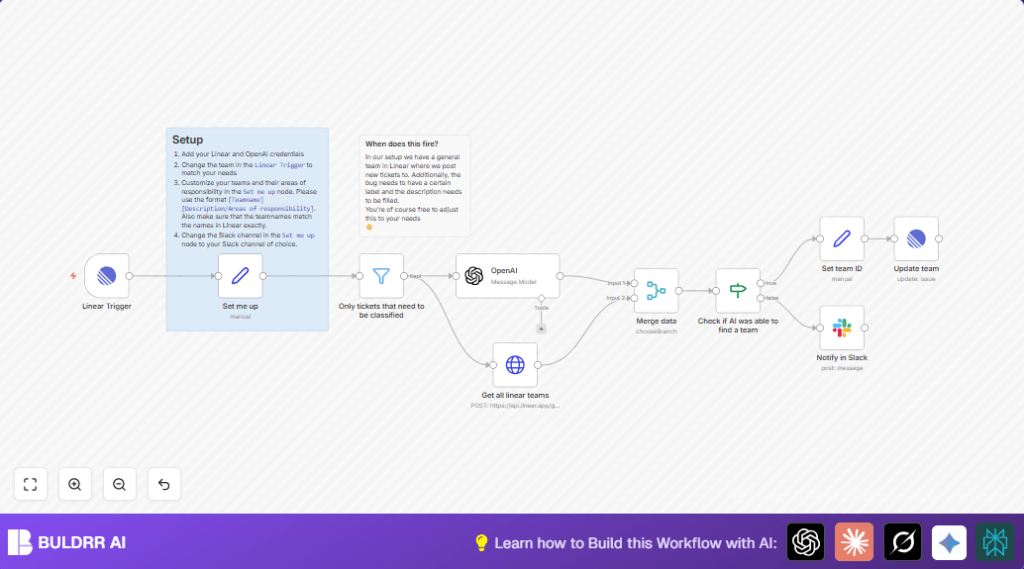
What This Automation Does
This workflow watches new or changed bug tickets in Linear.
It checks if tickets have enough info, tags, and are in triage state.
Then, it asks OpenAI GPT-4 to pick the right team for the bug.
It finds the team ID in Linear by asking Linear’s API.
Finally, it updates the ticket in Linear with the chosen team.
If OpenAI cannot decide, it sends a Slack alert for manual check.
This saves time on sorting bugs and makes fixes faster.
Who Should Use This Workflow
If managing many bug tickets is hard and slow, this helps.
It is great for teams using Linear who want to save bug triage time.
People new to automation can start here, and those with big ticket volume benefit most.
Tools and Services Used
- Linear API: Tracks bug tickets and their teams.
- OpenAI GPT-4 (32K): Classifies tickets by team based on descriptions.
- n8n Workflow Automation: Connects nodes to run the process.
- Slack API: Sends alerts if classification fails.
Beginner step-by-step: How to Use This Workflow in n8n
Import the Workflow
- Download the workflow JSON file using the Download button on this page.
- Open your n8n editor.
- Click Import from File and select the downloaded file.
Configure Credentials and IDs
- Add your Linear OAuth2 credentials in n8n.
- Add your OpenAI API Key for GPT-4 in the OpenAI node.
- Add your Slack bot token if you want Slack alerts enabled.
- Update the Linear Team ID in the Linear Trigger node.
- Update the Triage State ID and Bug Label ID in the Filter node conditions.
- Update the Slack channel name in the Set me up node if needed.
Test and Activate
- Test the workflow by updating or creating a bug ticket that matches the filter criteria in Linear.
- Check the workflow runs and that the team gets assigned automatically.
- If the workflow works, activate it in n8n to run continuously.
If running the workflow on your own server, use self-host n8n resources to set it up.
Workflow Inputs, Processing, and Outputs
Inputs
- New or updated bug tickets from Linear team.
- Ticket title, description, state, and labels.
Processing Steps
- Filter tickets to only those needing classification by checking description completeness, triage state, and “type/bug” label.
- Send ticket info to OpenAI GPT-4 with a prompt listing all teams and their responsibilities.
- Fetch the list of teams and their IDs from Linear GraphQL API.
- Match the AI-decided team name with Linear team ID.
- Update the ticket with the correct team using Linear’s API.
- If AI returns “Other”, send a Slack message to notify manual triage is needed.
Outputs
- Bug tickets in Linear are automatically assigned to correct teams.
- Slack notifications for bugs needing manual attention.
Edge Cases and Failure Handling
If OpenAI cannot pick a fitting team, it returns “Other”.
Then the workflow alerts a Slack channel instead of wrongly assigning bugs.
If APIs or credentials fail, the workflow might stop or throw errors.
Make sure to renew API keys and OAuth2 tokens regularly.
Customization Ideas
- Add more team descriptions in the Set me up node for better classification.
- Change the Slack alert channel by updating the channel name in the same node.
- Adjust filter conditions to cover different states or labels depending on your needs.
- Swap OpenAI model in the OpenAI node to adjust cost or performance.
- Refine the prompt message to give clearer instructions to AI on classification logic.
Troubleshooting Tips
- If the Linear Trigger does not activate, check if the correct team ID and OAuth2 are set.
- If OpenAI returns team names not found, verify exact match spelling in team list and prompt text.
- If Slack alerts fail, make sure the bot token has correct permissions and channel is valid.
- If the HTTP Request to Linear fails, check if OAuth2 credentials are expired and re-authenticate.
Pre-Production Checklist
- Verify OAuth2 credentials for Linear and OpenAI work correctly.
- Test updating a bug ticket to trigger the workflow.
- Check if OpenAI classifies tickets as expected with sample data.
- Confirm Linear GraphQL query returns all teams.
- Ensure Slack messages send to correct channel.
- Backup the workflow before switching it on for live use.
Deployment Guide
Activate the workflow inside n8n editor by toggling it on.
Watch executions and fix any problems in runtime logs.
Keep team names and responsibilities updated as company changes happen.
Adjust AI prompt or filtering logic if needed for better matches.
Example Prompt for OpenAI Node
This prompt helps AI classify bugs.
Use it in the OpenAI node message field.
I need you to classify a bug ticket and tell me which team should work on it
All possible teams will be described in the following format: [Teamname][Areas of responsibility]
=The possible teams are the following:
 {{ $('Set me up').first().json.teams }}
=This is the bug that we're trying to classify:
Title: {{ $('Linear Trigger').first().json.data.title }}
Description: {{ $('Linear Trigger').first().json.data.description }}
Which team should work on this bug?
Do not respond with anything else than the name of the team from the list you were given
Always keep this exact for best AI results.
Example JavaScript Expression to Map Team
Use this expression in the Set team ID node to find correct team ID by AI chosen name.
= {
  $('Get all linear teams').first().json.data.teams.nodes.find(team => team.name === $json.message.content).id
}
Summary
✓ The workflow auto-assigns bug tickets to correct teams.
✓ It helps reduce manual triage time and errors.
→ Bugs reach the right team faster.
→ Slack alerts make sure no bugs stay unassigned.