

What This Automation Does
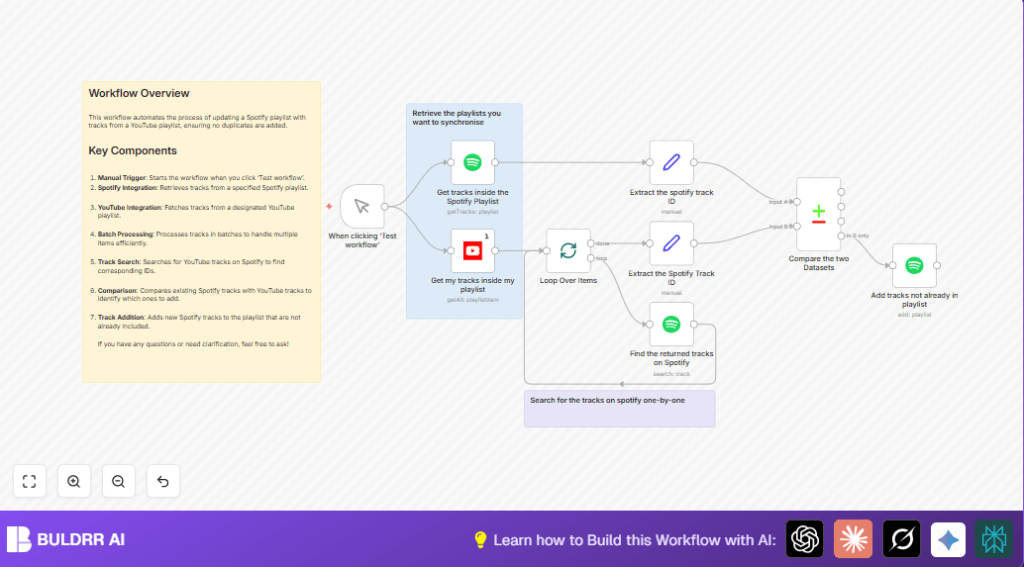
This workflow copies songs from one YouTube playlist to a Spotify playlist.
It looks for songs in the YouTube list, checks what songs are already on Spotify playlist, and then adds only new songs to Spotify.
This stops duplicates and saves time from searching and typing songs manually.
Inputs, Process, and Output
Inputs
- YouTube playlist ID: The source list of songs from YouTube.
- Spotify playlist ID: The target playlist to update.
- OAuth2 credentials: For YouTube and Spotify access.
Processing Steps
- Get all songs from the YouTube playlist using the YouTube node.
- Split items into batches to process songs one by one.
- Search each song on Spotify by title.
- Keep the Spotify track IDs from search for later.
- Get existing tracks from the Spotify playlist.
- Compare new Spotify track IDs with the existing playlist to find missing songs.
- Add missing songs to Spotify playlist without duplicates.
Output
The Spotify playlist updates with all unique songs from the YouTube playlist.
The user will have the same songs on both platforms without manual copying.
Beginner Step-by-Step: How to Use This Workflow in n8n
Step 1: Import Workflow
- Download the workflow file using the Download button on this page.
- Open n8n editor where you want to run the workflow.
- Click “Import from File” and choose the downloaded workflow JSON file.
Step 2: Set Up Credentials
- Add YouTube OAuth2 credentials to the YouTube nodes.
- Add Spotify OAuth2 credentials to the Spotify nodes.
Step 3: Update Playlist IDs
- Change the YouTube node’s
playlistIdsetting to your YouTube playlist ID. - Change Spotify nodes’ settings to use your Spotify playlist ID for fetching and adding tracks.
Step 4: Test Workflow
- Click the Manual Trigger node’s button “Execute Workflow” to run it once.
- Watch the response to see songs fetched, matched, and added.
Step 5: Activate for Production
- After testing, activate the workflow in n8n to run when triggered manually or scheduled.
- Optionally, replace the Manual Trigger with a Cron node to automate on a schedule.
If you want full control, you can run this on your own server by self-host n8n.
Tools and Services Used
- n8n: Automation platform where workflow runs.
- YouTube API: Fetching playlist songs.
- Spotify API: Getting and updating playlist tracks.
- OAuth2 Authentication: Grants secure access to APIs.
Customization Ideas
- Change YouTube or Spotify playlist IDs to sync different playlists.
- Adjust batch size in the Split in Batches node to handle API limits.
- Add artist or album name in Spotify search for better match accuracy.
- Use a Cron node instead of Manual Trigger to automate syncing regularly.
Common Issues and Solutions
Problem: Spotify Search Finds No Songs
Cause: Song titles from YouTube are different from Spotify titles.
Solution: Improve search queries with extra info like artist name or fix title formats before search.
Problem: Too Many API Requests
Cause: Sending many requests quickly causes rate limits on YouTube or Spotify.
Solution: Use Split in Batches node with smaller batches to slow down requests.
Problem: Authentication Fails
Cause: OAuth2 credentials are expired or wrong.
Solution: Re-authenticate by updating credentials securely in n8n settings.
Summary of Results
✓ Saves time by automating playlist syncing without manual effort.
✓ Prevents duplicates by checking Spotify playlist before adding new songs.
✓ Works with YouTube and Spotify using official APIs and OAuth2 security.
→ Gives users synced playlists on both platforms without mistakes.
→ Easy to set up and customize inside n8n with simple steps.
