
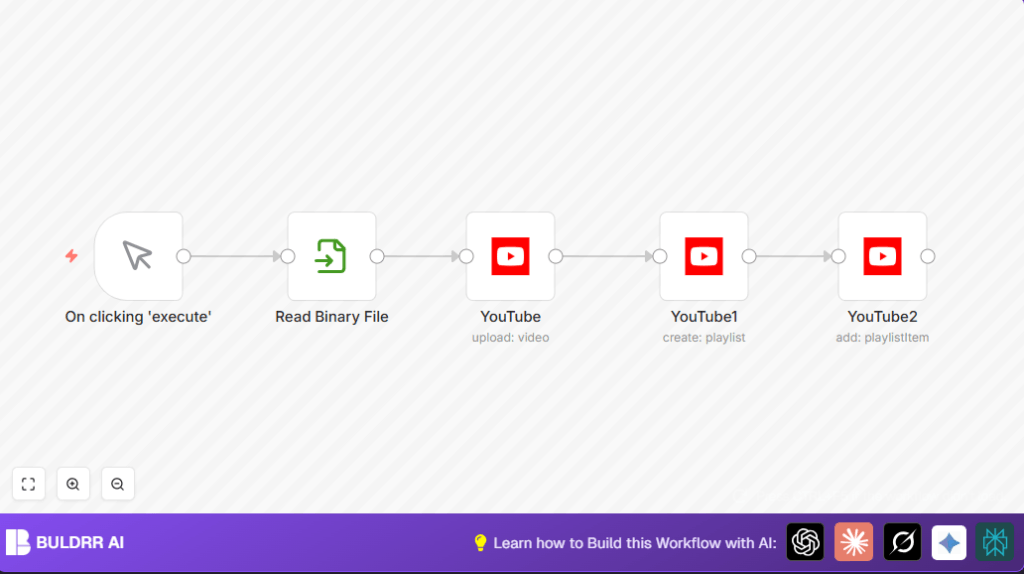

This n8n workflow auto-uploads videos to YouTube — no manual uploading, no logging into YouTube Studio, no copy-pasting titles or playlist names by hand.
The most common setup: your video file sits in Google Drive. The workflow picks it up, uploads it to YouTube with the correct title and metadata, creates a playlist, and adds the video to it — all automatically.
You trigger it once. Everything else happens without you.
What This Workflow Does
This workflow handles the three steps that content creators do manually every single time they publish a video — and eliminates all of them.
Step 1 — Auto-Upload the video: The workflow reads your video file (from local storage or Google Drive) and uploads it to YouTube automatically using your OAuth2 credentials. No logging in, no dragging files, no manual publish button.
Step 2 — Create the playlist: Instead of creating playlists by hand in YouTube Studio, the workflow creates a named playlist automatically — using a title you define once, or dynamically with dates or video names.
Step 3 — Add video to playlist: The uploaded video is immediately added to the new playlist using the correct video ID and playlist ID. No manual sorting after upload.
The result: you go from video file to published + organized YouTube video with zero manual steps.
Tools and Services Used
- n8n: Workflow automation platform.
- YouTube OAuth2 API: Secure video upload and playlist management.
- Read Binary File Node: Reads video file from local system.
- YouTube Node: Uploads video, creates playlist, adds video to playlist.
Inputs, Processing Steps, and Output
Inputs
- Manual start trigger.
- Local video file path.
- YouTube OAuth2 credentials.
- Video title, playlist title, category ID, and region code.
Processing Steps
- Read the video file into binary data.
- Upload video using YouTube node with given titles and IDs.
- Create a new playlist on YouTube using YouTube node.
- Add the uploaded video to the new playlist using proper video and playlist IDs.
Output
A video published to YouTube in a new playlist with correct organization.
Who Should Use This Workflow
This is good for anyone uploading videos often and wants to avoid doing tasks by hand.
It helps content creators save time and keep YouTube channels tidy.
Non-technical people who use n8n or want video upload automatic should try this.
Beginner Step-by-step: How to Use This Workflow in n8n Production
Import Workflow
- Download the workflow file using the Download button on this page.
- Open the n8n editor where workflows are managed.
- Click “Import from File” and select the downloaded workflow JSON.
Add Credentials and Configure
- Go to the YouTube nodes and add your OAuth2 credentials for YouTube API access.
- Update video file path in Read Binary File node to match the local video location.
- Change video title and playlist title fields with your preferred names.
- Set your correct YouTube category ID and regionCode if needed.
Testing and Activation
- Run the workflow once manually using Manual Trigger to test if video uploads and playlist creation work perfectly.
- If everything works, activate the workflow using the toggle switch in n8n to put it into production.
- Optionally, link this workflow with other triggers for automatic runs, like file watch or webhooks.
For self-hosting n8n use cases, check self-host n8n to run this workflow on your own server.
Common Issues and Troubleshooting
- Invalid OAuth Token or Authorization Errors: Check that YouTube OAuth2 credentials are up-to-date and reauthorize if needed.
- Read Binary File Node Error: Make sure file path is exact and permissions let n8n read the video file.
- Video Not Added to Playlist: Verify the expressions used for
videoIdandplaylistIdfields point to the right nodes.
Connect Google Drive as your video source (most popular setup)
Instead of reading video files from a local path, connect Google Drive as the input:
1. Add a Google Drive node before the Read Binary File node
2. Set it to watch a specific folder (e.g., “Ready to Upload”)
3. When a new file appears in that folder, the workflow triggers automatically
4. The video is pulled from Drive, uploaded to YouTube, and added to a playlist — all without touching your computer
This is the most common production setup because it works even when your computer is off — as long as n8n is running on a server or cloud instance.
Customization Ideas
- Make playlist titles change automatically using expressions with date or video titles.
- Allow multiple video upload loops by connecting a folder watch or other file input nodes.
- Allow dynamic setting of regionCode and categoryId with incoming data or parameters.
- Search for existing playlists by title before creating new playlists to better organize videos.
Summary
✓ Uploads video files to YouTube automatically.
✓ Creates and names playlists without manual input.
✓ Adds uploaded videos immediately to created playlists.
✓ Saves manual work and reduces mistakes.
✓ Uses OAuth2 for safe, secure API access.
✓ Easy to import and run in n8n with simple setup.
