
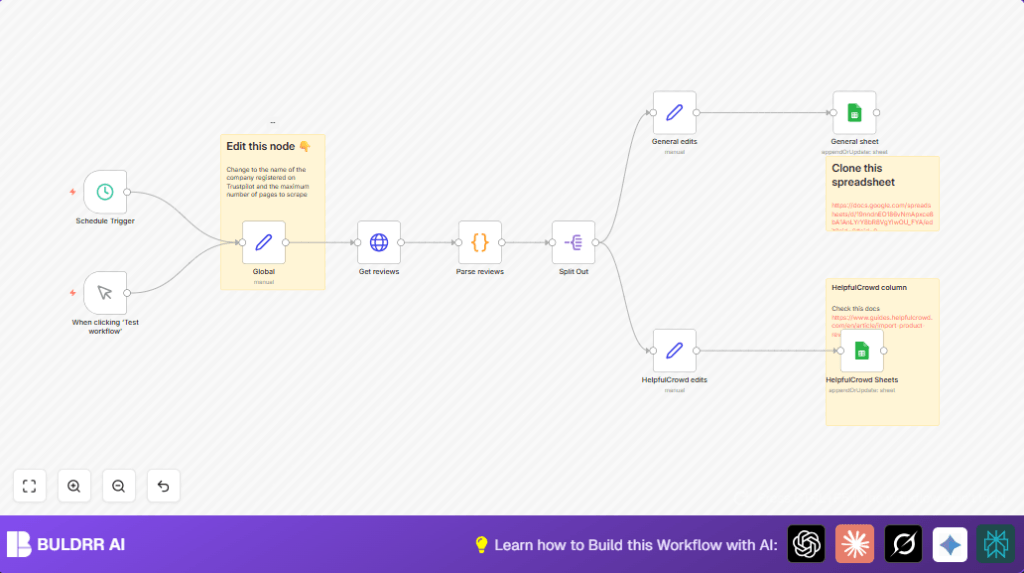

What This Automation Does
This workflow fetches customer reviews from Trustpilot for a chosen company.
It processes the reviews and adds them to Google Sheets automatically.
This removes the need to copy and paste reviews manually, saving time and preventing mistakes.
The result is up-to-date review data in your sheets, ready for analysis or action.
Who Should Use This Workflow
This workflow fits marketing managers and teams that rely on customer reviews from Trustpilot.
It suits anyone who wants to track product feedback without spending hours on manual work.
People who use Google Sheets to organize review data will find it especially useful.
Tools and Services Used
- Trustpilot: Source of customer reviews.
- n8n: Workflow automation platform to run the process.
- Google Sheets: Stores and manages scraped review data.
- Cheerio (JavaScript library): Parses HTML content to extract reviews.
- OAuth2 Credentials: Authenticate Google Sheets access securely.
Beginner Step-by-step: How to Use This Workflow in n8n
Download and Import Workflow
- Click the Download button on this page to save the workflow file locally.
- In the n8n editor, open the menu and choose Import from File.
- Select the downloaded workflow file to load it into n8n.
Configure Credentials and Settings
- Add your Google Sheets account credentials using OAuth2 in n8n’s credential manager.
- Update the Set Node named Global with the Trustpilot company ID (slug) you want to scrape.
- Adjust
max_pageto control how many review pages the workflow fetches. - If needed, update Google Sheets document IDs and sheet names inside the Google Sheets nodes.
- Copy and paste any JavaScript code or URLs as given if asked in nodes.
Test the Workflow
- Trigger the workflow manually once using the Manual Trigger node.
- Check Google Sheets to verify new reviews were added correctly.
Activate for Production
- Replace or add a Schedule Trigger node for regular automatic runs (daily, hourly).
- Turn on the workflow by enabling it in n8n.
- Monitor workflow runs and logs for any errors.
- Optionally, explore self-host n8n for more control.
Workflow Inputs, Processing, and Outputs
Inputs
- A Trustpilot company ID or slug (like “n8n.io”) to identify the review source.
- Maximum number of review pages to scrape.
- Google Sheets credentials and sheet details.
Processing Steps
- Starts when manually triggered or scheduled by time.
- Uses an HTTP request node to fetch the review pages from Trustpilot.
- Parses review data from embedded JSON in the page using JavaScript with the Cheerio library.
- Splits the review list into individual items for easier handling.
- Sets review data fields formatted for different Google Sheets use cases.
- Appends or updates review entries in two Google Sheets based on unique review IDs to avoid duplicates.
Outputs
- Google Sheets documents updated with fresh reviews and key details.
- Real-time insights from customer feedback available fast and accurate.
Common Issues and Troubleshooting
Problem: Early end of review scraping or too few reviews found.
The cause might be wrong company ID or pagination limit reached.
Check and double-check the company ID value in the global settings.
Adjust max_page higher carefully but do not over-request too many pages.
Verify HTTP request results to catch access or URL problems.
Problem: Google Sheets nodes show authentication errors.
OAuth credentials might be expired or invalid.
Re-authenticate Google Sheets connections in n8n settings.
Make sure Google account has permission to edit target sheets.
Customization Ideas
- Change target company ID in Global set node to scrape any Trustpilot business.
- Limit pages for scraping by adjusting max_page for faster runs or fewer requests.
- Add fields in the parsing code node to extract review IDs, reviewer images, product references, or more details.
- Switch manual trigger to schedule trigger to automate periodic fetching.
- Customize Google Sheets mappings to add or remove columns or adjust layout.
Pre-Production Checklist
- Make sure the Trustpilot company ID is valid and public reviews exist.
- The Google Sheets documents must be accessible and shared with your Google account in n8n.
- Test the HTTP request node separately to confirm pages load without error.
- Run the code node manually with sample pages to verify review parsing works.
- Backup your sheets before updating to avoid unintended data loss.
Deployment and Monitoring
After testing, activate the workflow for scheduled runs or manual use.
Monitor run histories in n8n’s execution list to catch failures early.
Periodically verify that Google Sheets data is updated correctly and duplicates are avoided.
Update company ID or max_page as business needs change over time.
Summary of Benefits and Outputs
✓ Save many hours weekly from manual copy-pasting of Trustpilot reviews.
✓ Automatically fetch fresh, relevant customer feedback to Google Sheets.
✓ Reduce errors and missed insights with accurate syncing of reviews.
✓ Easily scale and customize scraping for different companies or sheet layouts.
→ Get fast access to real-time review data for better product and marketing decisions.
→ Free up team time to focus on interpreting reviews instead of gathering them.
