
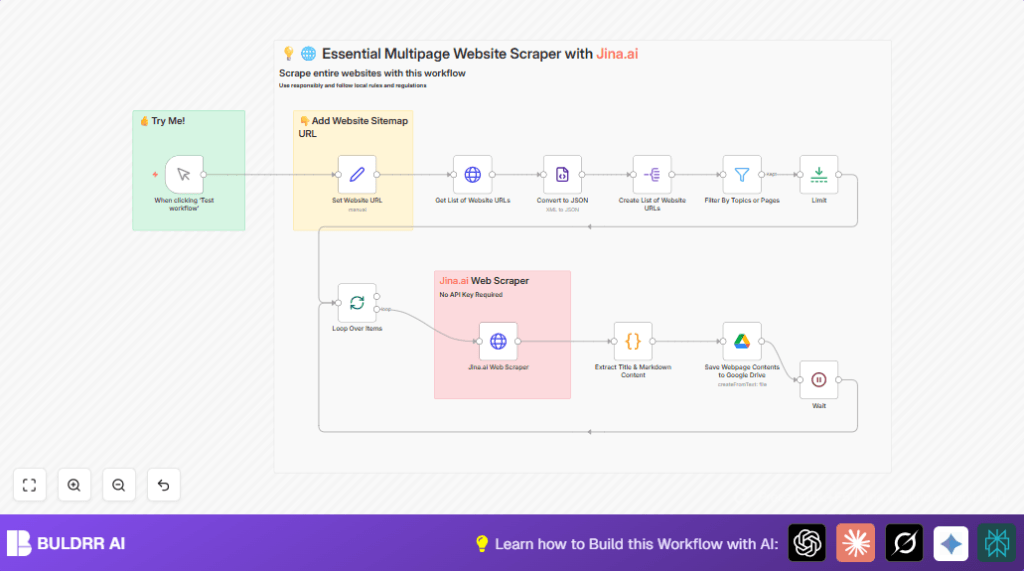

What this workflow does
This workflow fetches many web pages from a sitemap URL.
It finds pages about “agent” or “tool”.
Then it scrapes those pages to get the title and markdown content using Jina.ai.
Finally, it saves each page as a markdown file in Google Drive.
This saves a lot of time because you do not need to copy and paste manually.
Who should use this workflow
This is for people who need to collect web information fast and often.
Mostly for content managers or researchers who track many AI tool pages.
No heavy technical skills needed but basic n8n use helps.
Tools and services used
- n8n: To build and run the automation.
- Jina.ai: For web page scraping without API key.
- Google Drive: To save scraped markdown files automatically.
- HTTP Request node: To get sitemaps and do scraping calls.
- XML node: To parse sitemap XML into JSON.
Workflow input, processing, and output
Inputs
The workflow starts with a sitemap URL.
This URL leads to XML listing many pages on the target website.
Processing steps
- Fetch the sitemap XML by HTTP Request.
- Convert XML sitemap to JSON format.
- Split JSON into list of URLs.
- Filter URLs containing key words like “agent” or “tool” or equals main homepage URL.
- Limit number of URLs to first 20.
- Process URLs in batches to avoid overloading.
- Call Jina.ai scraper for each URL to get page content.
- Use code node to parse Jina.ai response to get title and markdown content cleanly.
- Save content as markdown files with title and URL as file name in Google Drive.
- Wait between batches to respect server rules.
Output
The workflow creates multiple markdown files in Google Drive.
Each file contains a scraped page with title and content markdown.
Beginner step-by-step: How to use this workflow in n8n
Step 1: Import workflow
- Download the workflow file using the Download button on this page.
- Open n8n editor where you want to run the automation.
- Click “Import from File” and select the downloaded workflow file.
Step 2: Configure credentials and settings
- Add Google Drive OAuth credentials if not connected yet.
- Check the sitemap URL in the Set node called Set Website URL. Update it if needed.
- If the Google Drive folder should change, update the folder ID in Save Webpage Contents to Google Drive node.
- Review the keyword filters in Filter By Topics or Pages node to match your topics.
Step 3: Test the workflow
- Click on Manual Trigger node labeled “When clicking ‘Test workflow’”.
- Run the workflow once. Watch for errors or empty results.
Step 4: Activate workflow for production
- Switch the workflow to Active mode in n8n.
- Schedule the trigger to run on a timer if regular scraping is needed.
- Monitor Google Drive folder to see new scraped markdown files.
If using self-host n8n, check self-host n8n for hosting options.
Customization ideas
- Add more keywords in the filter node to capture different page topics.
- Change the limit node to handle more or fewer URLs depending on needs.
- Change Google Drive folder path to keep files organized.
- Insert extra code nodes for additional content cleanup or analytics.
Edge cases and failures
404 error fetching sitemap
The sitemap URL might be wrong or sitemap not present.
Check URL access in browser before running workflow.
Empty or wrong data from Jina.ai scrape
Check that URLs sent to Jina.ai are complete and correct.
Test manually calling Jina.ai endpoint with a sample URL.
Google Drive file save errors
Verify Google Drive credentials in n8n have proper access rights.
Reauthenticate if permission issue occurs.
Summary
✓ Automates downloading lots of related pages from a site sitemap.
✓ Filters pages for relevance by keywords.
✓ Extracts structured title and markdown content using Jina.ai without API key.
✓ Saves each page as markdown file in Google Drive for easy access.
→ Saves user many hours of manual copying and checking pages.
→ Ensures data is complete, relevant, and easy to use for research or newsletters.
