

What This Automation Does
This workflow gets product info from a list of URLs in Google Sheets.
It solves the problem of manually copying product details from many competitor websites.
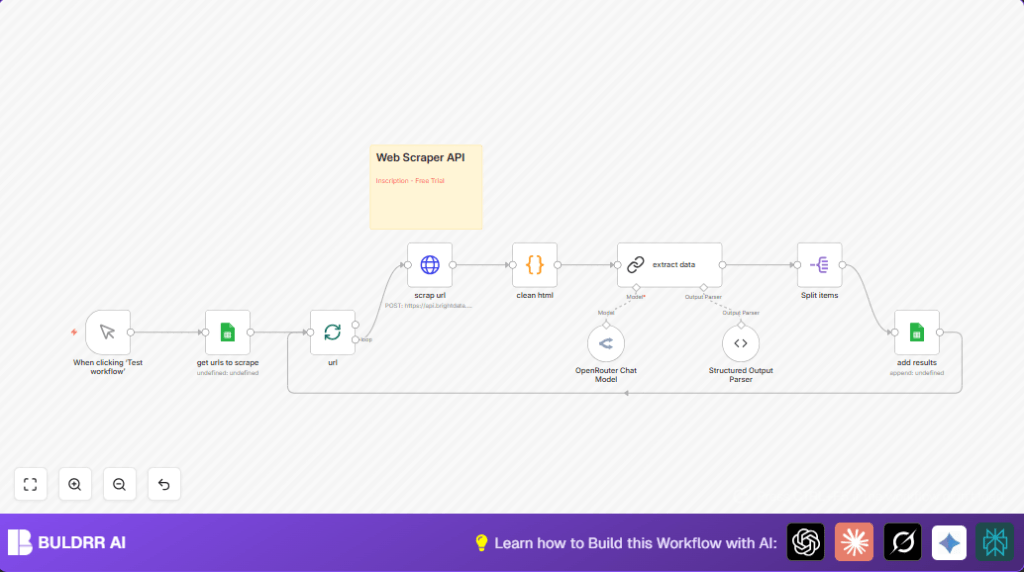
The workflow scrapes web pages, cleans the HTML, extracts product data using GPT-4, and puts the data back into Google Sheets.
You save time, avoid missing info, and get fresh, structured data to use.
The inputs are URLs from a sheet.
Processing includes scraping with BrightData API, cleaning unwanted HTML parts, running a language model to pull product name, description, rating, reviews count, and price.
Outputs are rows added into a result sheet with clean product data.
Tools and Services Used
- Google Sheets: Stores URLs and results.
- BrightData Web Scraping API: Retrieves the raw HTML from product pages.
- OpenRouter GPT-4.1 Model: Processes cleaned HTML to extract product data.
- n8n Automation Platform: Runs workflow nodes and manages data flow.
Beginner Step-by-Step: How to Use This Workflow in n8n
Importing and Setup
- Download the workflow file from the Download button on this page.
- Open your n8n editor already logged in.
- Click “Import from File” and select the downloaded workflow file.
- Once imported, add your Google Sheets OAuth2 credentials in the Google Sheets nodes.
- Enter your BrightData API Key in the “scrap url” HTTP Request node headers.
- Check and update the Google Sheets document ID and sheet names if your sheet names or IDs differ.
- If you want, review the code in the “clean html” node and use the exact JavaScript snippet provided.
- Verify the OpenRouter Chat Model node is set to use GPT-4.1 and your OpenRouter API Key is active.
- Test the workflow by clicking the Manual Trigger node and see outputs step by step.
- After tests pass, activate the workflow with the toggle at the top right to run automatically.
- Optional: Schedule the workflow or connect it to another trigger to run as needed.
Tips for Easy Configuration
- Use environment variables for all API Keys and tokens to keep credentials safe.
- Keep your Google Sheets tidy and avoid empty rows in the URLs sheet.
- Monitor logs on run to catch any early errors.
- For running on your own server, consider self-host n8n.
Inputs, Processing Steps, Outputs
Inputs
- A list of product URLs stored in a Google Sheet.
Processing Steps
- Read URLs: The workflow reads URLs from the input sheet using the Google Sheets node.
- Batch URLs: Using the Split In Batches node, URLs are sent in batches one at a time.
- Scrape HTML: The scrap url HTTP Request node sends each URL to BrightData API to get raw HTML.
- Clean HTML: A Code node runs JavaScript code to remove scripts, styles, comments, head tags, and classes.
- Extract Data: The cleaned HTML gets passed to the OpenRouter GPT-4.1 model using the OpenRouter Chat Model node plus Chain LLM + Structured Output Parser nodes to create strict JSON product data.
- Split Data: The extracted product objects are split into individual records for sheet insertion.
- Append to Sheet: Each product entry is appended to the results sheet in Google Sheets.
- Loop: The workflow loops back to process every batch until all URLs are done.
Outputs
- Structured rows in a Google Sheet containing product name, description, rating, reviews count, and price.
Edge Cases and Troubleshooting
401 Unauthorized on HTTP Request Node
The scrap url node fails if the BrightData API Key is wrong or expired.
Fix this by updating the API Key in the node headers.
Test the key using another API tester if possible.
Malformed or Empty JSON from OpenRouter GPT-4
If data extraction is empty or broken, verify the cleaned HTML output.
Review the prompt and JSON schema in the Language Model nodes for errors.
Google Sheets Append Errors
Issues can occur if field mappings are wrong or OAuth tokens expired.
Check mappings carefully and re-authenticate Google Sheets credentials.
Customization Ideas
- Change the BrightData “zone” parameter to try other proxy zones for better success on tough sites.
- Adjust the batch size in the Split In Batches node to balance speed and API limits.
- Add more product attributes in the GPT-4 prompt, like availability or shipping info.
- Swap OpenRouter GPT-4 for other language models like OpenAI GPT-4 or Anthropic Claude nodes.
Summary
✓ Saves hours weekly by automating product data collection.
✓ Reduces errors by standardizing data extraction.
✓ Feeds fresh and structured product data directly into Google Sheets.
✓ Scales to handle large lists with batching and loops.
✓ Uses familiar tools like Google Sheets and easy setup in n8n.
