
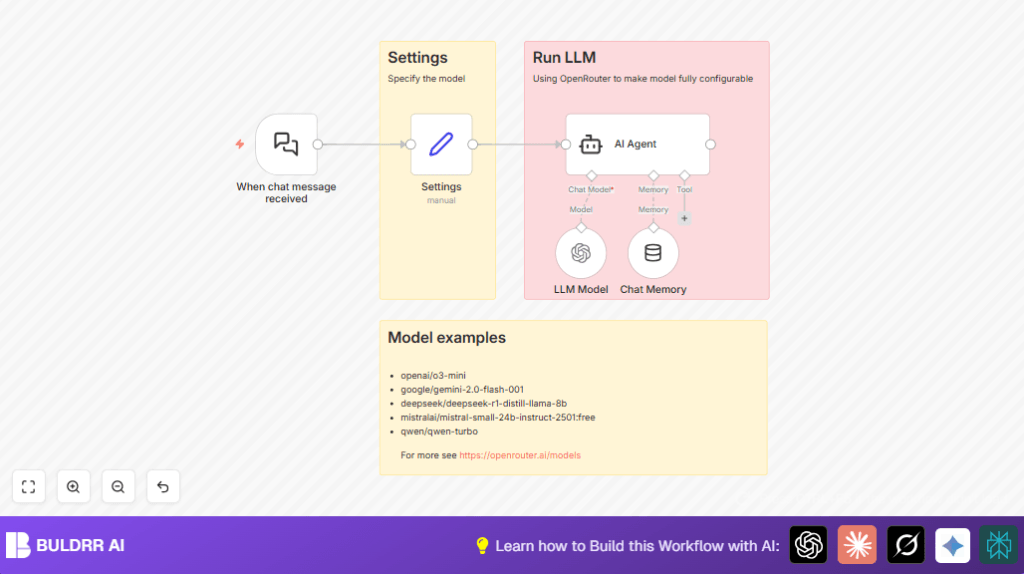

What This Automation Does ⚙️
This workflow helps users connect to many large language models (LLMs) through OpenRouter easily.
It solves the problem where switching LLMs meant rewriting code every time.
The result is faster setup and flexible AI responses with saved conversation history.
You get a system that listens for chat messages, selects any LLM model you want dynamically, remembers past chat per user session, and creates smart replies using an AI agent.
Tools and Services Used
- OpenRouter API: Provides access to many large language models via one interface.
- n8n automation platform: Hosts and runs the workflow nodes that handle chat and AI tasks.
- Langchain integration in n8n: Offers nodes for chat triggers, AI agents, chat memory, and language model calls.
- Webhook URL: Triggers the workflow when new chat inputs arrive.
How This Workflow Works (Input → Process → Output)
Inputs
- Incoming chat messages via webhook from users or clients.
- Dynamic model selection string indicating which LLM to use (e.g., “deepseek/deepseek-r1-distill-llama-8b”).
- Session identifiers from chat input to manage memory per user.
Processing Steps
- Langchain Chat Trigger listens for new chat inputs and activates the workflow.
- Set Node defines key variables: model ID, prompt from chat, and session ID.
- Langchain OpenAI Chat node uses the model ID to call OpenRouter and get AI responses.
- Langchain Memory Buffer Window manages the chat history per session ID to keep context alive.
- Langchain AI Agent combines prompt, model reply, and memory to generate the final AI reply.
Outputs
- Smart, context-aware AI chatbot responses sent back upon incoming messages.
- Ability to switch the AI model used without changing the main flow.
- Stored user conversation history per session for better dialogue.
Beginner Step-by-Step: How to Use This Workflow in n8n
Download and Import
- Click the Download button on this page to get the workflow JSON file.
- Open n8n editor where workflows are managed.
- Choose the Import from File option and select the downloaded JSON file.
Configure Credentials
- Go to the Langchain OpenAI Chat node and add your OpenRouter API Key in credentials.
- If there are nodes needing IDs, emails, or folders, update those fields to your setup.
Test and Activate
- Trigger the webhook URL manually by sending a simple chat message JSON, or use the test panel to check the nodes.
- Fix any errors by checking credentials or model names.
- Once testing shows proper responses, toggle the workflow status to active. This puts it into production handling live user chats.
If hosting n8n on your own server, consider seeing a self-host n8n option to keep full control.
Customize Your Workflow
- Change the
modelvalue in the Set node to try other LLMs available on OpenRouter like “google/gemini-2.0-flash-001”. - Adjust the buffer size in Langchain Memory Buffer Window node for how much past chat to remember.
- Add a Code node after the AI Agent to log conversations for audits or debugging.
- Edit prompts in the Set node to prepend instructions or change tone of the AI replies.
Common Issues and Fixes
- AI Agent has no reply: Check that OpenRouter API Key and model string are correct in the Langchain OpenAI Chat node.
- Session memory lost context: Verify that
sessionIdis correctly extracted and passed in the Set node matching no typos. - Webhook not triggering: Ensure the webhook URL from Langchain Chat Trigger is correct and public.
- Model name invalid: Confirm the model ID matches a model listed on OpenRouter’s model list.
Summary
✓ Save time by using one workflow for multiple LLMs with just one setting change.
✓ Keep chat context well with session memory for better conversations.
✓ Get AI replies that use an agent to think and answer clearly.
→ Easy import, configure, and activate steps make it simple to go live fast.
