

What This Automation Does
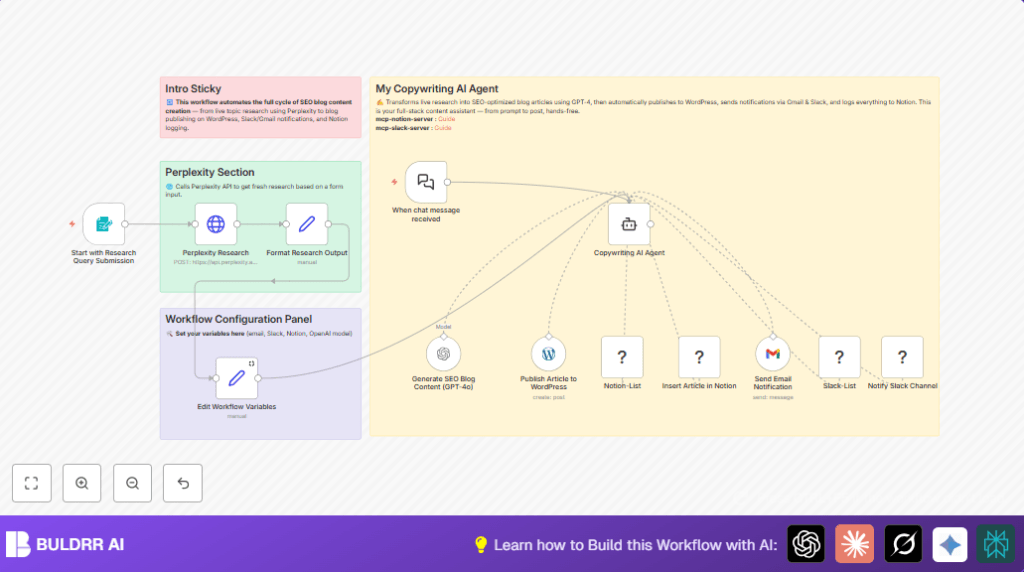
This workflow accepts a topic or question input live through a web form.
It runs research using the Perplexity API, then creates a short SEO-friendly blog post using GPT-4.
The article is published automatically to WordPress, then emails and Slack messages notify the team.
Finally, the article details get logged into a Notion database for tracking.
This automation saves many hours every week by handling all repetitive blog content tasks with little chance of errors.
Tools and Services Used
- n8n: Core automation platform hosting the workflow.
- Perplexity API: Provides live, credible research summaries.
- OpenAI GPT-4o-mini model: Generates SEO-optimized blog content.
- WordPress Tool: Publishes articles on WordPress sites.
- Gmail Tool: Sends email notifications using OAuth2.
- Slack MCP Client Tool: Sends messages to Slack channels.
- Notion MCP Client Tool: Creates records in Notion databases.
Inputs, Processing, and Outputs
Inputs
- Topic or question text from a web form triggered webhook.
Processing Steps
- Send input topic to Perplexity API for fresh research.
- Format response, replacing citation tokens with links.
- Feed cleaned research to GPT-4o-mini prompt to write a blog post with headings.
- Sequentially publish article to WordPress, then send notifications and log data.
Outputs
- New SEO-optimized blog post published on WordPress.
- Email sent to notify about the new article.
- Slack channel message announcing the publication.
- Content details stored as new entry in Notion database.
Who Should Use This Workflow
This workflow fits digital content creators, marketers, or small teams who want to generate SEO blog posts faster.
It helps people who find researching and manual publishing slow and error-prone.
No deep coding or AI expertise needed, only basic n8n knowledge.
Beginner Step-by-Step: How To Use This Workflow In Production In n8n
1. Import Workflow
- Download the workflow file using the Download button on this page.
- Go inside the n8n editor.
- Choose Import from File and select the downloaded workflow.
2. Configure Credentials and Variables
- Add or update all API keys and credentials needed for Perplexity, OpenAI, WordPress, Gmail, Slack, and Notion nodes.
- Open the Edit Workflow Variables
Setnode and update your email address, Slack channel ID, and Notion database ID.
3. Test the Workflow
- Trigger the web form webhook URL by submitting a test topic.
- Watch the execution in the n8n editor to confirm every step completes successfully.
4. Activate the Workflow
- Once tests pass, activate the workflow by clicking the activate toggle.
- Make sure the webhook URL is publicly accessible or use a tunnel if needed.
- For users running self-host n8n instances, see self-host n8n resources.
Customization Ideas
- Change the AI model inside the Generate SEO Blog Content (GPT-4o) node, like switching to “gpt-3.5-turbo”.
- Edit the email message template by updating prompt text in the AI agent for your style.
- Add more publish targets by extending the AI agent with new MCP Client Tool nodes for Medium or LinkedIn.
- Adjust Notion logging fields, adding tags, authors, or dates for better tracking.
- Modify Slack messages text to include more info or use different channels.
Troubleshooting
- 401 Unauthorized on Perplexity Research node
Cause: API Key missing or wrong in HTTP Headers.
Fix: Check and update HTTP Header Authentication credentials. - 403 Forbidden when publishing WordPress article
Cause: WordPress API permissions or keys are off.
Fix: Adjust user permissions, regenerate keys, and update n8n credentials. - Slack messages not sent
Cause: Wrong Slack channel ID or expired token.
Fix: Verify Slack channel ID in the workflow variables and refresh tokens.
Pre-Production Checklist
- Submit a research query to the webhook and confirm triggering.
- Validate all API credentials are correct, valid, and active.
- Check Notion database schema and permissions.
- Confirm Slack channel ID and email address in workflow variables.
- Run a full end-to-end test with a sample topic.
Deployment Guide
Enable the workflow inside n8n after setup and testing.
Make sure the webhook is accessible over the internet or a tunnel is set.
Use n8n’s dashboard for monitoring runs and errors.
For self-hosted users, external logging tools help with tracking.
Summary
✓ Automates blog content from live input to publishing.
✓ Saves hours by removing manual research and posting.
✓ Sends timely notifications by email and Slack.
✓ Logs articles in Notion for easy tracking.
✓ Easy to import, configure, and activate in n8n.
→ Results in fresh, SEO-optimized posts with no missed deadlines.
