

What This Workflow Does
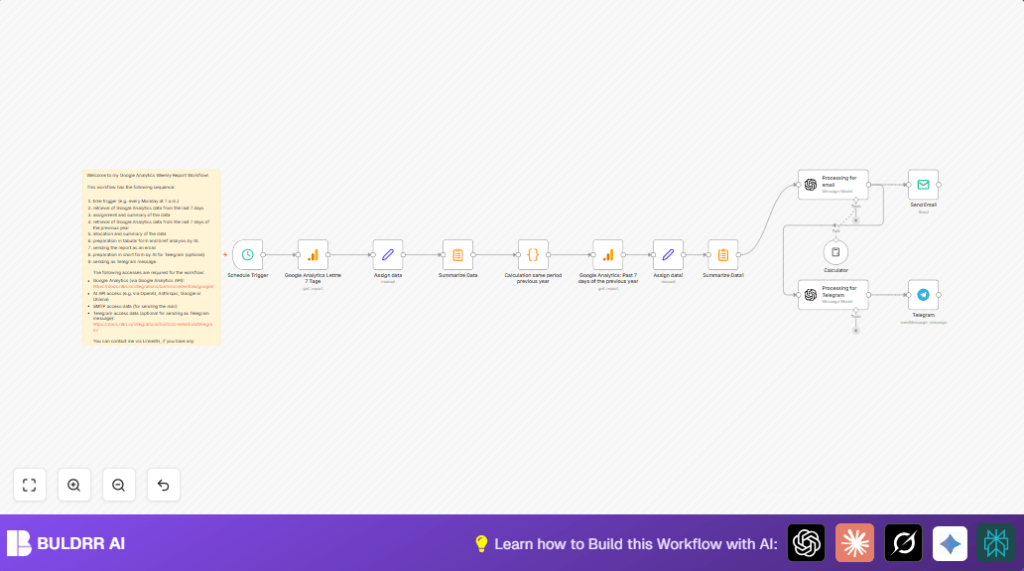
This workflow runs every Monday at 7 a.m. It pulls the past week Google Analytics data. Then it fetches the same week last year data.
It compares both sets of results and makes sums and averages.
It uses OpenAI to write a nice HTML report by email.
It also makes a Telegram-friendly text report and sends it to a chat.
This process saves many hours each week. It stops mistakes from manual copying and math errors.
The user gets fast, clear insights every Monday without doing anything.
Who Should Use This Workflow
This workflow helps teams who work with weekly Google Analytics reports.
The user wants to avoid manual data copying and calculations.
The user needs reports emailed and Telegram messages sent automatically.
This suits marketers, analysts, or managers who want fast performance summaries.
Tools and Services Used
- Google Analytics API: For GA4 weekly metrics data.
- n8n Schedule Trigger: To run workflow weekly on Monday morning.
- Google Analytics OAuth2 Credentials: For secure API access.
- JavaScript code node: To calculate last year’s week dates.
- OpenAI API via Langchain: To analyze data and format HTML and Telegram reports.
- SMTP Email: To send the weekly HTML email report.
- Telegram Bot API: To send summary messages to a chat.
Inputs, Processing, and Outputs
Inputs
- Google Analytics account with GA4 data.
- OAuth2 credentials configured in n8n.
- OpenAI API Key with sufficient quota.
- SMTP email credentials.
- Telegram Bot API token and chat ID (optional).
Processing Steps
- Trigger runs every Monday 7 a.m.
- Pull last 7 days GA4 data for key metrics.
- Assign metric names for clarity.
- Summarize current week with sums and averages.
- Calculate previous year’s same week dates using JavaScript.
- Fetch GA4 data for that past week.
- Assign and summarize last year’s data.
- OpenAI generates formatted HTML report comparing both periods.
- Email sends this HTML report.
- Prepare a Telegram-friendly text summary using OpenAI.
- Send Telegram message with summary.
Outputs
- Weekly HTML email report with side-by-side performance metrics.
- Telegram text message with concise weekly metric highlights.
Beginner Step-By-Step: How to Use This Workflow in n8n
Step 1: Download and Import the Workflow
- Click the Download button on this page to save the workflow file.
- Open the n8n editor where the workflow is needed.
- Use Import from File option to load the downloaded workflow.
Step 2: Add Credentials and Update Settings
- Add Google Analytics OAuth2 credentials inside n8n credential manager.
- Add OpenAI API Key credentials.
- Add SMTP email account credentials for sending emails.
- If using Telegram, add your Bot API token and chat ID.
- Update GA4 Property ID in Google Analytics nodes if different from default.
- Update email addresses in Send Email node.
- Check or update any IDs or fields specific to the business context.
Step 3: Test the Workflow
- Manually run the workflow once in n8n editor.
- Watch for errors or missing data in each node’s output.
- Fix any credential or configuration errors encountered.
Step 4: Activate Workflow for Production
- After successful test, toggle workflow’s active switch in n8n.
- Check timezone in Schedule Trigger node to match intended reporting time.
- Let the workflow run unattended every Monday 7 a.m.
Following these steps lets users automate their Google Analytics weekly reports fully.
Using the provided code node and OpenAI prompt texts, copying is quick and easy.
Code and Prompt Examples
JavaScript Code to Get Previous Year Same Week Dates
This code calculates the correct start and end dates one year ago for data queries.
return {
  startDate: (() => {
    const date = new Date();
    date.setFullYear(date.getFullYear() - 1);
    date.setDate(date.getDate() - 7);
    return date.toISOString().split('T')[0];
  })(),
  endDate: (() => {
    const date = new Date();
    date.setFullYear(date.getFullYear() - 1);
    return date.toISOString().split('T')[0];
  })(),
};
OpenAI Prompt Template for Email Report
This prompt guides OpenAI to make tables, calculate differences, format numbers, and write a summary.
=Please analyze the following data and output the results in tabular form:

| Metrics | Last 7 days | Previous year | Percentage change |
|-------------------------------|---------------|---------|
| Total page views | {{ $('Summarize Data').item.json.sum_Aufrufe }} | {{ $('Summarize Data1').item.json.sum_Aufrufe }} | Percentage change |
[...]
Customizations
- Change the Schedule Trigger time for different report days or hours.
- Add more GA4 metrics inside Google Analytics query nodes.
- Modify email addresses or distribution lists in Send Email node.
- Use different AI models by changing OpenAI model settings inside Langchain nodes.
- Replace the Telegram node with Slack node to send reports there.
Troubleshooting
- Google Analytics API returns no data or error: Verify OAuth2 credentials have proper permissions.
Check the GA4 property ID matches the account. - OpenAI node times out or fails: Confirm the API key validity.
Monitor usage limits for OpenAI quota. - Email not arriving: Check SMTP settings and credentials.
Make sure emails are not caught by spam filters. - Telegram message not sent: Validate the chat ID and bot permissions.
Ensure correct Bot API token used.
Pre-Production Checklist
- Ensure Google Analytics credentials have read access to the GA4 property.
- Test the schedule trigger with a manual run.
- Test Google Analytics nodes individually for correct data.
- Test OpenAI Langchain nodes with sample data.
- Test sending email with Send Email node.
- If using Telegram, send a test message from the Telegram node.
Deployment Guide
Activate the workflow by switching it to active mode in n8n.
Check that the server or cloud hosting supports scheduled jobs.
Watch logs for any errors during first few runs.
Consider adding error catching and notifications.
For running n8n on server, see self-host n8n for options.
Summary of the Workflow
✓ Saves over 2 hours weekly quoting Google Analytics data manually.
✓ Avoids mistakes in data copying and math.
✓ Sends clear HTML email and Telegram summaries automatically every Monday.
➔ Gives quick insights into weekly performance vs last year.
➔ Frees up time for teams to make better business decisions.
