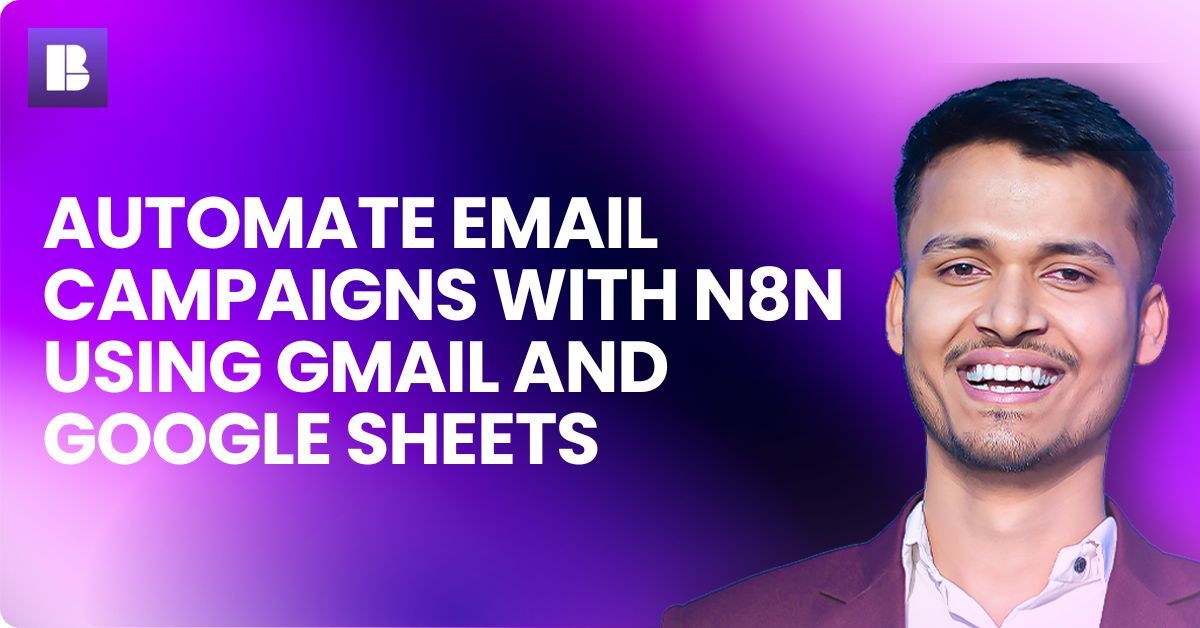
Automate Email Campaigns with n8n Using Gmail and Google Sheets

Automate Email Campaigns
Updated: June 26, 2026

Automating emails sounds complex. It is not.

If you are still sending emails manually from Gmail, you are wasting a lot of time only. With n8n, you can connect Gmail and Google Sheets and create a simple system that sends emails automatically.

No coding needed. Just basic setup.


What is Email Automation with n8n?

Email automation with n8n means sending emails based on data stored in Google Sheets.

For example, you have a sheet with:

  • Name
  • Email
  • Message

n8n reads this data and sends emails through Gmail automatically.

It works like your own mini email marketing system, but without monthly cost.


Why Use Gmail + Google Sheets with n8n?

This combination is very powerful for beginners.

  • Gmail is already familiar, no learning curve
  • Google Sheets works like a simple database
  • n8n connects everything together

You can create workflows for:

  • Lead outreach
  • Client follow-ups
  • Newsletter sending
  • Cold email campaigns

And best part, you control everything yourself.


How This Automation Works

Let’s understand the flow in simple words.

  1. You add email data in Google Sheets
  2. n8n checks the sheet at intervals
  3. It picks one row
  4. Sends email using Gmail
  5. Marks that row as “Sent”

That’s it. Simple and clean.


Step-by-Step Setup

1. Set Up n8n

First you need to install n8n.

You can host it locally or use cloud. Once installed, open dashboard and create new workflow.


2. Connect Google Sheets

Add a Google Sheets node.

  • Connect your Google account
  • Select your sheet
  • Choose the tab where data is stored

Make sure your sheet has proper columns like Name, Email, Message.


3. Add Trigger Node

Use a trigger like:

  • Cron (runs every few minutes)
  • Manual trigger (for testing)

This tells n8n when to run automation.


4. Filter Unsent Emails

Add a condition node.

Check if:
Status ≠ Sent

This prevents duplicate emails.


5. Connect Gmail Node

Now add Gmail node.

  • Choose “Send Email”
  • Map Email column
  • Add Subject
  • Use Message column as body

You can also personalize emails using variables like:
Hi {{$json[“Name”]}}


6. Update Sheet After Sending

After sending email, update that row.

Set Status = Sent

This keeps everything organized.

Real Use Case (Very Practical)

Let’s say you run a digital marketing service.

You collect leads in Google Sheets.

Now instead of sending emails manually, you:

  • Add leads in sheet
  • n8n sends emails automatically
  • You track everything in same sheet

This can save 2–3 hours daily easily.


Common Mistakes to Avoid

  • Sending too many emails at once from Gmail
  • Not adding delay between emails
  • Forgetting to mark emails as sent
  • Poor email copy (automation cannot fix bad content)

Do one thing, always test with 2–3 emails first only.


Why This Setup is Better Than Tools

Most tools charge monthly fees.

Here:

  • n8n is free
  • Gmail is free
  • Google Sheets is free

You are building your own system.

More control, less cost.


Final Thoughts

If you are starting with automation, this is one of the easiest workflows to build.

Simple setup. Real impact.

Once this is running, you can scale it further like:

  • Adding delays
  • Sending follow-ups
  • Integrating CRM

Start small, then improve step by step.


Looking for free n8n workflows?

Go to BULDRR AI and download from 10,000+ ready-made n8n automation workflows.
Full How-To guides included. No signup. No credit card. Completely free.

Automating emails sounds complex. It is not.

If you are still sending emails manually from Gmail, you are wasting a lot of time only. With n8n, you can connect Gmail and Google Sheets and create a simple system that sends emails automatically.

No coding needed. Just basic setup.


What is Email Automation with n8n?

Email automation with n8n means sending emails based on data stored in Google Sheets.

For example, you have a sheet with:

  • Name
  • Email
  • Message

n8n reads this data and sends emails through Gmail automatically.

It works like your own mini email marketing system, but without monthly cost.


Why Use Gmail + Google Sheets with n8n?

This combination is very powerful for beginners.

  • Gmail is already familiar, no learning curve
  • Google Sheets works like a simple database
  • n8n connects everything together

You can create workflows for:

  • Lead outreach
  • Client follow-ups
  • Newsletter sending
  • Cold email campaigns

And best part, you control everything yourself.


How This Automation Works

Let’s understand the flow in simple words.

  1. You add email data in Google Sheets
  2. n8n checks the sheet at intervals
  3. It picks one row
  4. Sends email using Gmail
  5. Marks that row as “Sent”

That’s it. Simple and clean.


Step-by-Step Setup

1. Set Up n8n

First you need to install n8n.

You can host it locally or use cloud. Once installed, open dashboard and create new workflow.


2. Connect Google Sheets

Add a Google Sheets node.

  • Connect your Google account
  • Select your sheet
  • Choose the tab where data is stored

Make sure your sheet has proper columns like Name, Email, Message.


3. Add Trigger Node

Use a trigger like:

  • Cron (runs every few minutes)
  • Manual trigger (for testing)

This tells n8n when to run automation.


4. Filter Unsent Emails

Add a condition node.

Check if:
Status ≠ Sent

This prevents duplicate emails.


5. Connect Gmail Node

Now add Gmail node.

  • Choose “Send Email”
  • Map Email column
  • Add Subject
  • Use Message column as body

You can also personalize emails using variables like:
Hi {{$json[“Name”]}}


6. Update Sheet After Sending

After sending email, update that row.

Set Status = Sent

This keeps everything organized.

Real Use Case (Very Practical)

Let’s say you run a digital marketing service.

You collect leads in Google Sheets.

Now instead of sending emails manually, you:

  • Add leads in sheet
  • n8n sends emails automatically
  • You track everything in same sheet

This can save 2–3 hours daily easily.


Common Mistakes to Avoid

  • Sending too many emails at once from Gmail
  • Not adding delay between emails
  • Forgetting to mark emails as sent
  • Poor email copy (automation cannot fix bad content)

Do one thing, always test with 2–3 emails first only.


Why This Setup is Better Than Tools

Most tools charge monthly fees.

Here:

  • n8n is free
  • Gmail is free
  • Google Sheets is free

You are building your own system.

More control, less cost.


Final Thoughts

If you are starting with automation, this is one of the easiest workflows to build.

Simple setup. Real impact.

Once this is running, you can scale it further like:

  • Adding delays
  • Sending follow-ups
  • Integrating CRM

Start small, then improve step by step.


Looking for free n8n workflows?

Go to BULDRR AI and download from 10,000+ ready-made n8n automation workflows.
Full How-To guides included. No signup. No credit card. Completely free.

Author
Written By
Vikash Kumar
Building AI agents, n8n workflows and end-to-end automation for 30+ Brands across India, the US, Europe, Dubai & Australia. 7+ years of Experience saving founders real hours every week - no code required.
Ask more Questions about this Blog with AI:

Our AI Articles

Learn from our AI Articles to excel in your profession ;)

Best n8n Templates in 2026: 15 Free Workflows to Copy

Discover the best free n8n templates in 2026. See 15 beginner workflows to copy and learn how to import one...

n8n MCP: How to Use It (Beginner Guide 2026)

What n8n MCP is in plain English, the two nodes that make it work, and a step-by-step beginner setup for...

n8n Pricing 2026: Is It Really Free?

A clear beginner breakdown of n8n pricing in 2026, when it is truly free, what Cloud plans cost, and how...

The AI Business Blueprint

How Claude Code’s Creator Thinks the Next Generation of Companies Will Be Built...

Best AI Agent Builders in 2026 (No-Code Guide)

The best no-code AI agent builders in 2026, compared for beginners. See what each tool costs, who it fits, and...

OpenRouter Free Models List 2026: All 27+ Models Ranked & Tested

Search “best free OpenRouter models” and you’ll find ten different lists, half naming model IDs pulled months ago. One older...

Arcads Collage Motion Skill

A Claude skill that takes a reference image (or just a brief) and produces a matching halftone paper-collage motion clip...

n8n AI Agent Node: Build Your First AI Agent in 15 Minutes

Learn how the n8n AI Agent node works and build your first AI agent in 15 minutes. Step-by-step beginner guide...

Best Free OpenRouter Models in 2026: Which One Should You Use?

OpenRouter has 29 free AI models as of June 2026. Picking the wrong one for your task wastes your daily...

ClawdBot Tutorial 2026: Complete Beginner Guide to Install, Configure & Run Your First AI Agent

The complete beginner guide to Clawdbot in 2026 — from installation to your first running AI agent, with config templates,...
1:1 Free Strategy Session
Your competitors are already automating. Are you still paying for it manually?

Do you want to adopt AI Automation?

Every hour your team does repetitive work, you're burning real money.
While you wait, faster businesses are cutting costs and moving quicker.
AI and automations aren't the future anymore — they're the present.

Book a live 1-on-1 session where we show you exactly which of your daily tasks can be automated — and what it’s costing you not to.