
How to turn an n8n workflow into a real SaaS (step by step)

Most people who build n8n workflows hit the same wall: the automation
works great internally, but they can’t sell it, scale it, or hand it
to a customer without giving them access to their n8n instance.

This guide solves that. You will take the logic from any n8n workflow,
convert it into a proper backend API, wrap a frontend and payments
around it, and deploy a working SaaS — all using AI to generate most
of the code.

No CS degree needed. No agency required. Just a workflow, an AI code
editor, and the 13 steps below.

Time to complete: 2–4 days for a simple workflow. 1–2 weeks for a
full-featured product.
Cost to run after launch: under $10/month.

First, let’s clear a big misconception ❌

Most people think:

“I’ll just connect a frontend to an n8n webhook and call it a SaaS.”

That sounds easy, but it causes real problems:

  • ❌ licensing issues
  • ❌ no real ownership
  • ❌ hard to scale
  • ❌ not investor- or customer-friendly

So we’re not doing that.

Instead, we’ll:

  • take the logic from n8n
  • turn it into a real backend API
  • then build a proper web app around it

And yes — AI does most of the work 🤖


What we’re actually building 🧠

A real SaaS app with:

  • 🖥️ frontend (what users see)
  • ⚙️ backend API (business logic)
  • 🔐 authentication (login/signup)
  • 💳 payments (Stripe)
  • 🗄️ database
  • ☁️ deployment & infrastructure

No dependency on n8n at runtime.


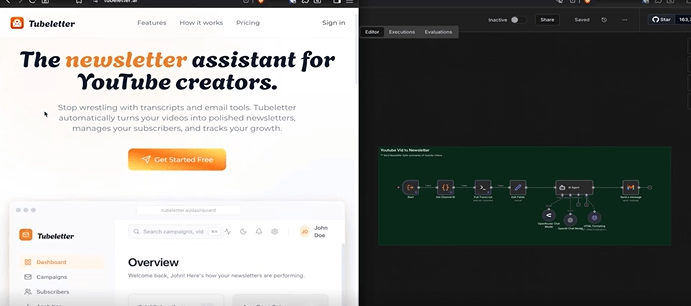
Real example: Tubeletter ✉️

The original idea started as an n8n workflow:

“Turn YouTube videos into newsletters”

The SaaS version (Tubeletter) lets users:

  • log in
  • add YouTube channels
  • pick videos
  • schedule newsletters
  • invite friends to subscribe
  • track email performance

Tubeletter charges $9/month for the basic plan — enough to cover hosting costs with just 3 paying users.

At 50 users, that’s $450/month in recurring revenue from a workflow that started as a free n8n template.

That is the real example. Not a side project. Not a demo. A working SaaS with real pricing, real users, and real recurring income.

All real SaaS behavior.

No fake demo energy.


Step 1: Start from your n8n workflow 🧩

Step 1: Start From Your n8n Workflow

Your n8n workflow already contains the most valuable thing — the logic.
Every node describes an operation: fetch data, transform it, call an API,
send a result. That is exactly what a backend API does.

What you do:

  1. Open your n8n workflow in the editor.
  2. Click the three-dot menu (top right) → Download → save as .json.

What to look for in the JSON:

  • Each node’s “type” tells you what operation it performs
    (HTTP request, data transformation, email send, etc.)
  • The “parameters” inside each node tell you what inputs it needs
  • The connections array shows the order of execution

Example: If your workflow fetches a YouTube transcript, summarizes it
with GPT-4, and emails the result — your API will have one endpoint
(/api/generate) that takes a YouTube URL and returns a newsletter.
The n8n JSON just told you that in 3 nodes.

Why this matters: You are not copying the workflow — you are reading
it like a spec document. The AI will turn that spec into real code.


Step 2: Decide your stack (don’t overthink it) 🧱

Here is the exact stack that works for 90% of n8n-to-SaaS projects.
Do not change it until you have shipped your first version.

AI code editor:

  • Cursor (cursor.com) — VS Code with Claude/GPT built in.
    Free tier works fine to start.

Backend:

  • Node.js with Express (most n8n workflows use JavaScript-style
    logic, so this is a natural fit)
  • Docker — wraps your backend so it runs identically on your
    laptop and on a $4 VPS

Frontend:

  • React + TypeScript — the most widely supported stack,
    meaning AI generates better code for it than anything else

Database + Auth:

  • Supabase (supabase.com) — free tier includes PostgreSQL
    database + user authentication + API.
    Replaces what would take weeks to build manually.

Payments:

  • Stripe — industry standard. Handles subscriptions,
    trials, invoices, and refunds automatically.

Infrastructure:

  • Hostinger VPS ($4–$6/month) — enough for your first
    100 paying users
  • Cloudflare — free DNS + SSL + DDoS protection
  • Traefik — reverse proxy that routes traffic to your
    Docker containers and handles HTTPS automatically

Total monthly cost for this stack: ~$6–$10/month before
you have a single user.


Step 3: Tell AI how your app should be structured 🧠📐

Before writing a single line of code, create a file called
agents.md (or RULES.md) in your project root. This is the
instruction set AI reads every time it generates code.

Here is a working template you can paste directly:


Project: [Your SaaS name]
Stack: Node.js backend, React + TypeScript frontend, Supabase, Stripe, Docker

Rules:

  • Always keep frontend and backend in separate folders (/frontend, /backend)
  • All API routes go in /backend/src/routes/
  • All business logic goes in /backend/src/services/
  • Use environment variables for all API keys — never hardcode
  • Every Docker service must have a health check
  • Generate a README with curl examples for every new endpoint

– Use LangChain for all AI/LLM calls — never call OpenAI directly

Why this matters: Without this file, every AI prompt starts from
zero. The AI will make different folder decisions each time,
generating inconsistent code that breaks when you try to connect
the pieces. This file makes AI consistent across 100+ prompts.


Step 4: Feed AI your n8n workflow 🧠➡️🤖

Open Cursor. Start a new chat. Paste this prompt (replace the
bracketed parts with your actual workflow):


Here is my n8n workflow JSON: [paste your full JSON here]

This workflow does the following: [describe in 2-3 sentences
what it does from the user’s perspective]

Build a Node.js + Express backend API that replicates this logic.
Follow the rules in agents.md. Create:

  1. A route file at /backend/src/routes/[feature].js
  2. A service file at /backend/src/services/[feature].js
  3. Update the README with a curl example showing how to call

the new endpoint

What AI will generate:

  • A POST endpoint (e.g., /api/newsletter/generate)
  • A service that runs your workflow logic step by step
  • Input validation
  • Error handling
  • A README curl example you can test immediately

Review the output. If a step is wrong, paste the relevant
n8n node and say: “This node does X — fix the service to
match.” AI will correct it.


Step 5: Replace simple AI calls with LangChain 🔁

When AI generates your first backend, it will probably use
direct OpenAI calls like this:

const response = await openai.chat.completions.create({
model: “gpt-4”,
messages: [{ role: “user”, content: prompt }]
});

This works but creates a tight dependency on one model.
Tell Cursor:

“Replace all direct OpenAI API calls in the services folder
with LangChain. Use ChatOpenAI from @langchain/openai.
Make the model name an environment variable so I can switch
models without changing code.”

After this change:

  • You can swap GPT-4 for Claude or Gemini by changing one
    line in your .env file
  • You can add memory, tools, and agents later without
    rewriting the service
  • Your code looks more professional to any developer
    who reviews it

Time this takes: 10–15 minutes with AI doing the refactor.


Step 6: Containerize everything with Docker 🐳

Tell Cursor: “Generate a Dockerfile and docker-compose.yml
for this project. The backend runs on port 3000.
Include a health check endpoint at /health.”

AI will generate something like this for docker-compose.yml:

version: ‘3.8’
services:
backend:
build: ./backend
ports:
– “3000:3000”
env_file:
– .env
healthcheck:
test: [“CMD”, “curl”, “-f”, “http://localhost:3000/health”]
interval: 30s
timeout: 10s
retries: 3

Why Docker matters:

  • Your app runs identically on your MacBook and a $4 VPS
  • Deployment is one command: docker compose up -d
  • If the container crashes, Docker restarts it automatically
  • Adding a second service (database, Redis) is just
    adding a block to docker-compose.yml

No prior Docker knowledge needed — AI handles the config,
you just run the commands.


Step 7: Configure environment variables 🔐

Step 7: Configure Environment Variables

Create a file called .env in your project root.
Never commit this file to Git (add it to .gitignore immediately).

Template .env for most n8n-to-SaaS projects:

App

PORT=3000
NODE_ENV=development

OpenAI

OPENAI_API_KEY=sk-…

Supabase

SUPABASE_URL=https://yourproject.supabase.co
SUPABASE_SERVICE_KEY=eyJ…

Stripe

STRIPE_SECRET_KEY=sk_test_…
STRIPE_WEBHOOK_SECRET=whsec_…

External APIs (add whatever your workflow used)

YOUTUBE_API_KEY=AIza…

Security rules:

Rotate any key that gets accidentally committed to Git immediately

Never paste .env values into AI chat windows

Use sk_test_ Stripe keys during development,
switch to sk_live_ only when deploying to production


Step 8: Run the backend locally 🖥️

In your project folder, run:

docker compose up

You will see logs streaming from your backend container.
Look for a line like:

Server running on port 3000

That means it worked. Test it immediately:

curl http://localhost:3000/health

You should get back: {“status”:”ok”}

Common errors and fixes:

Error: “Port 3000 already in use”
Fix: Change PORT=3001 in your .env and restart.
docker compose down && docker compose up

Error: “Cannot find module ‘langchain'”
Fix: Your Dockerfile is missing the npm install step.
Tell Cursor: “Fix the Dockerfile — npm install is not
running during the build.”

Error: “Connection refused” on Supabase
Fix: Your SUPABASE_URL or SUPABASE_SERVICE_KEY is wrong.
Go to supabase.com → your project → Settings → API →
copy the URL and service_role key again.


Step 9: Test your API like a real product 🔍

Use the README curl example AI generated. For a
YouTube-to-newsletter workflow, it looks like this:

curl -X POST http://localhost:3000/api/newsletter/generate \
-H “Content-Type: application/json” \
-d ‘{“youtubeUrl”: “https://youtube.com/watch?v=dQw4w9WgXcQ”}’

Expected response (after 5–15 seconds):

{
“success”: true,
“newsletter”: {
“subject”: “This week: [Video Title]”,
“html”: “

…”,
“wordCount”: 420
}
}

If this works: your n8n workflow is now a standalone API.
The hardest part is done.

If it returns an error: copy the full error response
and move to Step 10.

Also test these edge cases before moving on:

What happens if you send an empty request body?
AI will help you handle all three in under 10 minutes.

What happens with an invalid YouTube URL?

What happens if OpenAI is slow and takes 30+ seconds?


Step 10: Debug using AI (seriously) 🛠️🤖

When something breaks (and it will — once or twice),
do not guess. Copy the exact error from your terminal
and paste it to Cursor with this prompt:

“Here is the error I am getting: [paste error]
Here is the relevant code: [paste the file]
Fix the issue and explain what caused it.”

AI will identify the problem, generate the fix, and
explain why it happened — so you learn as you go.

The most common errors at this stage:

  • Async/await missing on a function that calls OpenAI
  • Wrong JSON key name between the route and the service
  • Environment variable name typo (.env says OPENAI_KEY
    but code reads OPENAI_API_KEY)

None of these take more than 2 minutes to fix with AI.


Step 11: Build the frontend with AI 🎨

Tell Cursor: “Build a React + TypeScript frontend for
this SaaS. It needs:

  • A landing page with headline, 3 feature bullets,
    and a ‘Get Started’ CTA button
  • A /dashboard page where logged-in users can submit
    a YouTube URL and see their generated newsletter
  • A /pricing page with two plans: Free (3 newsletters/month)
    and Pro ($9/month, unlimited)
  • Login and signup pages connected to Supabase Auth”

AI generates all of this. Your job is to:

  • Change the headline to describe your actual product
  • Set your real pricing amounts
  • Replace the placeholder color scheme with your brand colors

The frontend connects to your backend via the API endpoints
from Step 9. AI wires this up automatically — you just
confirm the endpoint URLs match.

Time to generate initial frontend: 20–40 minutes.
Time to customize copy and colors: 30–60 minutes.


Step 12: Add auth, payments, and subscriptions 💳🔐

Tell Cursor: “Build a React + TypeScript frontend for
this SaaS. It needs:

  • A landing page with headline, 3 feature bullets,
    and a ‘Get Started’ CTA button
  • A /dashboard page where logged-in users can submit
    a YouTube URL and see their generated newsletter
  • A /pricing page with two plans: Free (3 newsletters/month)
    and Pro ($9/month, unlimited)
  • Login and signup pages connected to Supabase Auth”

AI generates all of this. Your job is to:

  • Change the headline to describe your actual product
  • Set your real pricing amounts
  • Replace the placeholder color scheme with your brand colors

The frontend connects to your backend via the API endpoints
from Step 9. AI wires this up automatically — you just
confirm the endpoint URLs match.

Time to generate initial frontend: 20–40 minutes.
Time to customize copy and colors: 30–60 minutes.


Step 13: Deploy to the internet 🌍

  1. Get a VPS
    Hostinger KVM 1 ($4.99/month) is enough for your
    first 50–100 users. Any Ubuntu 22.04 VPS works.
  2. Point your domain to the VPS
    In Cloudflare: add an A record pointing your domain
    (e.g., app.yoursaas.com) to your VPS IP address.
    Enable Cloudflare proxy (orange cloud) for free SSL.
  3. SSH into your VPS and install Docker
    ssh root@your-vps-ip
    curl -fsSL https://get.docker.com | sh
  4. Copy your project files to the VPS
    Use git (push to GitHub, pull on VPS) or scp.
  5. Set your production .env
    Create the .env file on the VPS with your live API keys
    (sk_live_ Stripe key, production Supabase keys, etc.)
  6. Start everything
    docker compose up -d
  7. Set up Traefik for HTTPS
    Tell Cursor: “Generate a Traefik reverse proxy config
    that routes app.yoursaas.com to my backend container
    and handles SSL via Let’s Encrypt.”

Your app is now live. Anyone in the world can sign up,
pay, and use it. You are officially running a SaaS.

Total deployment time: 45–90 minutes on your first attempt.


What should you charge?

Start with two plans only:

Free: Limited usage (3–5 uses/month). No credit card.
Lets people try before buying.

Pro: $9–$19/month. Unlimited usage + any premium features.

Why $9–$19? Because it is under the “impulse buy” threshold
for most professionals. They do not need budget approval.
They just pay.

Real numbers from this approach:

  • Stack costs: ~$7/month (VPS + Supabase free tier +
    Cloudflare free tier)
  • Break-even: 1 paying user at $9/month
  • Cover all costs: 1 user
  • $1,000 MRR: 112 users at $9/month or 53 users at $19/month

When to raise prices: After 30 paying users, introduce
an annual plan (2 months free = 17% discount).
After 100 users, add a Team plan at $49/month for
5 seats. Never lower prices — add a cheaper plan below
if needed.

One rule: do not obsess over pricing before you have
10 paying users. Validate demand first, optimize
revenue second.


The big lesson most people miss 💡

n8n is amazing for:

  • automation
  • internal workflows
  • fast experiments

But SaaS needs:

  • APIs
  • ownership
  • structure
  • separation

Once you decouple logic from n8n:

  • 🚫 no licensing stress
  • 📈 easier scaling
  • 💰 real monetization

Final mindset shift 🧠

You’re not “coding”.

You’re:

  • designing systems
  • guiding AI
  • reviewing outputs
  • shipping products

This is how AI + automation + n8n turn into real businesses.


If you want more learnings like this, then follow:

VIKASH KUMAR

on LinkedIn

Most people who build n8n workflows hit the same wall: the automation
works great internally, but they can’t sell it, scale it, or hand it
to a customer without giving them access to their n8n instance.

This guide solves that. You will take the logic from any n8n workflow,
convert it into a proper backend API, wrap a frontend and payments
around it, and deploy a working SaaS — all using AI to generate most
of the code.

No CS degree needed. No agency required. Just a workflow, an AI code
editor, and the 13 steps below.

Time to complete: 2–4 days for a simple workflow. 1–2 weeks for a
full-featured product.
Cost to run after launch: under $10/month.

First, let’s clear a big misconception ❌

Most people think:

“I’ll just connect a frontend to an n8n webhook and call it a SaaS.”

That sounds easy, but it causes real problems:

  • ❌ licensing issues
  • ❌ no real ownership
  • ❌ hard to scale
  • ❌ not investor- or customer-friendly

So we’re not doing that.

Instead, we’ll:

  • take the logic from n8n
  • turn it into a real backend API
  • then build a proper web app around it

And yes — AI does most of the work 🤖


What we’re actually building 🧠

A real SaaS app with:

  • 🖥️ frontend (what users see)
  • ⚙️ backend API (business logic)
  • 🔐 authentication (login/signup)
  • 💳 payments (Stripe)
  • 🗄️ database
  • ☁️ deployment & infrastructure

No dependency on n8n at runtime.


Real example: Tubeletter ✉️

The original idea started as an n8n workflow:

“Turn YouTube videos into newsletters”

The SaaS version (Tubeletter) lets users:

  • log in
  • add YouTube channels
  • pick videos
  • schedule newsletters
  • invite friends to subscribe
  • track email performance

Tubeletter charges $9/month for the basic plan — enough to cover hosting costs with just 3 paying users.

At 50 users, that’s $450/month in recurring revenue from a workflow that started as a free n8n template.

That is the real example. Not a side project. Not a demo. A working SaaS with real pricing, real users, and real recurring income.

All real SaaS behavior.

No fake demo energy.


Step 1: Start from your n8n workflow 🧩

Step 1: Start From Your n8n Workflow

Your n8n workflow already contains the most valuable thing — the logic.
Every node describes an operation: fetch data, transform it, call an API,
send a result. That is exactly what a backend API does.

What you do:

  1. Open your n8n workflow in the editor.
  2. Click the three-dot menu (top right) → Download → save as .json.

What to look for in the JSON:

  • Each node’s “type” tells you what operation it performs
    (HTTP request, data transformation, email send, etc.)
  • The “parameters” inside each node tell you what inputs it needs
  • The connections array shows the order of execution

Example: If your workflow fetches a YouTube transcript, summarizes it
with GPT-4, and emails the result — your API will have one endpoint
(/api/generate) that takes a YouTube URL and returns a newsletter.
The n8n JSON just told you that in 3 nodes.

Why this matters: You are not copying the workflow — you are reading
it like a spec document. The AI will turn that spec into real code.


Step 2: Decide your stack (don’t overthink it) 🧱

Here is the exact stack that works for 90% of n8n-to-SaaS projects.
Do not change it until you have shipped your first version.

AI code editor:

  • Cursor (cursor.com) — VS Code with Claude/GPT built in.
    Free tier works fine to start.

Backend:

  • Node.js with Express (most n8n workflows use JavaScript-style
    logic, so this is a natural fit)
  • Docker — wraps your backend so it runs identically on your
    laptop and on a $4 VPS

Frontend:

  • React + TypeScript — the most widely supported stack,
    meaning AI generates better code for it than anything else

Database + Auth:

  • Supabase (supabase.com) — free tier includes PostgreSQL
    database + user authentication + API.
    Replaces what would take weeks to build manually.

Payments:

  • Stripe — industry standard. Handles subscriptions,
    trials, invoices, and refunds automatically.

Infrastructure:

  • Hostinger VPS ($4–$6/month) — enough for your first
    100 paying users
  • Cloudflare — free DNS + SSL + DDoS protection
  • Traefik — reverse proxy that routes traffic to your
    Docker containers and handles HTTPS automatically

Total monthly cost for this stack: ~$6–$10/month before
you have a single user.


Step 3: Tell AI how your app should be structured 🧠📐

Before writing a single line of code, create a file called
agents.md (or RULES.md) in your project root. This is the
instruction set AI reads every time it generates code.

Here is a working template you can paste directly:


Project: [Your SaaS name]
Stack: Node.js backend, React + TypeScript frontend, Supabase, Stripe, Docker

Rules:

  • Always keep frontend and backend in separate folders (/frontend, /backend)
  • All API routes go in /backend/src/routes/
  • All business logic goes in /backend/src/services/
  • Use environment variables for all API keys — never hardcode
  • Every Docker service must have a health check
  • Generate a README with curl examples for every new endpoint

– Use LangChain for all AI/LLM calls — never call OpenAI directly

Why this matters: Without this file, every AI prompt starts from
zero. The AI will make different folder decisions each time,
generating inconsistent code that breaks when you try to connect
the pieces. This file makes AI consistent across 100+ prompts.


Step 4: Feed AI your n8n workflow 🧠➡️🤖

Open Cursor. Start a new chat. Paste this prompt (replace the
bracketed parts with your actual workflow):


Here is my n8n workflow JSON: [paste your full JSON here]

This workflow does the following: [describe in 2-3 sentences
what it does from the user’s perspective]

Build a Node.js + Express backend API that replicates this logic.
Follow the rules in agents.md. Create:

  1. A route file at /backend/src/routes/[feature].js
  2. A service file at /backend/src/services/[feature].js
  3. Update the README with a curl example showing how to call

the new endpoint

What AI will generate:

  • A POST endpoint (e.g., /api/newsletter/generate)
  • A service that runs your workflow logic step by step
  • Input validation
  • Error handling
  • A README curl example you can test immediately

Review the output. If a step is wrong, paste the relevant
n8n node and say: “This node does X — fix the service to
match.” AI will correct it.


Step 5: Replace simple AI calls with LangChain 🔁

When AI generates your first backend, it will probably use
direct OpenAI calls like this:

const response = await openai.chat.completions.create({
model: “gpt-4”,
messages: [{ role: “user”, content: prompt }]
});

This works but creates a tight dependency on one model.
Tell Cursor:

“Replace all direct OpenAI API calls in the services folder
with LangChain. Use ChatOpenAI from @langchain/openai.
Make the model name an environment variable so I can switch
models without changing code.”

After this change:

  • You can swap GPT-4 for Claude or Gemini by changing one
    line in your .env file
  • You can add memory, tools, and agents later without
    rewriting the service
  • Your code looks more professional to any developer
    who reviews it

Time this takes: 10–15 minutes with AI doing the refactor.


Step 6: Containerize everything with Docker 🐳

Tell Cursor: “Generate a Dockerfile and docker-compose.yml
for this project. The backend runs on port 3000.
Include a health check endpoint at /health.”

AI will generate something like this for docker-compose.yml:

version: ‘3.8’
services:
backend:
build: ./backend
ports:
– “3000:3000”
env_file:
– .env
healthcheck:
test: [“CMD”, “curl”, “-f”, “http://localhost:3000/health”]
interval: 30s
timeout: 10s
retries: 3

Why Docker matters:

  • Your app runs identically on your MacBook and a $4 VPS
  • Deployment is one command: docker compose up -d
  • If the container crashes, Docker restarts it automatically
  • Adding a second service (database, Redis) is just
    adding a block to docker-compose.yml

No prior Docker knowledge needed — AI handles the config,
you just run the commands.


Step 7: Configure environment variables 🔐

Step 7: Configure Environment Variables

Create a file called .env in your project root.
Never commit this file to Git (add it to .gitignore immediately).

Template .env for most n8n-to-SaaS projects:

App

PORT=3000
NODE_ENV=development

OpenAI

OPENAI_API_KEY=sk-…

Supabase

SUPABASE_URL=https://yourproject.supabase.co
SUPABASE_SERVICE_KEY=eyJ…

Stripe

STRIPE_SECRET_KEY=sk_test_…
STRIPE_WEBHOOK_SECRET=whsec_…

External APIs (add whatever your workflow used)

YOUTUBE_API_KEY=AIza…

Security rules:

Rotate any key that gets accidentally committed to Git immediately

Never paste .env values into AI chat windows

Use sk_test_ Stripe keys during development,
switch to sk_live_ only when deploying to production


Step 8: Run the backend locally 🖥️

In your project folder, run:

docker compose up

You will see logs streaming from your backend container.
Look for a line like:

Server running on port 3000

That means it worked. Test it immediately:

curl http://localhost:3000/health

You should get back: {“status”:”ok”}

Common errors and fixes:

Error: “Port 3000 already in use”
Fix: Change PORT=3001 in your .env and restart.
docker compose down && docker compose up

Error: “Cannot find module ‘langchain'”
Fix: Your Dockerfile is missing the npm install step.
Tell Cursor: “Fix the Dockerfile — npm install is not
running during the build.”

Error: “Connection refused” on Supabase
Fix: Your SUPABASE_URL or SUPABASE_SERVICE_KEY is wrong.
Go to supabase.com → your project → Settings → API →
copy the URL and service_role key again.


Step 9: Test your API like a real product 🔍

Use the README curl example AI generated. For a
YouTube-to-newsletter workflow, it looks like this:

curl -X POST http://localhost:3000/api/newsletter/generate \
-H “Content-Type: application/json” \
-d ‘{“youtubeUrl”: “https://youtube.com/watch?v=dQw4w9WgXcQ”}’

Expected response (after 5–15 seconds):

{
“success”: true,
“newsletter”: {
“subject”: “This week: [Video Title]”,
“html”: “

…”,
“wordCount”: 420
}
}

If this works: your n8n workflow is now a standalone API.
The hardest part is done.

If it returns an error: copy the full error response
and move to Step 10.

Also test these edge cases before moving on:

What happens if you send an empty request body?
AI will help you handle all three in under 10 minutes.

What happens with an invalid YouTube URL?

What happens if OpenAI is slow and takes 30+ seconds?


Step 10: Debug using AI (seriously) 🛠️🤖

When something breaks (and it will — once or twice),
do not guess. Copy the exact error from your terminal
and paste it to Cursor with this prompt:

“Here is the error I am getting: [paste error]
Here is the relevant code: [paste the file]
Fix the issue and explain what caused it.”

AI will identify the problem, generate the fix, and
explain why it happened — so you learn as you go.

The most common errors at this stage:

  • Async/await missing on a function that calls OpenAI
  • Wrong JSON key name between the route and the service
  • Environment variable name typo (.env says OPENAI_KEY
    but code reads OPENAI_API_KEY)

None of these take more than 2 minutes to fix with AI.


Step 11: Build the frontend with AI 🎨

Tell Cursor: “Build a React + TypeScript frontend for
this SaaS. It needs:

  • A landing page with headline, 3 feature bullets,
    and a ‘Get Started’ CTA button
  • A /dashboard page where logged-in users can submit
    a YouTube URL and see their generated newsletter
  • A /pricing page with two plans: Free (3 newsletters/month)
    and Pro ($9/month, unlimited)
  • Login and signup pages connected to Supabase Auth”

AI generates all of this. Your job is to:

  • Change the headline to describe your actual product
  • Set your real pricing amounts
  • Replace the placeholder color scheme with your brand colors

The frontend connects to your backend via the API endpoints
from Step 9. AI wires this up automatically — you just
confirm the endpoint URLs match.

Time to generate initial frontend: 20–40 minutes.
Time to customize copy and colors: 30–60 minutes.


Step 12: Add auth, payments, and subscriptions 💳🔐

Tell Cursor: “Build a React + TypeScript frontend for
this SaaS. It needs:

  • A landing page with headline, 3 feature bullets,
    and a ‘Get Started’ CTA button
  • A /dashboard page where logged-in users can submit
    a YouTube URL and see their generated newsletter
  • A /pricing page with two plans: Free (3 newsletters/month)
    and Pro ($9/month, unlimited)
  • Login and signup pages connected to Supabase Auth”

AI generates all of this. Your job is to:

  • Change the headline to describe your actual product
  • Set your real pricing amounts
  • Replace the placeholder color scheme with your brand colors

The frontend connects to your backend via the API endpoints
from Step 9. AI wires this up automatically — you just
confirm the endpoint URLs match.

Time to generate initial frontend: 20–40 minutes.
Time to customize copy and colors: 30–60 minutes.


Step 13: Deploy to the internet 🌍

  1. Get a VPS
    Hostinger KVM 1 ($4.99/month) is enough for your
    first 50–100 users. Any Ubuntu 22.04 VPS works.
  2. Point your domain to the VPS
    In Cloudflare: add an A record pointing your domain
    (e.g., app.yoursaas.com) to your VPS IP address.
    Enable Cloudflare proxy (orange cloud) for free SSL.
  3. SSH into your VPS and install Docker
    ssh root@your-vps-ip
    curl -fsSL https://get.docker.com | sh
  4. Copy your project files to the VPS
    Use git (push to GitHub, pull on VPS) or scp.
  5. Set your production .env
    Create the .env file on the VPS with your live API keys
    (sk_live_ Stripe key, production Supabase keys, etc.)
  6. Start everything
    docker compose up -d
  7. Set up Traefik for HTTPS
    Tell Cursor: “Generate a Traefik reverse proxy config
    that routes app.yoursaas.com to my backend container
    and handles SSL via Let’s Encrypt.”

Your app is now live. Anyone in the world can sign up,
pay, and use it. You are officially running a SaaS.

Total deployment time: 45–90 minutes on your first attempt.


What should you charge?

Start with two plans only:

Free: Limited usage (3–5 uses/month). No credit card.
Lets people try before buying.

Pro: $9–$19/month. Unlimited usage + any premium features.

Why $9–$19? Because it is under the “impulse buy” threshold
for most professionals. They do not need budget approval.
They just pay.

Real numbers from this approach:

  • Stack costs: ~$7/month (VPS + Supabase free tier +
    Cloudflare free tier)
  • Break-even: 1 paying user at $9/month
  • Cover all costs: 1 user
  • $1,000 MRR: 112 users at $9/month or 53 users at $19/month

When to raise prices: After 30 paying users, introduce
an annual plan (2 months free = 17% discount).
After 100 users, add a Team plan at $49/month for
5 seats. Never lower prices — add a cheaper plan below
if needed.

One rule: do not obsess over pricing before you have
10 paying users. Validate demand first, optimize
revenue second.


The big lesson most people miss 💡

n8n is amazing for:

  • automation
  • internal workflows
  • fast experiments

But SaaS needs:

  • APIs
  • ownership
  • structure
  • separation

Once you decouple logic from n8n:

  • 🚫 no licensing stress
  • 📈 easier scaling
  • 💰 real monetization

Final mindset shift 🧠

You’re not “coding”.

You’re:

  • designing systems
  • guiding AI
  • reviewing outputs
  • shipping products

This is how AI + automation + n8n turn into real businesses.


If you want more learnings like this, then follow:

VIKASH KUMAR

on LinkedIn

Author
Written By
Vikash Kumar
Building AI agents, n8n workflows and end-to-end automation for 30+ Brands across India, the US, Europe, Dubai & Australia. 7+ years of Experience saving founders real hours every week - no code required.
Author
Written By
Vikash Kumar
Building AI agents, n8n workflows and end-to-end automation for 30+ Brands across India, the US, Europe, Dubai & Australia. 7+ years of Experience saving founders real hours every week - no code required.
Ask more Questions about this Blog with AI:

Our AI Articles

Learn from our AI Articles to excel in your profession ;)

n8n AI Agent Node: Build Your First AI Agent in 15 Minutes

Learn how the n8n AI Agent node works and build your first AI agent in 15 minutes. Step-by-step beginner guide...

Best Free OpenRouter Models in 2026: Which One Should You Use?

OpenRouter has 29 free AI models as of June 2026. Picking the wrong one for your task wastes your daily...

ClawdBot Tutorial 2026: Complete Beginner Guide to Install, Configure & Run Your First AI Agent

The complete beginner guide to Clawdbot in 2026 — from installation to your first running AI agent, with config templates,...

What Are Claude Skills? A Beginner’s Guide to AI Skills in 2026

Every time you start a new conversation with Claude, it forgets everything from the last one. Your preferences, your writing...

Claude vs ChatGPT in 2026: I Tested Both on the Same 10 Real Tasks

You’re probably paying $20 a month for one of these tools and quietly wondering if the other one is better....

HOW TO GET CLAUDE TO TEACH YOU STEP BY STEP

This framework turns any “I want to do X with Claude but have no idea where to start” into a...

Claude Code Without a Subscription: 3 Free Ways to Run It in 2026

Claude Code is Anthropic’s terminal-based AI coding assistant. It edits files, runs commands, plans projects, and debugs errors — entirely...

Best Claude Prompts 2026: 75 Templates That Actually Work

If your Claude outputs feel generic, the fix isn’t switching models — it’s fixing the prompt. Most people send a...

Build n8n Workflows Without Coding Using Claude Code: Step-by-Step (2026)

For years, building an n8n automation meant dragging nodes around a canvas, guessing field names, and bouncing between docs and...

7 Claude Code prompts

7 simple Claude Code prompts to get you started...
1:1 Free Strategy Session
Your competitors are already automating. Are you still paying for it manually?

Do you want to adopt AI Automation?

Every hour your team does repetitive work, you're burning real money.
While you wait, faster businesses are cutting costs and moving quicker.
AI and automations aren't the future anymore — they're the present.

Book a live 1-on-1 session where we show you exactly which of your daily tasks can be automated — and what it’s costing you not to.