 Schedule a Call

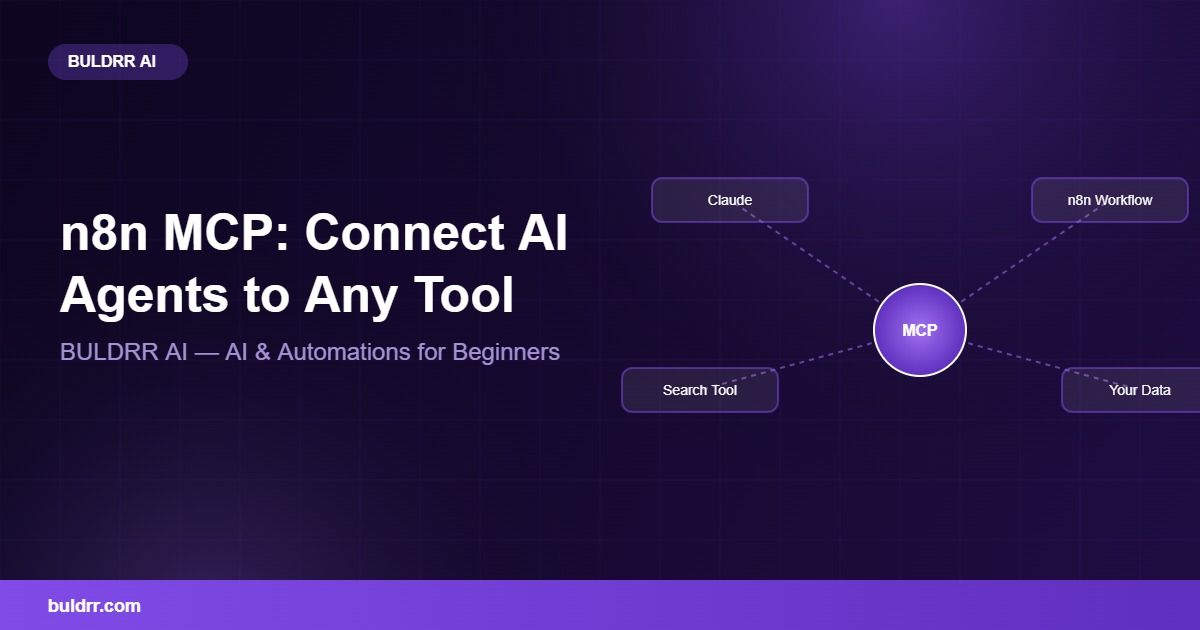
Ever wish your AI agent could just use any tool, without you building a custom connection every single time? That is exactly what MCP does for n8n. MCP stands for Model Context Protocol, and it is quickly becoming a standard way AI tools talk to each other in 2026. If that sounds technical, do not worry. By the end of this guide, you will understand what MCP actually is, why n8n added support for it, and how to connect your first tool. No coding required, just a few clicks inside n8n.
What You’ll Learn
- What MCP (Model Context Protocol) actually means, in plain English
- Why n8n added MCP support and what problem it solves
- The two ways n8n can use MCP, explained simply
- How to turn an n8n workflow into a tool an AI agent can use
- Common questions beginners have about MCP
What Is MCP? (In Simple Words)
MCP is a standard way for AI agents to connect to tools and data. Builders do not have to write custom code for every single connection anymore.
Think of MCP like a universal keycard for an office building. Before keycards, every office had a different lock and a different key. Guards had to remember which key opened which door. A universal keycard changes that. One card opens every approved door in the building, no matter which company owns it.
MCP does the same thing for AI. Before MCP, every AI tool needed its own custom connector to talk to every app. MCP gives everyone the same keycard system instead.
MCP was introduced by Anthropic, the company behind Claude, in November 2024, as a free and open standard. As of 2026, many AI tools and platforms have adopted it, including n8n. Nobody owns MCP. Anyone can use it, including you.
Why Does n8n Support MCP?
n8n added MCP support so your workflows can either offer tools to AI agents, or let your own AI agents use tools from other places, using the same standard connection both times.
At BULDRR AI, we test every automation method before writing about it, and MCP is no exception. It is one of the simplest ways we have found to connect n8n to outside AI apps without messy custom code.
Before MCP, connecting n8n to an outside AI app meant building a custom API call and hoping the other side supported it. MCP replaces all that guesswork with one shared format.
The Two Ways n8n Uses MCP
n8n can act as the shop or the shopper. It can offer your workflows as tools for other AI apps to use, or it can let your workflow’s own AI agent go shopping for tools somewhere else.
Okay so here is the simplest way to picture it. Think of a small bakery. Most days, the bakery just sells bread to customers who walk in. That is n8n being the shop. Customers, like Claude or another AI app, come in and use whatever tool is on the shelf.
But sometimes, the bakery owner needs to buy flour from a supplier down the street. Now the bakery is the shopper, walking into someone else’s shop to grab what it needs. n8n can do both jobs with MCP.
In practical terms, that means two different nodes:
- MCP Server Trigger node: n8n being the shop. You build a workflow, add this trigger, and other AI apps can call your workflow as a tool.
- MCP Client Tool node: n8n being the shopper. Your n8n AI Agent node can reach out and use tools from other MCP servers, without you building a custom connection for each one.
n8n added both of these nodes in April 2025, after its community asked for them. You can see a real working example of the client side in this n8n workflow that connects GPT-4o to Brave Search through MCP.
More recently, n8n has also been rolling out a deeper MCP connection at the instance level, letting AI apps help build or edit workflows directly inside n8n. This part is newer and still changing, so check n8n’s own documentation for the latest details before relying on it for anything important.
How to Turn an n8n Workflow Into an MCP Tool
Let’s use the shop direction first, since it is the easier starting point for beginners. This turns any workflow into a tool that AI apps like Claude can call.
Step 1: Open n8n and Create a New Workflow
Log in to n8n, cloud or self-hosted. Click the “+” button to start a new workflow.
Check: You see a blank canvas ready for nodes.
Tip: Name your workflow something clear, like “Weather Tool for Claude.”
Step 2: Add the MCP Server Trigger Node
Search for “MCP Server Trigger” in the node panel and add it as your starting node.
Check: The trigger node appears and generates a production URL for you.
Tip: Keep that URL tab open. You will need it in Step 4.
Step 3: Build the Task Behind the Trigger
Add the nodes that do the actual work, like calling a weather API or checking a row in a spreadsheet. This is the job your tool will perform.
Check: Your workflow runs successfully when you test it manually first.
Tip: Keep your first tool simple. One clear task works better than five tasks bundled together.
Step 4: Copy Your MCP Server URL
Open the MCP Server Trigger node and copy its production URL.
Check: You have a working URL that starts with your own n8n domain.
Tip: Treat this URL like a password. Anyone who has the link can call your tool.
Step 5: Connect It to Your AI App
Add this URL inside the settings of any MCP-compatible AI app, following that app’s own connection steps. Every app sets this up a little differently, so check that app’s help docs for the exact process.
Check: Your AI app now lists your n8n tool as available to use.
Tip: Test with a simple question first, like asking the app to run your tool once.
Step 6: Test the Connection
Ask your AI app to use the new tool, then watch n8n’s execution log to see the request arrive.
Check: A new execution appears in n8n the moment the AI app calls your tool.
Tip: If nothing shows up, double check the URL was pasted correctly with no extra spaces.
Real-World Before and After
Meet Daniel. He runs a small marketing agency and built a great n8n workflow that pulls client campaign numbers into a report. But every time he wanted to check those numbers with Claude, he had to copy and paste data by hand between apps. It took him about 20 minutes every morning.
After adding the MCP Server Trigger node to his report workflow, Daniel just asks Claude directly, “What were yesterday’s ad results?” Claude calls his n8n workflow through MCP and answers in seconds. His 20-minute morning task is now a 10-second question.
Common Questions
Do I need to know how to code to use MCP in n8n?
No. Adding the MCP Server Trigger or MCP Client Tool node works the same as any other n8n node, using drag and drop. No custom code is required for a basic setup.
Is MCP only for Claude?
No. MCP is an open standard, so any AI app that supports it can connect, not just Claude. As of 2026, more AI apps are adding MCP support every few months.
Does MCP work with self-hosted n8n?
Yes. MCP nodes work the same way on n8n Cloud and self-hosted n8n. If you self-host n8n, for example on an affordable VPS (a small online server), you can also fully turn MCP off with an environment variable, which some businesses prefer for extra control.
Is MCP secure?
Your MCP Server Trigger URL works like a private link. Anyone who has it can call your workflow, so treat it carefully and do not share it publicly. n8n also supports authentication options for extra protection.
New Term, Not a New Skill
MCP sounds like a big technical word, and that can feel intimidating, right? But you are not learning a new programming language here. You are just adding one more node to workflows you already know how to build. If you have added any node in n8n before, you already have the skill you need.
Quick Recap
- MCP is an open standard that lets AI agents connect to tools without custom code for every connection
- n8n can act as “the shop” with MCP Server Trigger, or “the shopper” with MCP Client Tool
- Turning a workflow into an MCP tool takes about 6 simple steps, no coding needed
- MCP works the same way on n8n Cloud and self-hosted n8n
- Treat your MCP Server URL like a password and keep it private
What to Do Next
Open n8n right now, add the MCP Server Trigger node to any simple workflow, and copy its production URL. That one small step is what turns a normal workflow into a tool an AI agent can use.
FAQ
- What does MCP stand for in n8n?
- MCP stands for Model Context Protocol. It is an open standard, created by Anthropic in November 2024, that lets AI agents connect to tools and data using one shared format instead of a custom connector for every app.
- What is the difference between the MCP Server Trigger and MCP Client Tool in n8n?
- The MCP Server Trigger turns your n8n workflow into a tool other AI apps can call. The MCP Client Tool lets your n8n AI Agent call tools from other MCP servers. One offers tools, the other uses them.
- When did n8n add MCP support?
- n8n added native MCP Client Tool and MCP Server Trigger nodes in April 2025, based on requests from its community. Support has kept expanding since then as MCP adoption has grown across the AI industry.
- Do I need n8n Cloud to use MCP, or does self-hosted work too?
- Both work. MCP nodes function the same way on n8n Cloud and self-hosted n8n. Self-hosted users get one extra option: fully disabling MCP through an environment variable if it is not needed.
- Can I use MCP in n8n for free?
- Yes. The MCP Server Trigger and MCP Client Tool nodes are included in n8n’s free, self-hosted Community Edition. You only pay for hosting if you choose to self-host, or for an n8n Cloud plan if you prefer that route.
- Is MCP going to replace regular n8n integrations?
- Not likely soon. MCP works well for connecting to AI agents and tools that support the standard. n8n’s built-in app integrations still cover many other automation needs, so most people will use both together.
Each button opens the assistant with the prompt already written, asking it to teach this article step by step, in simple words.
 ChatGPT
 Claude
 Grok
Grok Perplexity
 Add as a preferred source