You keep hearing about AI automation but every option seems to cost money. ChatGPT Plus is $20 a month. Claude Pro is another $20. The moment you want AI running inside your own workflows, the bills pile up fast.
Here is the thing. You do not have to pay anything.
OpenRouter gives you free access to 28 AI models including DeepSeek, Llama 4, Gemma, Qwen3, and more. n8n lets you build automations with those models running inside them. Put the two together and you get a free AI automation setup that runs 24/7 with no subscription required.
This guide shows you exactly how to connect OpenRouter to n8n, step by step. You will also have one complete working setup by the end, no coding needed.
What Is OpenRouter? (The Short Version)
Think of OpenRouter like a food court in a mall.
Instead of leaving the mall to go to a separate restaurant for every meal, you walk into the food court and pick from 20 different places at once. OpenRouter is the food court for AI models. Instead of signing up separately for OpenAI, Anthropic, Meta, Google, and DeepSeek, you get one API key that gives you access to all of them through a single connection.
As of June 2026, OpenRouter gives you access to over 300 AI models. About 28 of those models are completely free with no credit card required and no hidden charges. Free models come from Meta (Llama 4 Scout), DeepSeek (DeepSeek Chat v3, DeepSeek R1), Google (Gemma 4), Alibaba (Qwen3), and NVIDIA.
One thing to know before you start: free models on OpenRouter have rate limits. Without adding any credits to your account, you get 50 free requests per day across all free models. If you add a one-time payment of $10 or more, that daily limit goes up to 1,000 requests. For building and testing your first workflows, 50 requests per day is more than enough.
OpenRouter cannot generate images and cannot fine-tune models on your own data. It handles text-based AI tasks only. Good to know upfront.
What Is n8n and Why Pair It with OpenRouter?
n8n is a free automation tool that connects apps and services together and makes them do things automatically without you having to touch anything.
Here is a simple way to think about it. If OpenRouter is the engine, n8n is the car. The engine alone does not take you anywhere. The car alone goes nowhere without an engine. Together, you drive.
n8n is open-source, which means you download and use it for free forever. The most reliable way to run it is on a small internet-connected server called a VPS. A VPS hosting plan costs about $4 to $6 per month and keeps your automations running 24 hours a day, even when your laptop is off.
Not ready to set up a server? n8n also has a cloud version at n8n.io with a free trial. For following along with this guide right now, the cloud version works perfectly. You can be inside n8n in under 3 minutes.
What You Will Build
By the end of this guide, you will have one working n8n workflow that does the following:
- You send a message or text through a trigger
- n8n passes it to a free AI model through OpenRouter
- You get an AI-generated response back in seconds
Before this workflow exists: you open ChatGPT, paste text, copy the response, paste it somewhere else. Every step is manual. Every API call costs money if you are on a paid plan.
After this workflow exists: your automation handles the AI step on its own. You trigger it once and walk away. Zero recurring cost on the AI side.
This takes about 20 to 30 minutes to set up the first time. After that, it runs without any help from you.
Step-by-Step: How to Connect OpenRouter to n8n
Step 1. Create a Free OpenRouter Account and Get Your API Key
Go to openrouter.ai and click “Sign In.” You can sign up with a Google account or a regular email address. No credit card required at this step.
Once you are logged in:
- Click your profile icon in the top right corner
- Click “Keys” in the dropdown menu
- Click “Create Key,” name it something like “n8n-project,” and click Create
- Copy the key immediately. OpenRouter shows it to you only once
Paste the key into your notes app before you close that window. It looks like this: sk-or-v1-xxxxxxxxxxxxxxxxxxxx
✓ Done when: You see your new key listed with its name and creation date
Step 2. Open n8n and Create a New Workflow
If you are on n8n Cloud, log in at app.n8n.cloud and click “New Workflow” from the dashboard. If you are self-hosting n8n, open your n8n instance in the browser and click the “+” button to start a new workflow.
You will see a blank canvas with a “+” button in the center. That is where you start adding nodes.
✓ Done when: You see an empty workflow canvas in n8n
Step 3. Add Your OpenRouter API Key to n8n
Check which version of n8n you are running. You can find this at the bottom left corner of the n8n dashboard. This matters because the setup is slightly different depending on your version.
For n8n version 1.77 or higher (this is the recommended path):
- In your workflow, click “+” to add a node
- Search for “OpenRouter Chat Model” and add it
- Click “Credential to connect with” then “Create New”
- Paste your OpenRouter API key and click Save
For n8n versions older than 1.77:
- Add an “OpenAI Chat Model” node
- Click “Credential to connect with” then “Create New”
- Paste your OpenRouter API key into the API Key field
- Click “Add Option” and choose “Base URL”
- Replace the existing URL with:
https://openrouter.ai/api/v1 - Click Save
Tip: If you see a red “Could not connect” error after saving the credential, ignore it. That error fires because n8n tries to ping OpenAI’s servers, not OpenRouter’s. Your key is saved correctly. Close the error and continue.
✓ Done when: Your OpenRouter API key appears as a saved credential inside n8n
Step 4. Choose Your Free Model
In the Model field of the node, type the model name manually. Free model names end with :free to tell OpenRouter you want the zero-cost version.
For your first workflow, start with this model:
deepseek/deepseek-chat-v3-0324:free
To set it: click the Model field, select “Expression” mode from the dropdown, then type or paste the model name.
Tip: Copy the model name exactly, including the :free at the end. Leaving it off routes you to the paid version.
✓ Done when: The Model field shows the model name highlighted in orange (that indicates expression mode is active)
Step 5. Add the AI Agent Node and Connect Everything
Build the full workflow by adding these nodes and connecting them in order:
- Chat Trigger (or Manual Trigger for testing) to start the workflow
- AI Agent node to process the message
- Connect your OpenRouter credential to the AI Agent as the “Chat Model”
In the AI Agent node settings, set a system prompt. For your first test, use:
You are a helpful assistant. Answer the user question in 3 clear sentences or less.
✓ Done when: All three nodes are connected and the OpenRouter model shows as linked under the AI Agent
Step 6. Test the Workflow
Click “Chat” at the bottom of the canvas. A chat window opens on the right side of the screen.
Type a simple test message like “What is n8n used for?” and press Enter.
You should see a response appear within 5 to 15 seconds. Response time varies slightly depending on how busy OpenRouter’s free tier is at that moment.
If you get an error, check three things: that the API key is saved in the credential (not just typed in a text field), that the model name includes :free, and that the base URL is https://openrouter.ai/api/v1 for older n8n versions.
✓ Done when: You see an AI-generated response appear in the n8n chat window
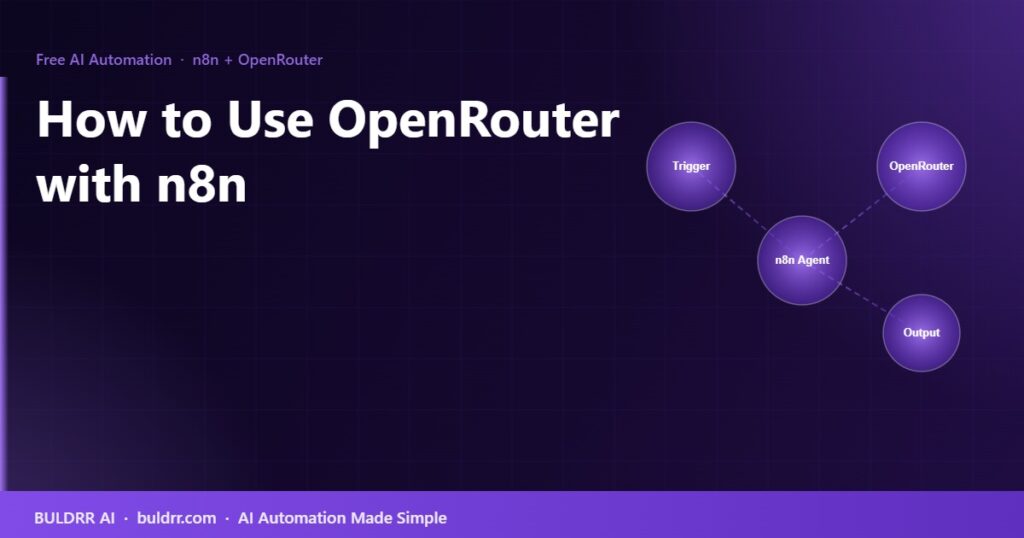
Automation Flow: How the Full Setup Works
Trigger
Chat message, form, schedule, or webhook
→
n8n Agent
Processes input, applies your system prompt
→
OpenRouter
Routes to free AI model of your choice
→
Output
Email, Slack, Google Sheets, Notion, or any app
Each box in this diagram is one node inside n8n. You connect them visually with zero code.
Best Free OpenRouter Models for n8n in 2026
Not all free models perform the same way. Here is how the top options compare for automation tasks as of June 2026:
| Model ID | Best For | Speed | Context | Free Limit |
|---|
deepseek/deepseek-chat-v3-0324:free | General writing, summarizing, Q&A | Fast | 64K | 50/day |
meta-llama/llama-4-scout:free | Fast replies, chat, simple tasks | Very fast | 10M | 50/day |
deepseek/deepseek-r1:free | Step-by-step reasoning, math, logic | Slow | 64K | 50/day |
google/gemma-3-27b-it:free | Lightweight tasks, low latency | Very fast | 131K | 50/day |
qwen/qwen3-235b-a22b:free | Complex analysis, detailed research | Medium | 40K | 50/day |
Starting recommendation: Use deepseek/deepseek-chat-v3-0324:free for your first workflow. It is the most reliable all-purpose free model right now. Switch to a specialized model later once you know exactly what your workflow needs to do.
What Happens When You Hit the Daily Limit?
Free accounts without added credits get 50 requests per day across all free models. When you hit that limit, OpenRouter sends back a 429 error code. Your n8n workflow stops at the AI node and shows the error in the execution log.
Three ways to handle this without spending more money:
- Add a fallback model in n8n. The AI Agent node lets you configure a backup model. If DeepSeek hits 50, n8n automatically tries Llama 4 Scout next. Each model has its own 50-request pool.
- Add a Wait node. Insert a delay between executions to spread requests over time. A 5-minute wait between runs keeps you well inside the daily limit for most use cases.
- Add $10 in credits once. It is not a subscription. It is a one-time top-up. It raises your daily free limit permanently from 50 to 1,000 requests per day.
Real Workflows You Can Build Right Now
Once you have OpenRouter connected to n8n, here are practical workflows to build next:
- Daily content brief generator. n8n runs every morning, pulls trending topics from an RSS feed, sends them to DeepSeek via OpenRouter, gets a summary, and emails you the brief automatically.
- Webhook-triggered email responder. A contact form submission triggers n8n, the message goes to OpenRouter for an AI draft reply, and the draft lands in your inbox ready to review and send.
- Spreadsheet row classifier. A new row in Google Sheets triggers n8n, the AI model reads and classifies the row, and the category is written back to the sheet without you touching anything.
- YouTube transcript summarizer. Paste a YouTube URL into a chat trigger, n8n fetches the transcript, sends it to the AI model, and returns a structured summary in under 30 seconds.
Frequently Asked Questions
Do I need to know how to code to use OpenRouter with n8n?
No. Everything in this guide is point-and-click inside n8n’s visual editor. The only step that resembles “technical” work is copying a model name and pasting it into a field. n8n was built specifically so non-developers can build automations without writing code.
Is OpenRouter actually free? What is the catch?
The 28 models marked with :free cost nothing. The catch is the daily request limit: 50 requests per day for accounts without credits, 1,000 per day for accounts with $10 or more added. Response speed can also be slower during peak hours since free requests have lower priority than paid ones.
Can I use OpenRouter with n8n Cloud or only self-hosted n8n?
Both work exactly the same way. OpenRouter connects via API key, which behaves identically in n8n Cloud and self-hosted n8n. Every step in this guide applies to both options.
Does n8n work with all OpenRouter models?
Yes. Any model available on OpenRouter can be used in n8n by entering the model name in the Model field. The native OpenRouter Chat Model node, added in n8n version 1.77, supports all models through a single saved credential.
What if I want more than 50 free requests per day?
Three options: add a one-time $10 credit to your OpenRouter account to raise your daily free limit to 1,000 requests, rotate between multiple free models to multiply your available daily total, or use a paid model only for overflow requests at around $0.01 per 1,000 tokens.
Can I connect OpenRouter to Make.com or Zapier instead of n8n?
Yes. OpenRouter uses a standard REST API format. Any tool that supports HTTP requests, including Make.com, Zapier, and Pabbly Connect, can call the OpenRouter API using your API key. The base URL is https://openrouter.ai/api/v1 and the endpoint format is identical to the OpenAI API.
What to Do Next
Go to openrouter.ai/keys and create your free API key. It takes about 90 seconds and requires no payment information. You do not have to set up n8n today or build anything yet. Just get the key and store it somewhere safe.
When you are ready to build your first workflow, BULDRR AI’s free templates library has pre-built n8n automation starters you can download and run in minutes without starting from scratch.
You keep hearing about AI automation but every option seems to cost money. ChatGPT Plus is $20 a month. Claude Pro is another $20. The moment you want AI running inside your own workflows, the bills pile up fast.
Here is the thing. You do not have to pay anything.
OpenRouter gives you free access to 28 AI models including DeepSeek, Llama 4, Gemma, Qwen3, and more. n8n lets you build automations with those models running inside them. Put the two together and you get a free AI automation setup that runs 24/7 with no subscription required.
This guide shows you exactly how to connect OpenRouter to n8n, step by step. You will also have one complete working setup by the end, no coding needed.
What Is OpenRouter? (The Short Version)
Think of OpenRouter like a food court in a mall.
Instead of leaving the mall to go to a separate restaurant for every meal, you walk into the food court and pick from 20 different places at once. OpenRouter is the food court for AI models. Instead of signing up separately for OpenAI, Anthropic, Meta, Google, and DeepSeek, you get one API key that gives you access to all of them through a single connection.
As of June 2026, OpenRouter gives you access to over 300 AI models. About 28 of those models are completely free with no credit card required and no hidden charges. Free models come from Meta (Llama 4 Scout), DeepSeek (DeepSeek Chat v3, DeepSeek R1), Google (Gemma 4), Alibaba (Qwen3), and NVIDIA.
One thing to know before you start: free models on OpenRouter have rate limits. Without adding any credits to your account, you get 50 free requests per day across all free models. If you add a one-time payment of $10 or more, that daily limit goes up to 1,000 requests. For building and testing your first workflows, 50 requests per day is more than enough.
OpenRouter cannot generate images and cannot fine-tune models on your own data. It handles text-based AI tasks only. Good to know upfront.
What Is n8n and Why Pair It with OpenRouter?
n8n is a free automation tool that connects apps and services together and makes them do things automatically without you having to touch anything.
Here is a simple way to think about it. If OpenRouter is the engine, n8n is the car. The engine alone does not take you anywhere. The car alone goes nowhere without an engine. Together, you drive.
n8n is open-source, which means you download and use it for free forever. The most reliable way to run it is on a small internet-connected server called a VPS. A VPS hosting plan costs about $4 to $6 per month and keeps your automations running 24 hours a day, even when your laptop is off.
Not ready to set up a server? n8n also has a cloud version at n8n.io with a free trial. For following along with this guide right now, the cloud version works perfectly. You can be inside n8n in under 3 minutes.
What You Will Build
By the end of this guide, you will have one working n8n workflow that does the following:
- You send a message or text through a trigger
- n8n passes it to a free AI model through OpenRouter
- You get an AI-generated response back in seconds
Before this workflow exists: you open ChatGPT, paste text, copy the response, paste it somewhere else. Every step is manual. Every API call costs money if you are on a paid plan.
After this workflow exists: your automation handles the AI step on its own. You trigger it once and walk away. Zero recurring cost on the AI side.
This takes about 20 to 30 minutes to set up the first time. After that, it runs without any help from you.
Step-by-Step: How to Connect OpenRouter to n8n
Step 1. Create a Free OpenRouter Account and Get Your API Key
Go to openrouter.ai and click “Sign In.” You can sign up with a Google account or a regular email address. No credit card required at this step.
Once you are logged in:
- Click your profile icon in the top right corner
- Click “Keys” in the dropdown menu
- Click “Create Key,” name it something like “n8n-project,” and click Create
- Copy the key immediately. OpenRouter shows it to you only once
Paste the key into your notes app before you close that window. It looks like this: sk-or-v1-xxxxxxxxxxxxxxxxxxxx
✓ Done when: You see your new key listed with its name and creation date
Step 2. Open n8n and Create a New Workflow
If you are on n8n Cloud, log in at app.n8n.cloud and click “New Workflow” from the dashboard. If you are self-hosting n8n, open your n8n instance in the browser and click the “+” button to start a new workflow.
You will see a blank canvas with a “+” button in the center. That is where you start adding nodes.
✓ Done when: You see an empty workflow canvas in n8n
Step 3. Add Your OpenRouter API Key to n8n
Check which version of n8n you are running. You can find this at the bottom left corner of the n8n dashboard. This matters because the setup is slightly different depending on your version.
For n8n version 1.77 or higher (this is the recommended path):
- In your workflow, click “+” to add a node
- Search for “OpenRouter Chat Model” and add it
- Click “Credential to connect with” then “Create New”
- Paste your OpenRouter API key and click Save
For n8n versions older than 1.77:
- Add an “OpenAI Chat Model” node
- Click “Credential to connect with” then “Create New”
- Paste your OpenRouter API key into the API Key field
- Click “Add Option” and choose “Base URL”
- Replace the existing URL with:
https://openrouter.ai/api/v1 - Click Save
Tip: If you see a red “Could not connect” error after saving the credential, ignore it. That error fires because n8n tries to ping OpenAI’s servers, not OpenRouter’s. Your key is saved correctly. Close the error and continue.
✓ Done when: Your OpenRouter API key appears as a saved credential inside n8n
Step 4. Choose Your Free Model
In the Model field of the node, type the model name manually. Free model names end with :free to tell OpenRouter you want the zero-cost version.
For your first workflow, start with this model:
deepseek/deepseek-chat-v3-0324:free
To set it: click the Model field, select “Expression” mode from the dropdown, then type or paste the model name.
Tip: Copy the model name exactly, including the :free at the end. Leaving it off routes you to the paid version.
✓ Done when: The Model field shows the model name highlighted in orange (that indicates expression mode is active)
Step 5. Add the AI Agent Node and Connect Everything
Build the full workflow by adding these nodes and connecting them in order:
- Chat Trigger (or Manual Trigger for testing) to start the workflow
- AI Agent node to process the message
- Connect your OpenRouter credential to the AI Agent as the “Chat Model”
In the AI Agent node settings, set a system prompt. For your first test, use:
You are a helpful assistant. Answer the user question in 3 clear sentences or less.
✓ Done when: All three nodes are connected and the OpenRouter model shows as linked under the AI Agent
Step 6. Test the Workflow
Click “Chat” at the bottom of the canvas. A chat window opens on the right side of the screen.
Type a simple test message like “What is n8n used for?” and press Enter.
You should see a response appear within 5 to 15 seconds. Response time varies slightly depending on how busy OpenRouter’s free tier is at that moment.
If you get an error, check three things: that the API key is saved in the credential (not just typed in a text field), that the model name includes :free, and that the base URL is https://openrouter.ai/api/v1 for older n8n versions.
✓ Done when: You see an AI-generated response appear in the n8n chat window
Automation Flow: How the Full Setup Works
Trigger
Chat message, form, schedule, or webhook
→
n8n Agent
Processes input, applies your system prompt
→
OpenRouter
Routes to free AI model of your choice
→
Output
Email, Slack, Google Sheets, Notion, or any app
Each box in this diagram is one node inside n8n. You connect them visually with zero code.
Best Free OpenRouter Models for n8n in 2026
Not all free models perform the same way. Here is how the top options compare for automation tasks as of June 2026:
| Model ID | Best For | Speed | Context | Free Limit |
|---|
deepseek/deepseek-chat-v3-0324:free | General writing, summarizing, Q&A | Fast | 64K | 50/day |
meta-llama/llama-4-scout:free | Fast replies, chat, simple tasks | Very fast | 10M | 50/day |
deepseek/deepseek-r1:free | Step-by-step reasoning, math, logic | Slow | 64K | 50/day |
google/gemma-3-27b-it:free | Lightweight tasks, low latency | Very fast | 131K | 50/day |
qwen/qwen3-235b-a22b:free | Complex analysis, detailed research | Medium | 40K | 50/day |
Starting recommendation: Use deepseek/deepseek-chat-v3-0324:free for your first workflow. It is the most reliable all-purpose free model right now. Switch to a specialized model later once you know exactly what your workflow needs to do.
What Happens When You Hit the Daily Limit?
Free accounts without added credits get 50 requests per day across all free models. When you hit that limit, OpenRouter sends back a 429 error code. Your n8n workflow stops at the AI node and shows the error in the execution log.
Three ways to handle this without spending more money:
- Add a fallback model in n8n. The AI Agent node lets you configure a backup model. If DeepSeek hits 50, n8n automatically tries Llama 4 Scout next. Each model has its own 50-request pool.
- Add a Wait node. Insert a delay between executions to spread requests over time. A 5-minute wait between runs keeps you well inside the daily limit for most use cases.
- Add $10 in credits once. It is not a subscription. It is a one-time top-up. It raises your daily free limit permanently from 50 to 1,000 requests per day.
Real Workflows You Can Build Right Now
Once you have OpenRouter connected to n8n, here are practical workflows to build next:
- Daily content brief generator. n8n runs every morning, pulls trending topics from an RSS feed, sends them to DeepSeek via OpenRouter, gets a summary, and emails you the brief automatically.
- Webhook-triggered email responder. A contact form submission triggers n8n, the message goes to OpenRouter for an AI draft reply, and the draft lands in your inbox ready to review and send.
- Spreadsheet row classifier. A new row in Google Sheets triggers n8n, the AI model reads and classifies the row, and the category is written back to the sheet without you touching anything.
- YouTube transcript summarizer. Paste a YouTube URL into a chat trigger, n8n fetches the transcript, sends it to the AI model, and returns a structured summary in under 30 seconds.
Frequently Asked Questions
Do I need to know how to code to use OpenRouter with n8n?
No. Everything in this guide is point-and-click inside n8n’s visual editor. The only step that resembles “technical” work is copying a model name and pasting it into a field. n8n was built specifically so non-developers can build automations without writing code.
Is OpenRouter actually free? What is the catch?
The 28 models marked with :free cost nothing. The catch is the daily request limit: 50 requests per day for accounts without credits, 1,000 per day for accounts with $10 or more added. Response speed can also be slower during peak hours since free requests have lower priority than paid ones.
Can I use OpenRouter with n8n Cloud or only self-hosted n8n?
Both work exactly the same way. OpenRouter connects via API key, which behaves identically in n8n Cloud and self-hosted n8n. Every step in this guide applies to both options.
Does n8n work with all OpenRouter models?
Yes. Any model available on OpenRouter can be used in n8n by entering the model name in the Model field. The native OpenRouter Chat Model node, added in n8n version 1.77, supports all models through a single saved credential.
What if I want more than 50 free requests per day?
Three options: add a one-time $10 credit to your OpenRouter account to raise your daily free limit to 1,000 requests, rotate between multiple free models to multiply your available daily total, or use a paid model only for overflow requests at around $0.01 per 1,000 tokens.
Can I connect OpenRouter to Make.com or Zapier instead of n8n?
Yes. OpenRouter uses a standard REST API format. Any tool that supports HTTP requests, including Make.com, Zapier, and Pabbly Connect, can call the OpenRouter API using your API key. The base URL is https://openrouter.ai/api/v1 and the endpoint format is identical to the OpenAI API.
What to Do Next
Go to openrouter.ai/keys and create your free API key. It takes about 90 seconds and requires no payment information. You do not have to set up n8n today or build anything yet. Just get the key and store it somewhere safe.
When you are ready to build your first workflow, BULDRR AI’s free templates library has pre-built n8n automation starters you can download and run in minutes without starting from scratch.