
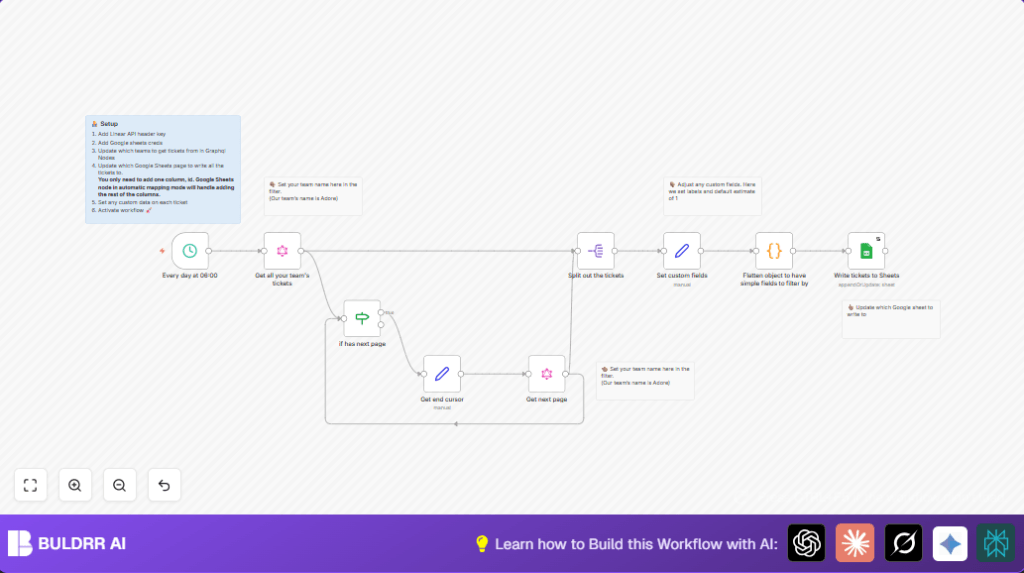

What this workflow does
This workflow gets all tickets from a chosen Linear team every day at 9 AM. It fetches all pages of tickets to avoid missing any. Then it updates a Google Sheet by adding new tickets or changing existing ones based on ticket IDs. This saves time, stops manual copying mistakes, and keeps ticket data fresh for daily reports.
The workflow runs automatically in n8n without needing you to do anything each morning. You get your full ticket list in Google Sheets ready for stakeholders.
Who should use this workflow
This workflow fits project managers or team leads who use Linear and want quick daily ticket updates in Google Sheets. If manual copying takes hours or causes mistakes, this workflow makes reports easy and reliable.
Teams wanting auto daily syncs of tickets for review, reporting, or analysis also benefit. It works for any Linear team by changing the filter.
Tools and services used
- n8n: The automation platform runs the workflow on schedule.
- Linear API: Accesses tickets data using GraphQL queries and your team filter.
- Google Sheets API: Updates your spreadsheet with ticket data using OAuth.
You must have API keys and credentials set up for Linear and Google Sheets inside n8n.
Inputs, processing, and output
Inputs
The workflow input is the scheduled timer that triggers it at 9 AM daily.
It uses the Linear API Key to query tickets and the team name to filter the data.
Processing Steps
- Trigger runs at 9 AM every day.
- GraphQL node queries the first 100 tickets filtered by team name.
- If node checks if more pages exist using pageInfo.hasNextPage.
- If more pages exist, Set node saves the endCursor for the next page.
- GraphQL node queries the next page using the endCursor, repeating until all tickets are fetched.
- Split Out node breaks the tickets array so each ticket is one item.
- Set node adds or updates ticket fields like labels as strings and default estimate if missing.
- Code node flattens nested ticket objects into simple key-value pairs for easier Google Sheets mapping.
- Google Sheets node appends new tickets and updates existing rows based on ticket IDs.
Output
Google Sheet updated daily with the full list of team’s tickets, keeping the data accurate and current.
Beginner step-by-step: How to use this workflow in n8n
Import the workflow
- Download the workflow file from this page using the Download button.
- Open the n8n editor and select “Import from File” to load the downloaded workflow.
Add credentials
- Enter your Linear API Key in the GraphQL nodes’ credential settings.
- Set up Google Sheets OAuth2 credentials in n8n and apply them to the Google Sheets node.
Update settings
- Change the Linear team name in the GraphQL queries variables to your own team.
- Update the Google Sheet document ID and sheet name in the Google Sheets node to match your target file and tab.
Test and activate
- Run the workflow manually once to check it fetches and writes tickets correctly.
- If no errors happen, activate the workflow to run daily at 9 AM.
If self hosting n8n, consider this helpful resource on self-host n8n to run the workflow on your own server.
Customization ideas
- Change the team name in GraphQL nodes to get tickets for a different project.
- Modify the default estimate value in the Set node to fit your workflow.
- Add more ticket fields like assignee or comments in the GraphQL query and update mapping.
- Update Google Sheet document ID or tab name in the Google Sheets node to use another spreadsheet.
- Adjust the schedule trigger node to run at another time or frequency.
These changes help to match team needs better or include more data.
Common issues and fixes
- Authentication fails on Linear GraphQL node: Check API Key correctness and update credentials if expired.
- Google Sheets write errors: Reauthorize Google Sheets OAuth credentials and make sure sheet access exists.
- Pagination misses tickets: Verify If node checks pageInfo.hasNextPage correctly and Set node extracts endCursor using the right path.
Summary of results
✓ Saves several hours per week by automating ticket exports.
✓ Prevents errors from manual copying.
✓ Keeps Google Sheets ticket report accurate and up-to-date daily.
✓ Allows team-specific filtering for ticket selection.
✓ Makes reporting seamless and reliable.
