
 Schedule a Call
Automate Data Flow from Random User API to Sheets & Email with n8n
This n8n workflow automates fetching random user data, appending it to Google Sheets, converting to CSV and JSON files, and emailing the JSON file. It eliminates manual data entry, accelerates processing, and ensures seamless data sharing.
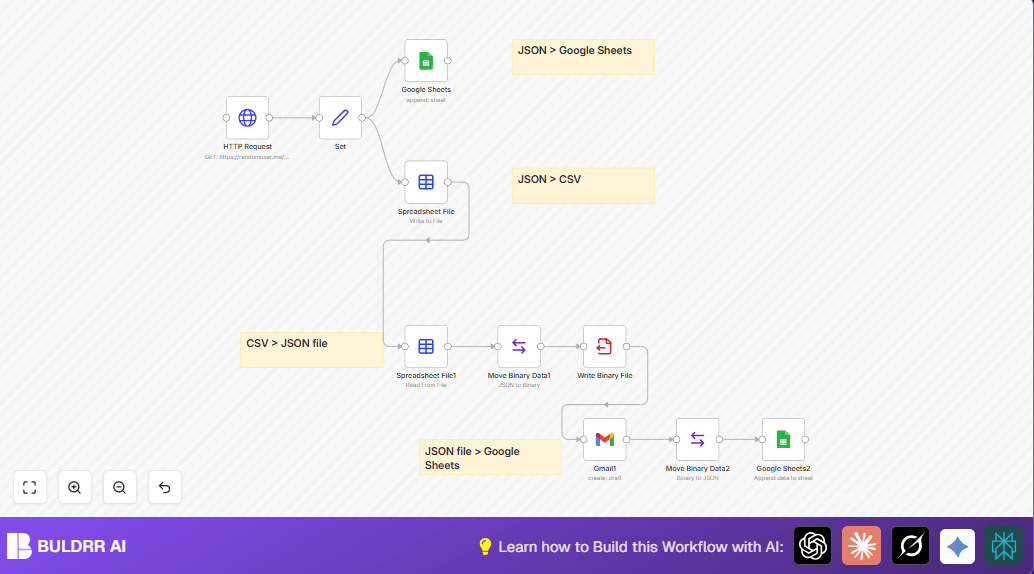


The canvas, and the 7 nodes behind it.
What runs inside this workflow
Automate Data Flow from Random User API to Sheets & Email with n8n is built from these n8n nodes: httpRequest, set, googleSheets, spreadsheetFile, moveBinaryData, writeBinaryFile, gmail.
Each button opens the assistant with the prompt already written — asking it to explain this exact workflow step by step, as if teaching a complete beginner.
 Add as a preferred source
Frequently Asked Questions
Can the workflow use APIs other than Random User API?
Yes. Any API returning JSON with user name and country can work if the Set node expressions are updated accordingly.
Does using Google Sheets and Gmail nodes consume API quotas?
Yes. Each append to sheets or email sent counts against Google API quotas. Monitor quota usage in Google Cloud Console.
How is data security maintained in Gmail and Google Sheets nodes?
OAuth2 credentials secure data access without exposing passwords. Keep the n8n instance secure to protect data.
Can this workflow be scaled for many users at once?
Yes. Adjust the HTTP Request URL with parameters like ?results=5 and loop or batch processes in n8n for bulk data.

Related workflows.
All 10,467+ templates →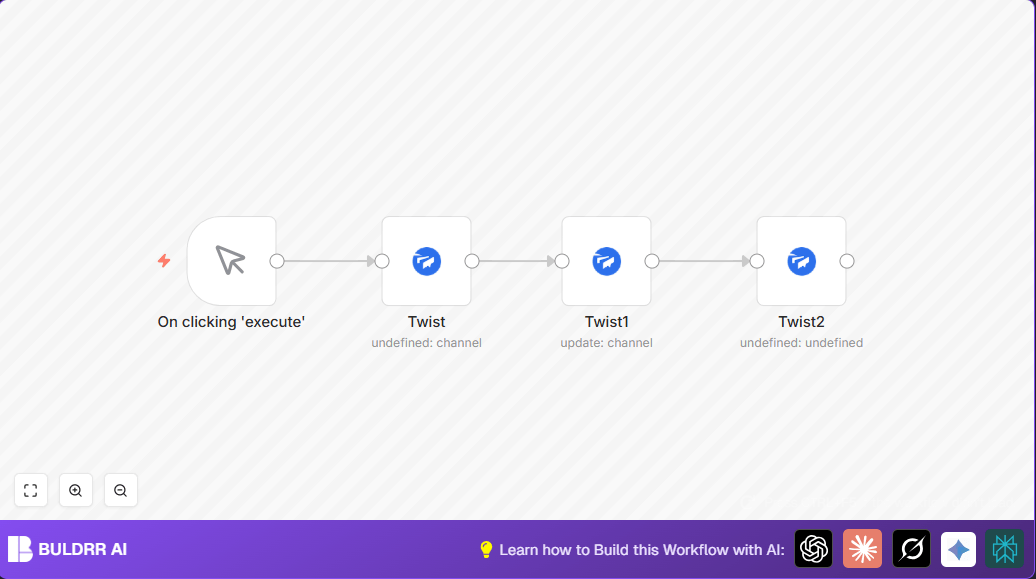 FREE
Automate Twist Channel Creation and Messaging with n8n
This workflow automates creating and updating a channel in Twist and sending a personalized message to specific users. It eliminates manual setup errors and saves time managing Twist communications.
Open template →
FREE
Automate Twist Channel Creation and Messaging with n8n
This workflow automates creating and updating a channel in Twist and sending a personalized message to specific users. It eliminates manual setup errors and saves time managing Twist communications.
Open template →
 FREE
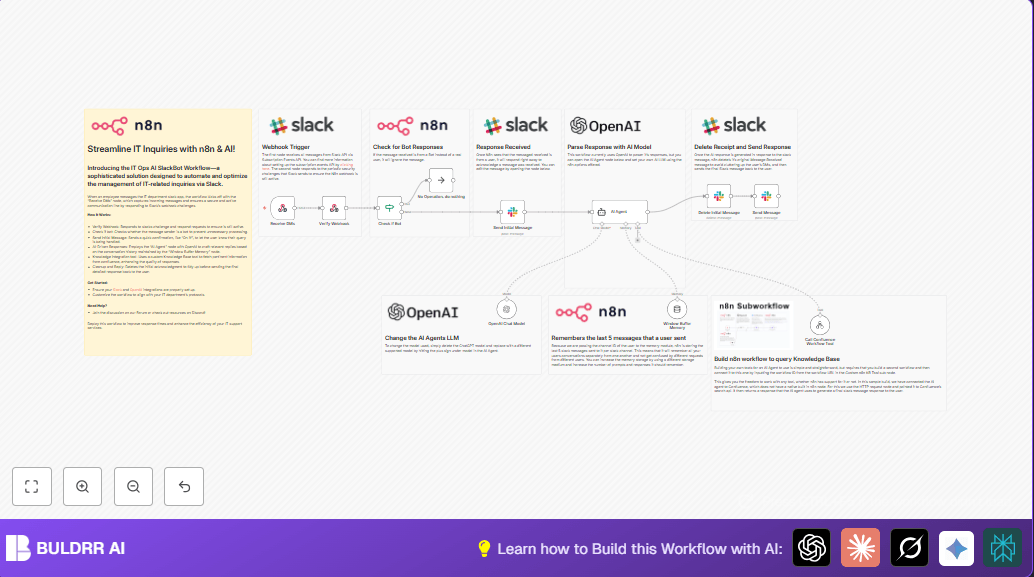
Automate IT Support with Slack and OpenAI in n8n
Streamline IT support by automating Slack message handling using n8n and OpenAI. This workflow handles Slack DMs, filters bots, queries a Confluence knowledge base, and delivers AI-generated responses, improving support efficiency and response time.
Open template →
FREE
Automate IT Support with Slack and OpenAI in n8n
Streamline IT support by automating Slack message handling using n8n and OpenAI. This workflow handles Slack DMs, filters bots, queries a Confluence knowledge base, and delivers AI-generated responses, improving support efficiency and response time.
Open template →
 FREE
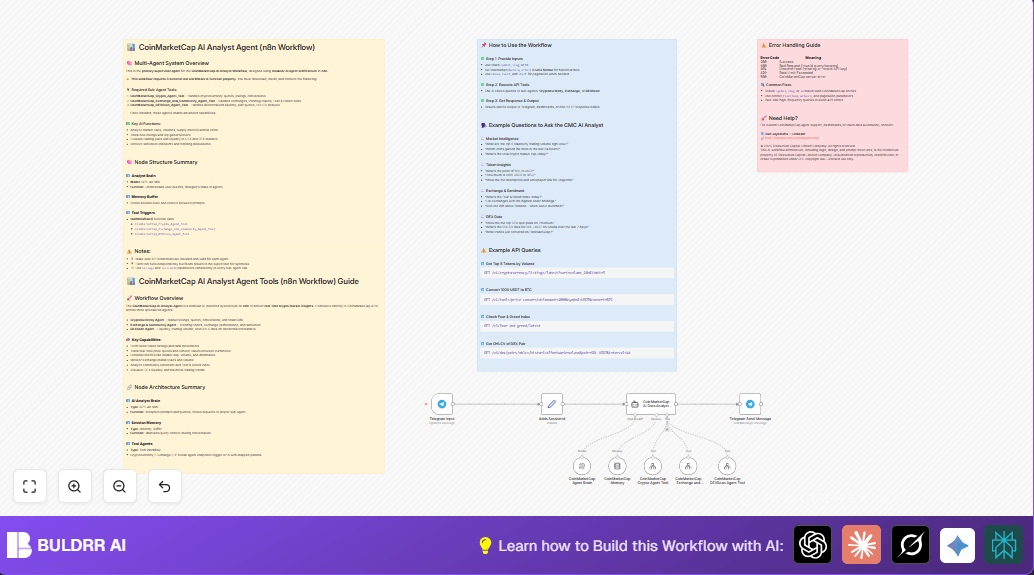
Automate Crypto Analysis with CoinMarketCap & n8n AI Agent
Discover how this unique n8n workflow leverages CoinMarketCap's multi-agent AI to deliver precise, real-time cryptocurrency insights directly via Telegram. Manage crypto data analysis efficiently with automated multi-source API integration.
Open template →
FREE
Automate Crypto Analysis with CoinMarketCap & n8n AI Agent
Discover how this unique n8n workflow leverages CoinMarketCap's multi-agent AI to deliver precise, real-time cryptocurrency insights directly via Telegram. Manage crypto data analysis efficiently with automated multi-source API integration.
Open template →
 FREE
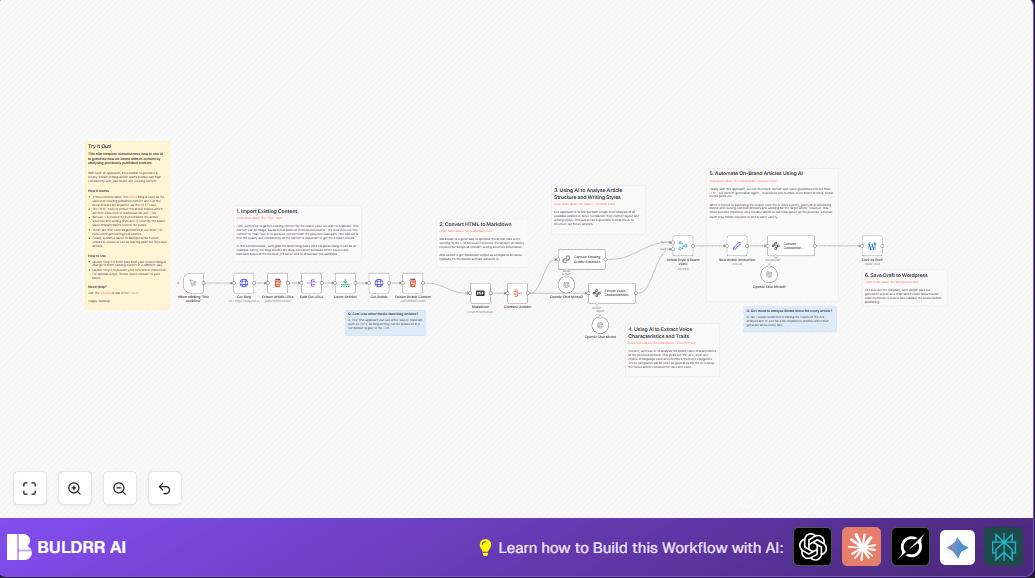
Generate On-Brand Blog Articles Using n8n and OpenAI
This workflow automates the creation of on-brand blog articles by analyzing existing company content using n8n and OpenAI. It extracts article structures and brand voice to produce consistent draft articles, saving significant content creation time.
Open template →
FREE
Generate On-Brand Blog Articles Using n8n and OpenAI
This workflow automates the creation of on-brand blog articles by analyzing existing company content using n8n and OpenAI. It extracts article structures and brand voice to produce consistent draft articles, saving significant content creation time.
Open template →
 FREE
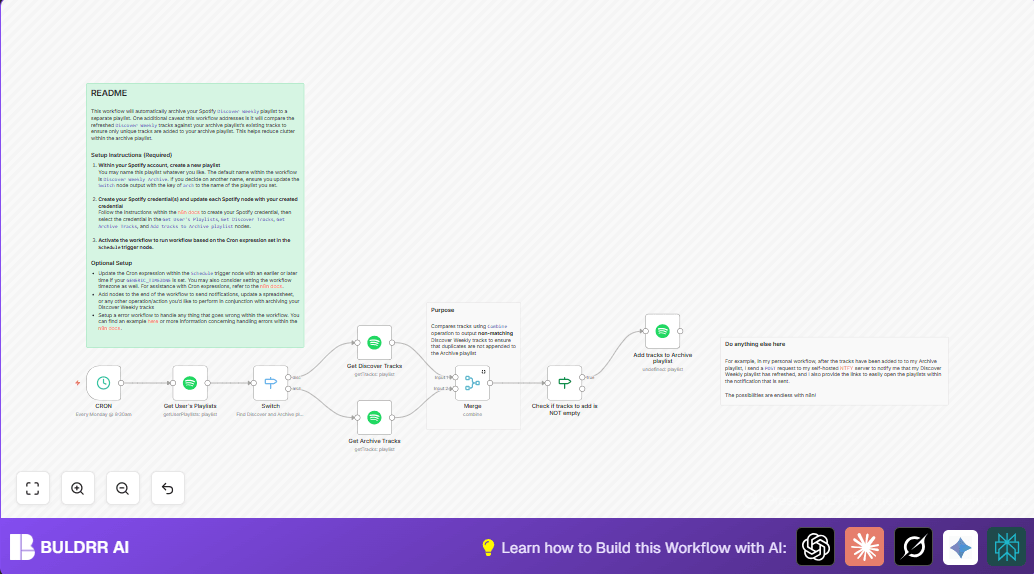
Automate Archiving Spotify Discover Weekly with n8n
This automation workflow solves the hassle of manually archiving your Spotify Discover Weekly playlist by automatically comparing and adding only unique tracks to an archive playlist every Monday. It saves time, avoids duplicates, and keeps your archived music collection organized effortlessly using n8n.
Open template →
FREE
Automate Archiving Spotify Discover Weekly with n8n
This automation workflow solves the hassle of manually archiving your Spotify Discover Weekly playlist by automatically comparing and adding only unique tracks to an archive playlist every Monday. It saves time, avoids duplicates, and keeps your archived music collection organized effortlessly using n8n.
Open template →
 FREE
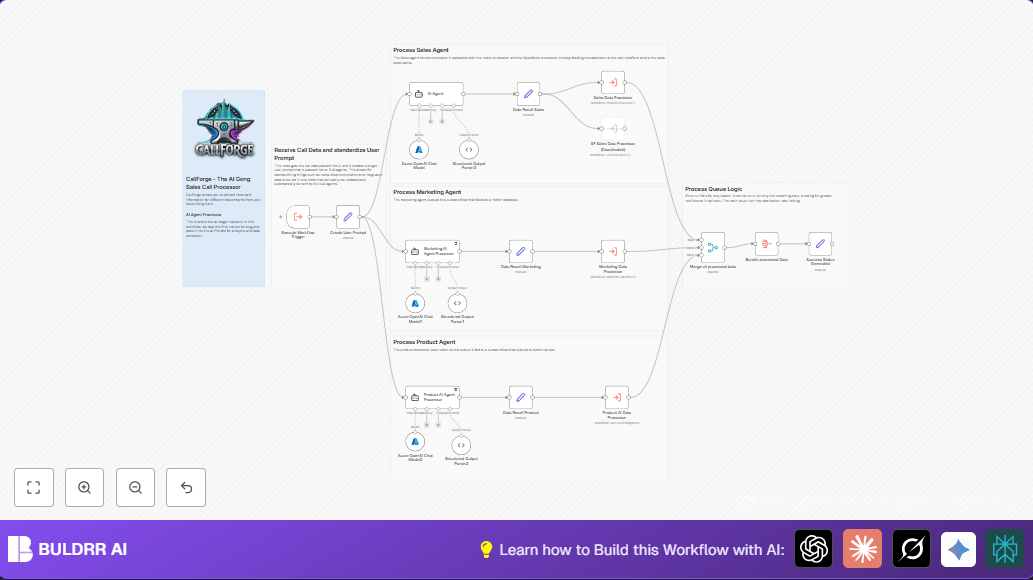
Automate Analyzing Sales Call Transcripts with n8n & AI Agents
This n8n workflow automates the extraction of structured insights from sales call transcripts using AI agents focused on sales, marketing, and product teams. It streamlines data processing, enabling faster decision-making and team alignment.
Open template →
FREE
Automate Analyzing Sales Call Transcripts with n8n & AI Agents
This n8n workflow automates the extraction of structured insights from sales call transcripts using AI agents focused on sales, marketing, and product teams. It streamlines data processing, enabling faster decision-making and team alignment.
Open template →
 FREE
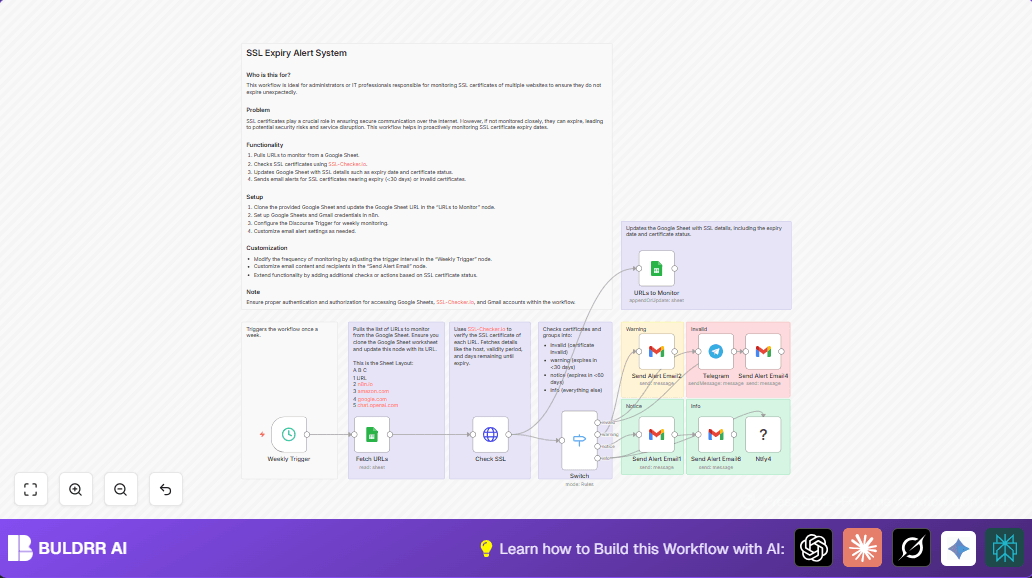
Automated SSL Expiry Alert System with n8n & Google Sheets
This n8n workflow automates SSL certificate expiry monitoring by fetching URLs from Google Sheets, checking their SSL status via SSL-Checker.io, updating the sheet with results, and sending targeted email and Telegram alerts for certificates that are invalid or near expiry.
Open template →
FREE
Automated SSL Expiry Alert System with n8n & Google Sheets
This n8n workflow automates SSL certificate expiry monitoring by fetching URLs from Google Sheets, checking their SSL status via SSL-Checker.io, updating the sheet with results, and sending targeted email and Telegram alerts for certificates that are invalid or near expiry.
Open template →
 FREE
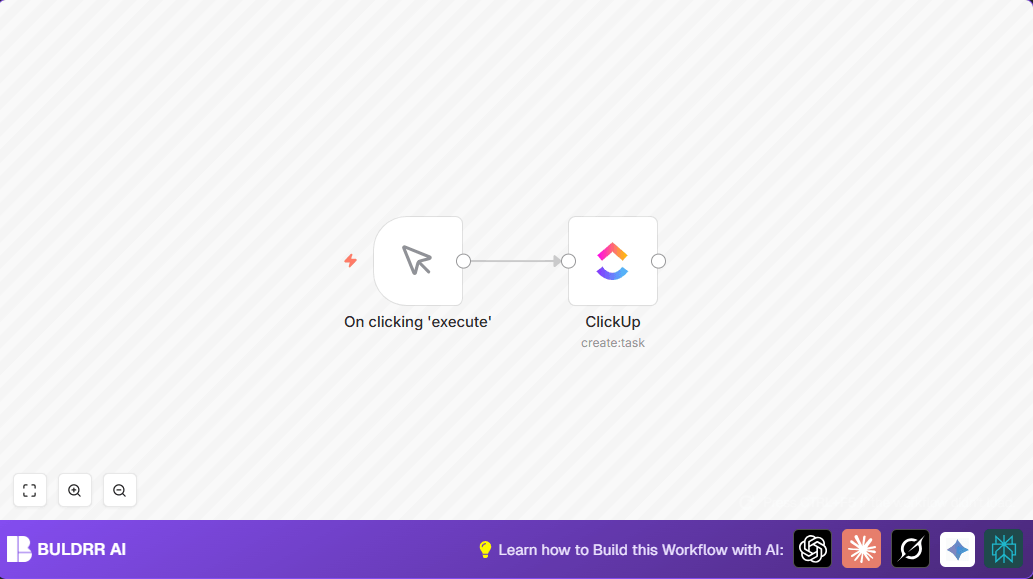
Automate Task Creation in ClickUp with n8n
Struggling to manually create tasks in ClickUp? This beginner-friendly n8n workflow automates task creation, saving you time and reducing errors. Learn how to create tasks automatically with a simple trigger and ClickUp integration.
Open template →
FREE
Automate Task Creation in ClickUp with n8n
Struggling to manually create tasks in ClickUp? This beginner-friendly n8n workflow automates task creation, saving you time and reducing errors. Learn how to create tasks automatically with a simple trigger and ClickUp integration.
Open template →
 FREE
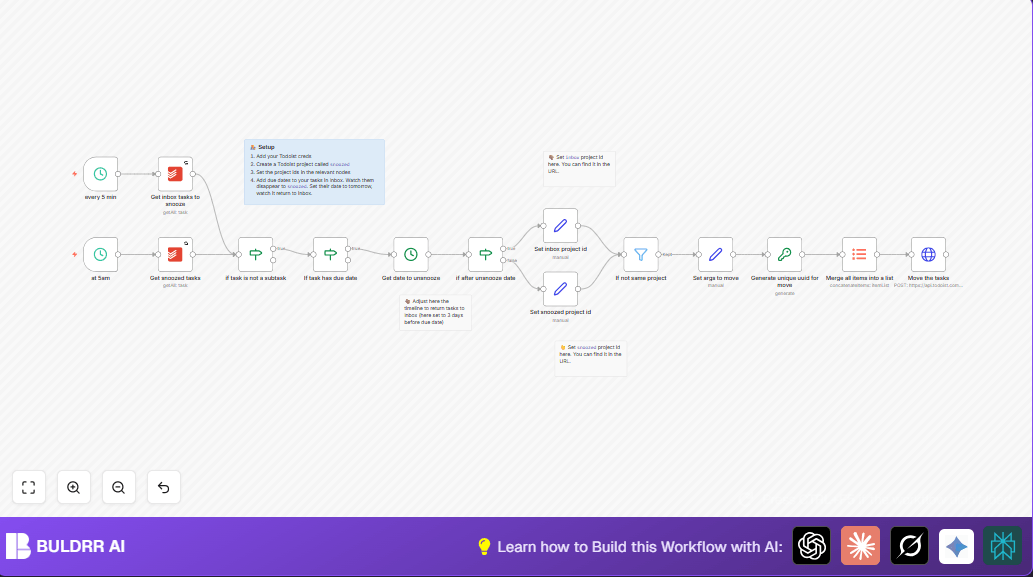
Automate Todoist Task Snoozing with n8n Workflow
Struggling to manage and snooze your Todoist tasks efficiently? This detailed n8n workflow automates moving tasks between Inbox and Snoozed projects based on due dates, saving you hours of manual task juggling and ensuring timely task returns.
Open template →
FREE
Automate Todoist Task Snoozing with n8n Workflow
Struggling to manage and snooze your Todoist tasks efficiently? This detailed n8n workflow automates moving tasks between Inbox and Snoozed projects based on due dates, saving you hours of manual task juggling and ensuring timely task returns.
Open template →
 FREE
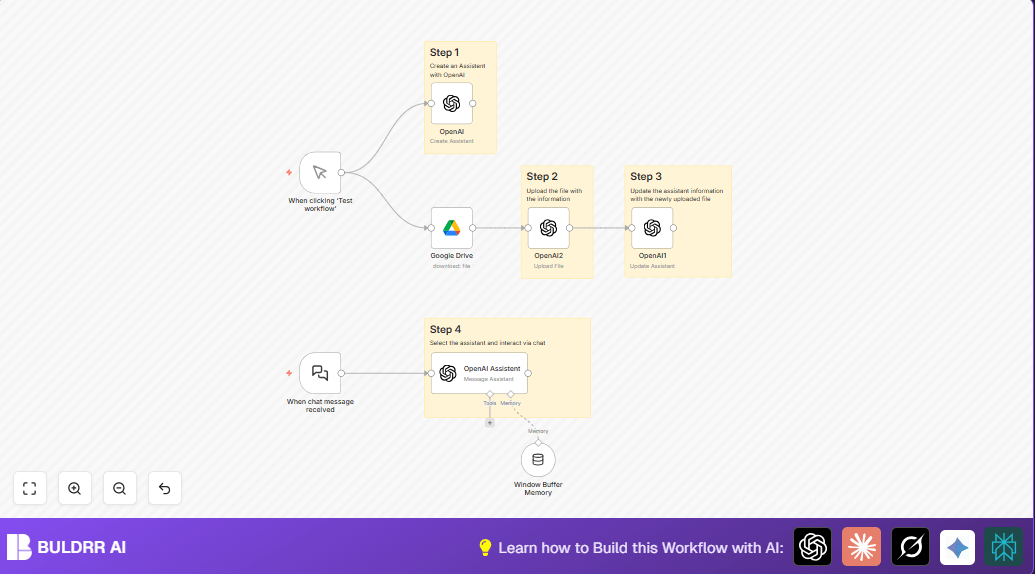
Build OpenAI Assistant with Google Drive Using n8n Automation
This workflow automates creating and updating an OpenAI-powered Travel Assistant using a Google Drive file for accurate, specific user replies. It saves time by streamlining assistant updates and chat interactions seamlessly.
Open template →
FREE
Build OpenAI Assistant with Google Drive Using n8n Automation
This workflow automates creating and updating an OpenAI-powered Travel Assistant using a Google Drive file for accurate, specific user replies. It saves time by streamlining assistant updates and chat interactions seamlessly.
Open template →
 FREE
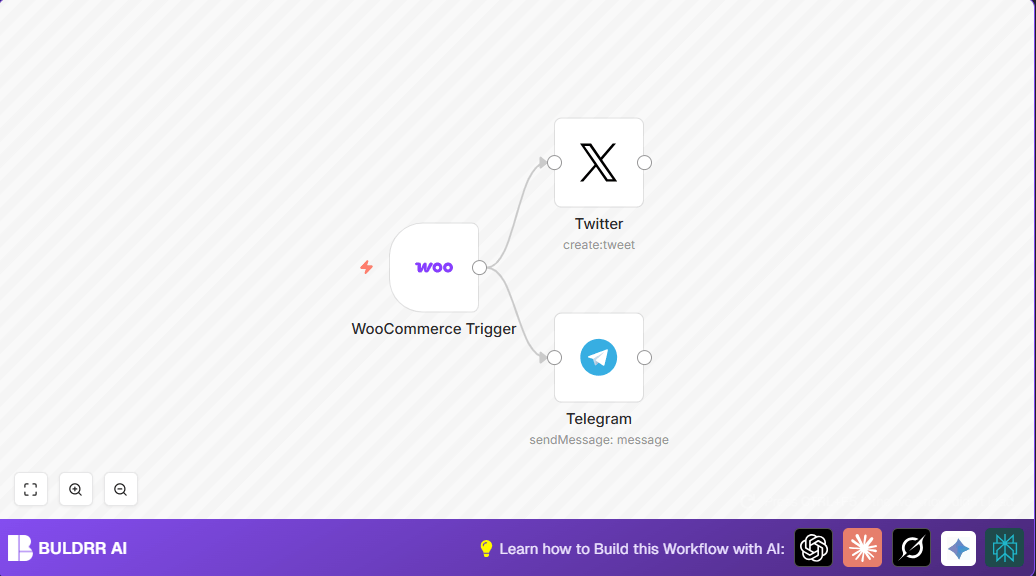
Automate WooCommerce Product Announcements on Twitter & Telegram
Save time and boost your WooCommerce store's visibility by automatically posting new product announcements on Twitter and Telegram with this n8n workflow. Avoid manual posting errors and reach your audience instantly when new products go live.
Open template →
FREE
Automate WooCommerce Product Announcements on Twitter & Telegram
Save time and boost your WooCommerce store's visibility by automatically posting new product announcements on Twitter and Telegram with this n8n workflow. Avoid manual posting errors and reach your audience instantly when new products go live.
Open template →
 FREE
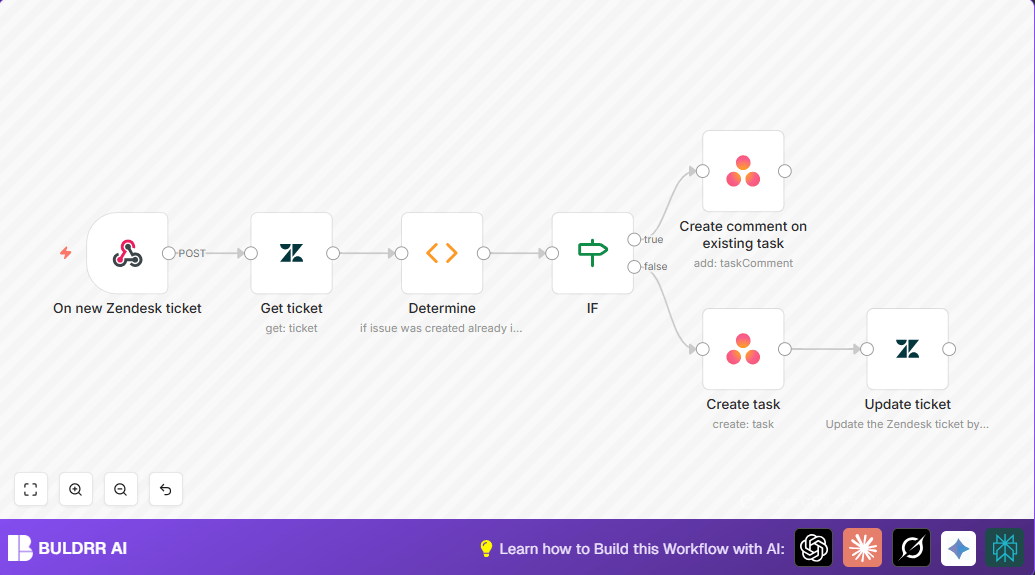
Automate Zendesk to Asana Task Creation with n8n
This detailed guide shows how to automate task creation in Asana from new Zendesk tickets using n8n. It solves the common challenge of manually duplicating support requests into project management, saving time and reducing errors.
Open template →
FREE
Automate Zendesk to Asana Task Creation with n8n
This detailed guide shows how to automate task creation in Asana from new Zendesk tickets using n8n. It solves the common challenge of manually duplicating support requests into project management, saving time and reducing errors.
Open template →
 FREE
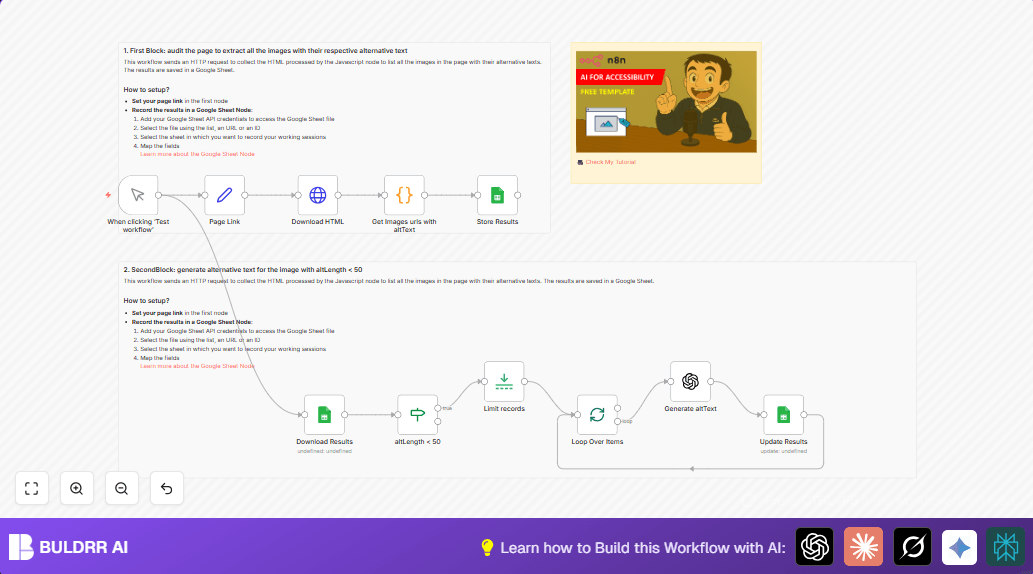
Automate Image Alt Text Auditing & Enhancement with n8n & OpenAI
Discover how this n8n workflow automates auditing and enhancing image alt text from any webpage using OpenAI GPT-4. It helps fix poor or missing alt attributes quickly and accurately, saving hours of manual work and improving web accessibility.
Open template →
FREE
Automate Image Alt Text Auditing & Enhancement with n8n & OpenAI
Discover how this n8n workflow automates auditing and enhancing image alt text from any webpage using OpenAI GPT-4. It helps fix poor or missing alt attributes quickly and accurately, saving hours of manual work and improving web accessibility.
Open template →
 FREE
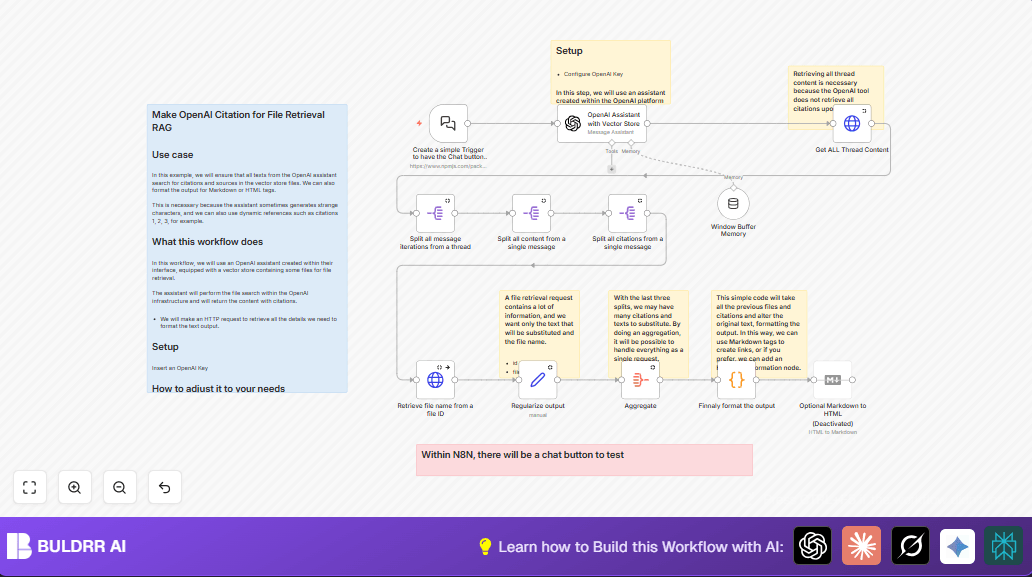
Create OpenAI Citation Workflow in n8n for File Retrieval
This n8n workflow automates citation and source retrieval from OpenAI's vector store files, ensuring accurate content referencing and formatted output. It solves the problem of incomplete or strange citation text generated by AI, providing reliable markdown or HTML-ready citations for file-based AI assistance.
Open template →
FREE
Create OpenAI Citation Workflow in n8n for File Retrieval
This n8n workflow automates citation and source retrieval from OpenAI's vector store files, ensuring accurate content referencing and formatted output. It solves the problem of incomplete or strange citation text generated by AI, providing reliable markdown or HTML-ready citations for file-based AI assistance.
Open template →
 FREE
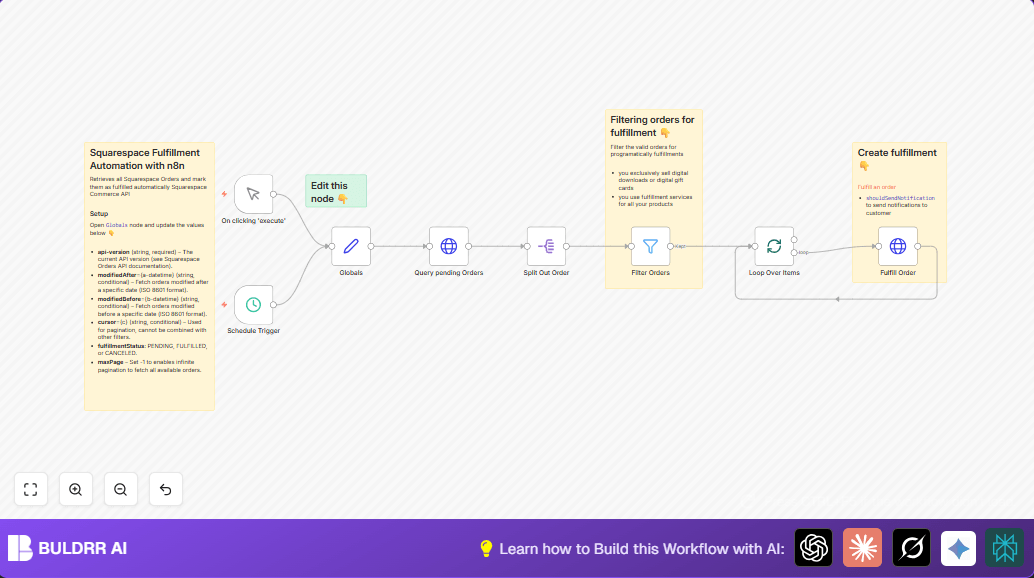
Automate Squarespace Order Fulfillment with n8n Workflow
This n8n workflow automates order fulfillment for Squarespace Commerce by fetching pending orders and fulfilling them automatically, saving hours of manual work. It ensures timely fulfillment and customer notifications with seamless API integration.
Open template →
FREE
Automate Squarespace Order Fulfillment with n8n Workflow
This n8n workflow automates order fulfillment for Squarespace Commerce by fetching pending orders and fulfilling them automatically, saving hours of manual work. It ensures timely fulfillment and customer notifications with seamless API integration.
Open template →
 FREE
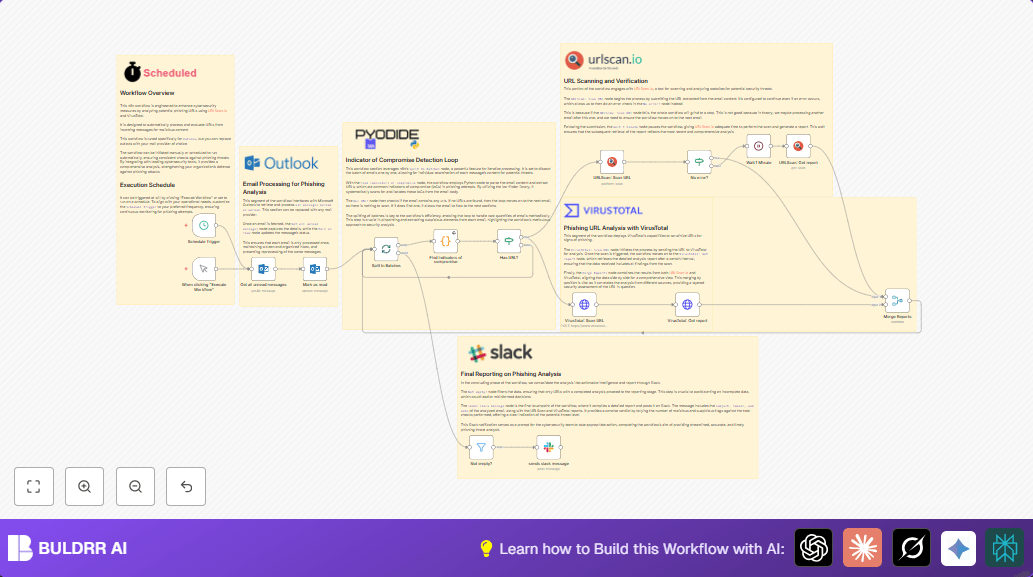
Phishing Analysis Automation with n8n, URLScan.io & VirusTotal
Automate phishing URL analysis with n8n using URLScan.io and VirusTotal. This workflow extracts URLs from unread Outlook emails, scans for threats, and reports via Slack, saving hours on threat detection.
Open template →
FREE
Phishing Analysis Automation with n8n, URLScan.io & VirusTotal
Automate phishing URL analysis with n8n using URLScan.io and VirusTotal. This workflow extracts URLs from unread Outlook emails, scans for threats, and reports via Slack, saving hours on threat detection.
Open template →
 FREE
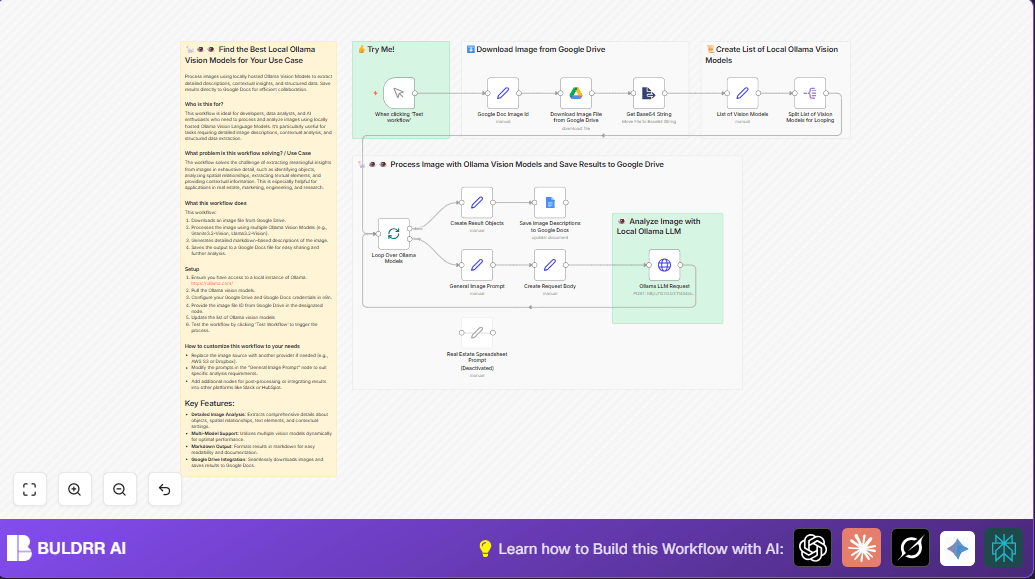
Automate Image Analysis with Local Ollama Vision Models in n8n
Struggling to extract detailed insights from images for business or research? This n8n workflow automates exhaustive image analysis using multiple local Ollama Vision Models, delivering structured, markdown-formatted results saved directly to Google Docs for collaboration and ease of use.
Open template →
FREE
Automate Image Analysis with Local Ollama Vision Models in n8n
Struggling to extract detailed insights from images for business or research? This n8n workflow automates exhaustive image analysis using multiple local Ollama Vision Models, delivering structured, markdown-formatted results saved directly to Google Docs for collaboration and ease of use.
Open template →
 FREE
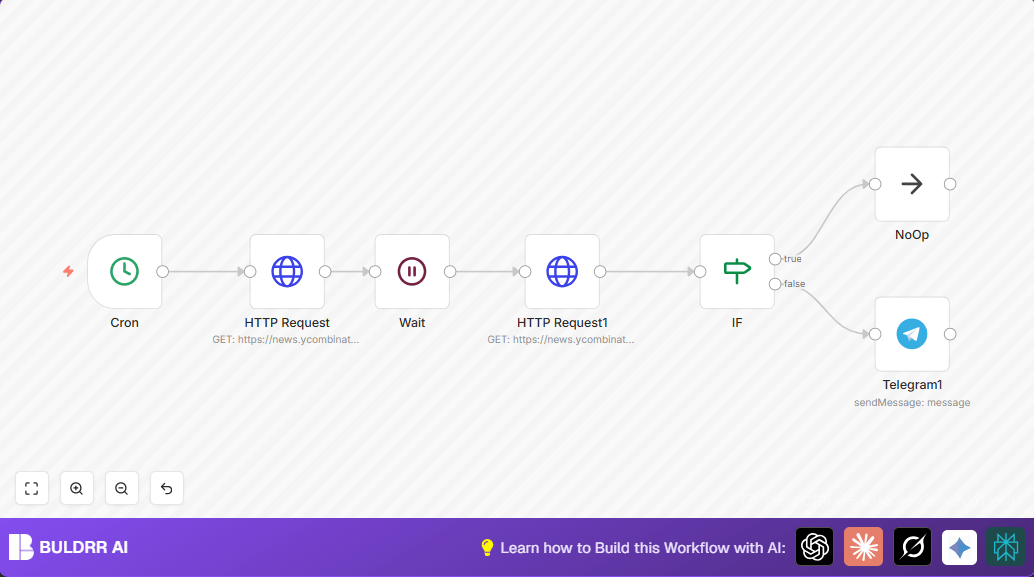
Automate Website Change Alerts N8N Telegram — Complete Guide [2026]
Learn how to automate website change alerts n8n telegram with this step-by-step guide. Includes workflow examples, tips, and best practices for 2026.
Open template →
FREE
Automate Website Change Alerts N8N Telegram — Complete Guide [2026]
Learn how to automate website change alerts n8n telegram with this step-by-step guide. Includes workflow examples, tips, and best practices for 2026.
Open template →
 FREE
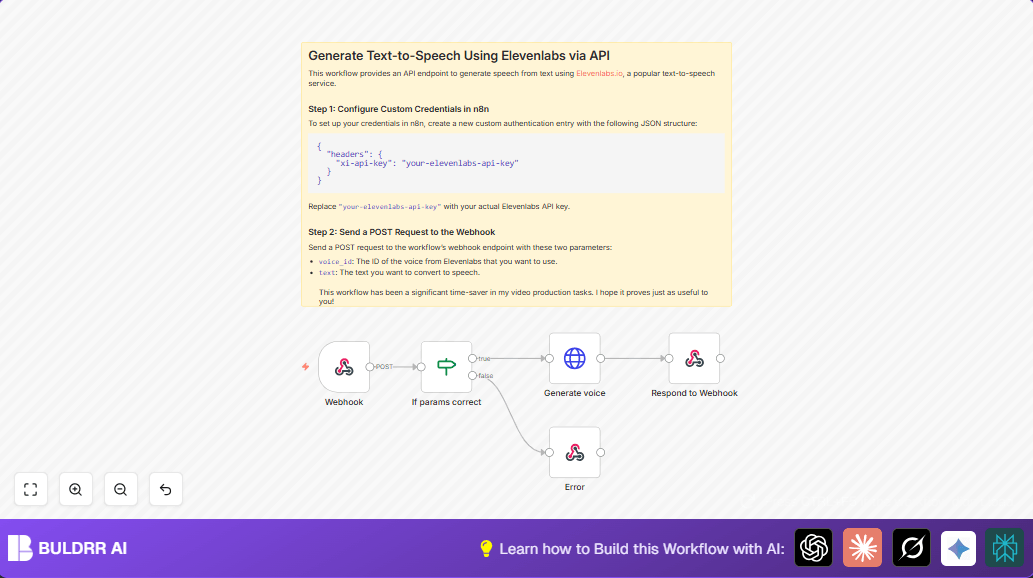
Automate Text-to-Speech with Elevenlabs & n8n Webhook
Save hours in your content creation by automating text-to-speech generation using n8n's webhook and Elevenlabs API. This workflow ensures seamless audio generation from text inputs, eliminating manual conversion errors and delays.
Open template →
FREE
Automate Text-to-Speech with Elevenlabs & n8n Webhook
Save hours in your content creation by automating text-to-speech generation using n8n's webhook and Elevenlabs API. This workflow ensures seamless audio generation from text inputs, eliminating manual conversion errors and delays.
Open template →
 FREE
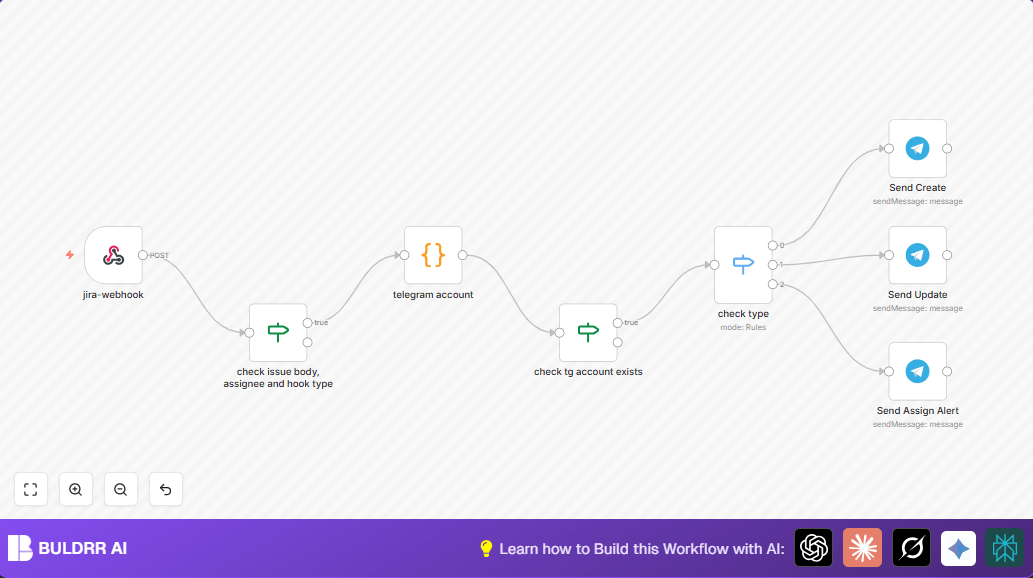
Automate Jira Notifications to Telegram with n8n Workflow
This detailed guide shows how to automate Jira issue notifications to Telegram using n8n. Save hours by instantly sending updates, creation alerts, and assignment notifications to the right Telegram users, improving team communication and tracking.
Open template →
FREE
Automate Jira Notifications to Telegram with n8n Workflow
This detailed guide shows how to automate Jira issue notifications to Telegram using n8n. Save hours by instantly sending updates, creation alerts, and assignment notifications to the right Telegram users, improving team communication and tracking.
Open template →
 FREE
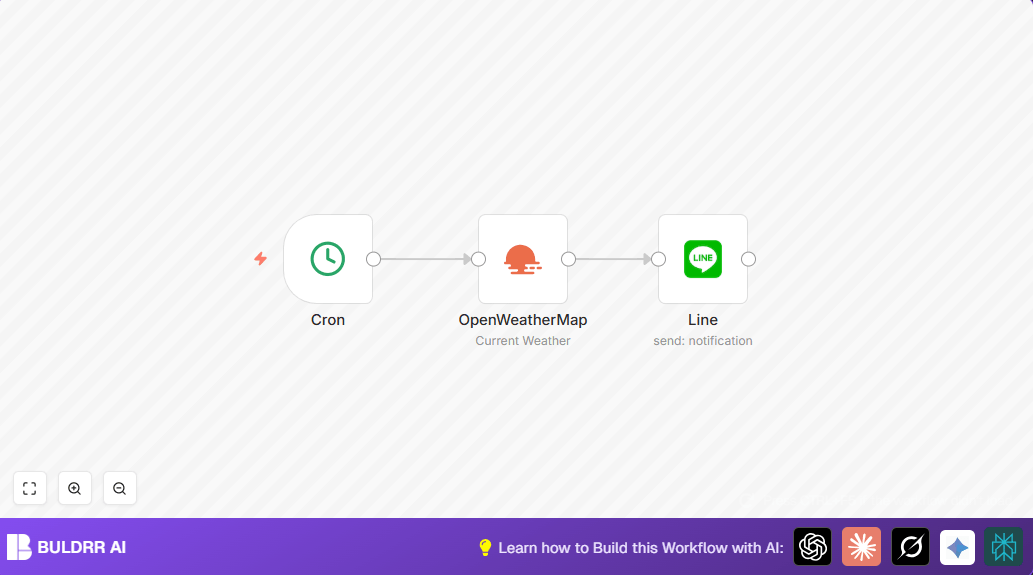
Automate Daily Berlin Weather Updates to LINE with n8n
Save time and stay informed by automatically sending daily weather updates for Berlin via LINE using n8n automation. This workflow fetches weather data every morning and messages you directly, eliminating manual checking and keeping you updated efficiently.
Open template →
FREE
Automate Daily Berlin Weather Updates to LINE with n8n
Save time and stay informed by automatically sending daily weather updates for Berlin via LINE using n8n automation. This workflow fetches weather data every morning and messages you directly, eliminating manual checking and keeping you updated efficiently.
Open template →
 FREE
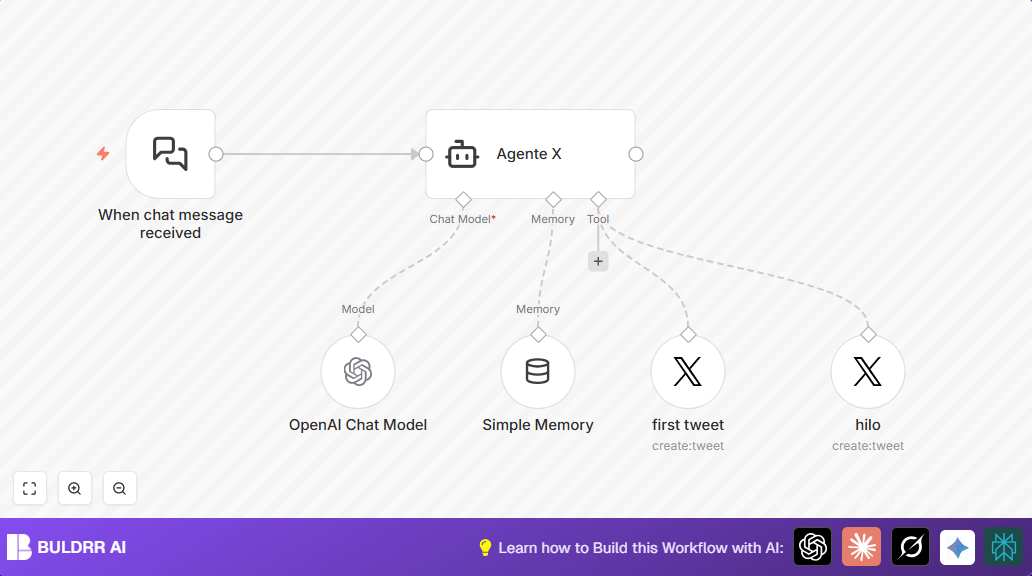
n8n Twitter Thread Generator 2026: AI Writes & Posts Threads From Any Content
This n8n workflow uses AI to automatically convert any content — blog posts, videos, articles — into ready-to-post Twitter/X threads, complete with hooks and formatting.
Open template →
FREE
n8n Twitter Thread Generator 2026: AI Writes & Posts Threads From Any Content
This n8n workflow uses AI to automatically convert any content — blog posts, videos, articles — into ready-to-post Twitter/X threads, complete with hooks and formatting.
Open template →
 FREE
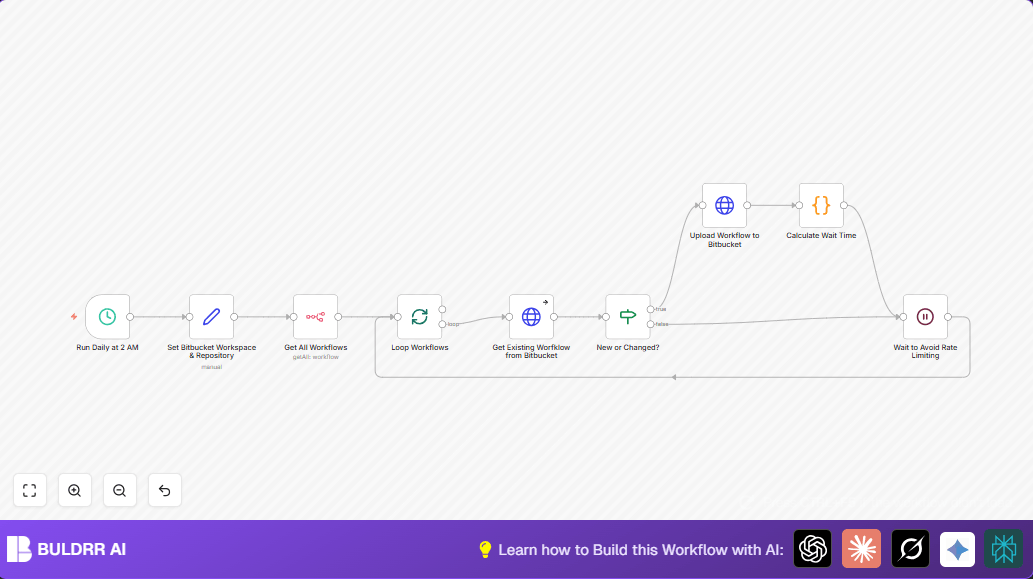
Backup n8n Workflows to Bitbucket with Rate Limit Handling
Automate daily backups of your n8n workflows directly to Bitbucket, intelligently managing API rate limits to avoid errors. This workflow ensures your automation definitions are safely versioned with minimal manual effort.
Open template →
FREE
Backup n8n Workflows to Bitbucket with Rate Limit Handling
Automate daily backups of your n8n workflows directly to Bitbucket, intelligently managing API rate limits to avoid errors. This workflow ensures your automation definitions are safely versioned with minimal manual effort.
Open template →
 FREE
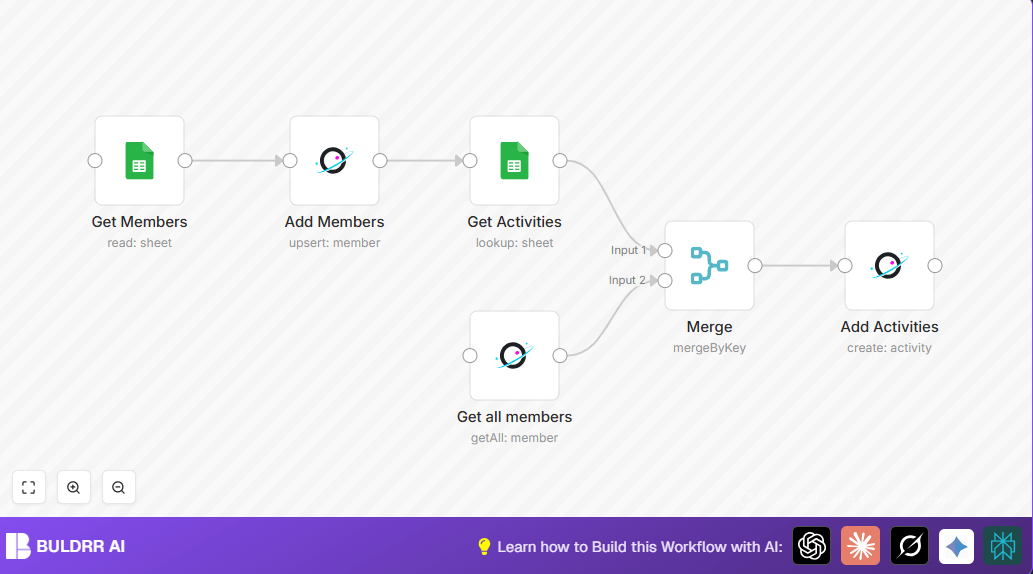
Automate Member and Activity Sync from Google Sheets to Orbit
This blog explains how to automate moving community member data and their activities from Google Sheets into Orbit using n8n, solving tedious manual updates and ensuring accurate data syncing.
Open template →
FREE
Automate Member and Activity Sync from Google Sheets to Orbit
This blog explains how to automate moving community member data and their activities from Google Sheets into Orbit using n8n, solving tedious manual updates and ensuring accurate data syncing.
Open template →
 FREE
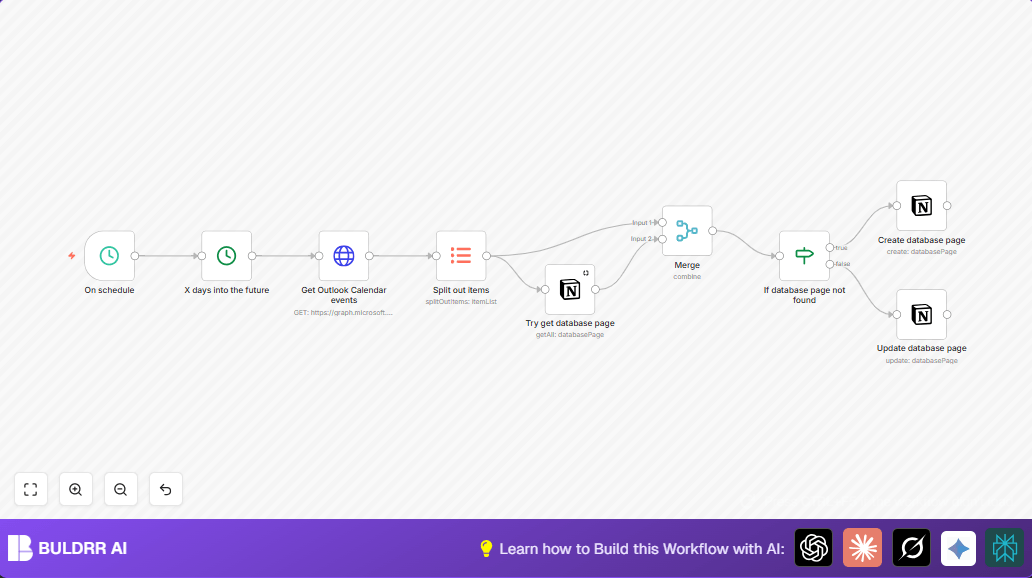
Sync Outlook Calendar with Notion via n8n Automation
This workflow automates syncing Microsoft Outlook Calendar events into a Notion database. It solves the problem of manual calendar updates, saving time and reducing errors by automatically creating or updating Notion pages for your events.
Open template →
FREE
Sync Outlook Calendar with Notion via n8n Automation
This workflow automates syncing Microsoft Outlook Calendar events into a Notion database. It solves the problem of manual calendar updates, saving time and reducing errors by automatically creating or updating Notion pages for your events.
Open template →
 Airtable
 Google Sheets
 Google Drive
 Slack
Slack Notion
 Telegram
 GitHub
 WordPress
 HubSpot
 Supabase
 Gmail
Gmail Pipedrive
 Jira
Jira LinkedIn
 Hacker News
 Qdrant
 Zendesk
 Baserow
 GitLab
 Discord
 Google Docs
 Mattermost
 MySQL
MySQL Shopify
 Todoist
 Typeform
 YouTube
 Stripe
 WhatsApp
 Mailchimp
 ClickUp
 Calendly
 WooCommerce
 Productivity
 Data
Data Development
 Sales
Sales Social
 Finance
 Data Extraction
 Marketing
 Chatbot
 Content
 Notifications
 Video
Video Security
 Research
 Data Sync
 Scheduling
 Messaging
 Communication
 Web Scraping
 Alerts
 Support
 Calendar
 Summarization
 Ecommerce
 Recruitment
 Publishing
 Reporting
 Document
 Email
Email SEO
SEO Task Management
 Transcription
 Business
 Image Generation
 Webhook
 Data Enrichment
 File Management
 RAG
RAG Database
 CRM
CRM Chat
Chat API Integration
 Monitoring
 Image
Image Data Entry
 Education
 Backup
 PDF
PDF Lead Generation
 Knowledge Base
 Outreach
 Analytics
 Schedule a call