
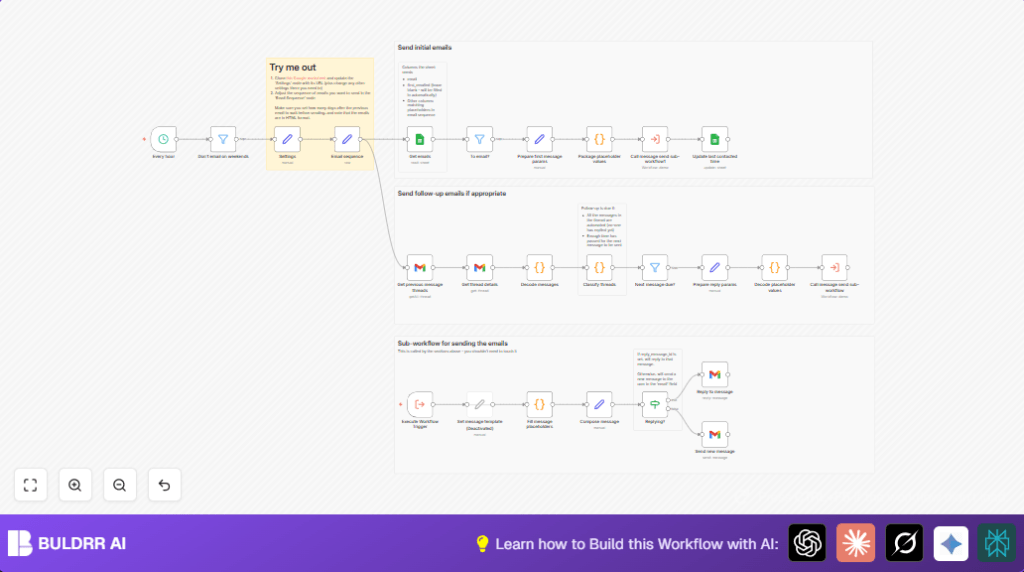

What this workflow does
This workflow helps send personalized emails and follow-ups automatically from Google Sheets using Gmail.
It stops you from sending emails too early, repeats, or missing replies.
You save time and keep good contact with your leads.
Inputs
- Google Sheet: Contains lead emails and info like name, company, plus tracking columns.
- Gmail account: Used to send and read emails for follow-up decisions.
- n8n instance: Runs the automation and uses OAuth2 credentials.
Processing steps
- Reads lead data from Google Sheets.
- Sends first email personalized with placeholders replaced.
- Checks Gmail threads to see if a reply came.
- If no reply and timing fits, sends follow-up emails.
- Updates Google Sheets with first email sent date.
- Stops emails on weekends to avoid bothering contacts.
- Manages multiple follow-ups based on schedule in email sequence node.
Outputs
- Sent emails to leads with personalized content.
- Updated Google Sheet keeping outreach status.
- Kept Gmail threads organized for tracking replies.
The Free Mailchimp Alternative — Using Tools You Already Have
Mailchimp charges $13–$350/month depending on your list size.
ActiveCampaign. Instantly. Lemlist. All paid, all monthly, all
locked behind dashboards you don’t fully control.
This workflow replaces all of them — for free.
Here’s how it stacks up:
| Feature | Mailchimp | This n8n Workflow |
| Monthly cost | $13–$350+ | $0 (free) |
| Personalization | Basic merge tags | Full custom placeholders |
| Drip sequences | ✓ (paid plan) | ✓ (built-in) |
| Reply detection | ✗ | ✓ (stops on reply) |
| Weekend filter | ✗ | ✓ (automatic) |
| Your data ownership | Mailchimp servers| Your Google Sheets |
| No-code setup | ✓ | ✓ |
Your leads stay in Google Sheets — a tool you already own.
Your emails go through Gmail — an account you already have.
n8n connects them — and you pay nothing extra.
No subscription. No per-contact fees. No platform lock-in.
Who should use this workflow
Anyone who sends many emails to leads from a contact list in Google Sheets.
Good for sales or marketing teams needing to save hours each week and avoid mistakes in follow-up timing.
No coding required, but some basic n8n knowledge helps.
Tools and services used
- Google Sheets API: Read and write contact and tracking data.
- Gmail API: Send emails and get threads for reply states.
- n8n Workflow: Automates the logic and timing of sending messages.
Beginner step-by-step: How to build this in n8n
Step 1: Import the workflow
- Download the workflow file using the “Download” button on this page.
- Open the n8n editor.
- Click “Import from File” and upload the downloaded workflow.
Step 2: Add credentials and settings
- Add Google Sheets OAuth2 credentials in the Get emails and Update last contacted time nodes.
- Add Gmail OAuth2 credentials in the Get previous message threads, Get thread details, Reply to message, and Send new message nodes.
- Go to the Settings node and update the sheet_url, email subject, sender_name, email column name, and mail_id to your values.
Step 3: Adjust email templates (optional)
- Edit the Email sequence node to change email content or timing.
- Make sure placeholders like {name} match your Google Sheet columns.
Step 4: Test the workflow
- Run the workflow manually for a small set of contacts.
- Check if emails send and updates happen in the sheet.
Step 5: Activate for production
- Turn on the workflow by clicking the Activate toggle at the top right.
- The scheduled trigger node will run hourly and send emails automatically.
For more control or faster runs, consider self-host n8n.
How the workflow works
Input
Uses Google Sheets with columns: email, first_emailed, and any custom info you want in emails.
Process
On schedule, the workflow reads all leads.
Sends initial email if not already sent.
Searches Gmail threads by subject to find if they replied.
If no reply after set days, sends follow-ups using stored templates.
Updates Google Sheet with send dates to track progress.
Skips sending on weekends based on filter node.
Output
Emails sent with correct personalization.
Sheets updated with latest contact info.
Gmail keeps conversation threads updated.
Drip Sequences and Reply Tracking — How It Works
Drip Sequences
Timed emails sent automatically based on whether someone replied:
→ Email 1 — Initial outreach (Day 0)
→ Email 2 — Follow-up if no reply after X days
→ Email 3 — Second follow-up if still no reply
→ Stops the moment a reply is detected
Edit send_on_day values in the Email sequence node to customize
timing and content for each step.
Reply Tracking
Before every follow-up, the workflow checks Gmail thread history:
→ Reply found → stops immediately, no more emails sent
→ No reply → checks timing and sends the next email
Google Sheets updates with last_contacted date after every send —
full tracking log, no CRM needed.
Customization ideas
- Change message text or add HTML in the Email sequence node JSON.
- Add more placeholders by editing Google Sheet columns and updating the Fill message placeholders code node.
- Change follow-up days by editing send_on_day in Email sequence.
- Modify or disable weekend filter node to send emails on Saturdays or Sundays if wanted.
- Use different Google Sheet URL in Settings to switch contact list.
Troubleshooting common issues
Missing data for placeholder error
Your Google Sheet may miss a column matching your email placeholders like {name}.
Add the missing columns and rerun the workflow.
No emails send
Check if OAuth2 credentials for Google Sheets and Gmail are set correctly.
Look if the weekend filter node blocks sending on current day.
Replies not detected for follow-ups
Review the thread classification code node.
Make sure mail_id and sender_name in Settings exactly match your email details.
Pre-production checklist
- Confirm Google Sheet contains all needed columns matching placeholders.
- Verify Google Sheets and Gmail credentials are authorized and working.
- Test the workflow with few contacts first.
- Check no emails send on weekends unless desired.
- Backup Google Sheet data before running bulk messages.
Deployment guide
- Activate the workflow in n8n with the schedule trigger running hourly.
- Monitor execution logs for success or errors.
- Watch Gmail API quota in Google Cloud Console to avoid limits.
- Update message templates or timing as campaign needs change.
Summary of outcomes
✓ Save hours weekly by automating email sequences.
✓ Avoid errors sending too early or forgetting follow-ups.
✓ Send clear, personalized emails using real lead data.
✓ Keep updated records in Google Sheets.
→ Maintain smooth, professional communication with leads.
