
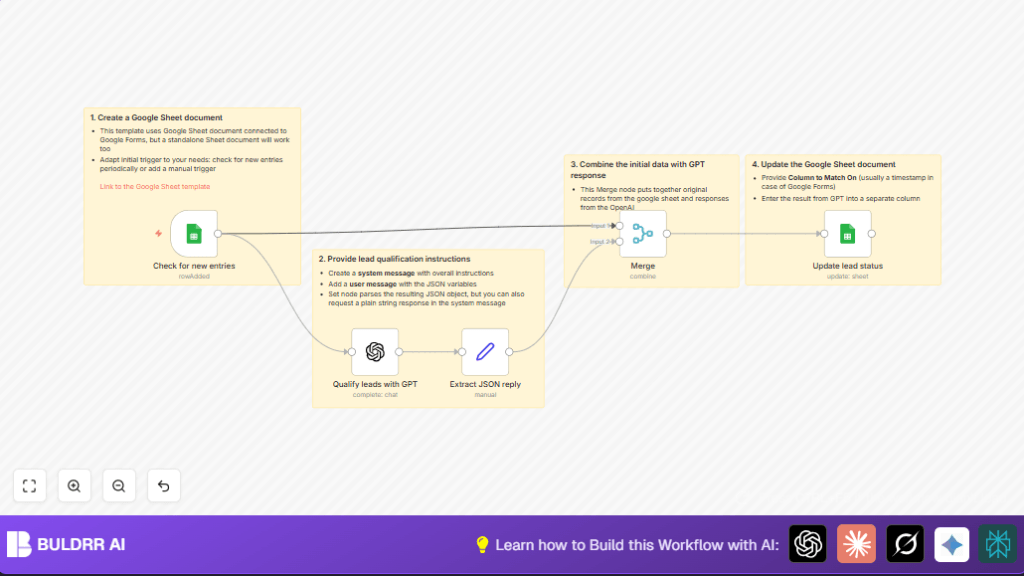

What This Workflow Does
This workflow watches a Google Sheet for new leads added from Google Forms submissions.
It sends lead data like name, email, business area, and team size to GPT-4 to check if the lead is a good fit.
The workflow updates the Google Sheet with a rating that shows if the lead is qualified or not.
This saves time by automating lead qualification and helps quickly find good leads.
Tools and Services Used
- Google Sheets: Stores incoming lead data from forms.
- Google Sheets Trigger node in n8n: Detects when new rows appear.
- OpenAI GPT-4 API: Analyzes lead details to decide qualification.
- n8n Workflow Automation Platform: Runs the logic connecting Sheets and OpenAI.
Inputs, Processing Steps, and Outputs
Inputs
- New rows in the specified Google Sheet tab with lead details: name, email, business area, team size, and timestamp.
Processing Steps
- Google Sheets Trigger fires on new row added.
- Lead info is sent to OpenAI node running GPT-4, with a prompt asking if the lead is a decision-maker with team size or corporate email.
- Response is a JSON string with rating “qualified” or “not qualified” plus explanation.
- Set node parses the GPT JSON reply into fields.
- Merge node combines original lead data with the parsed GPT output.
- Google Sheets node updates the same row with the qualification rating.
Output
- The Google Sheet row gets updated near the lead info with the qualification result.
- This helps quickly see which leads are good to contact and which are not.
Beginner Step-by-Step: How to Use This Workflow in n8n Production
Importing the Workflow
- Download the workflow file using the Download button on this page.
- Open the n8n editor where the workflow automations are done.
- Choose “Import from File” in n8n and select the downloaded workflow file.
Setup Configuration
- After import, add or update Google Sheets OAuth2 credentials in the Google Sheets Trigger and Google Sheets nodes.
- Enter your OpenAI API Key in the OpenAI node.
- If needed, update the Google Sheet document ID and sheet tab name to match your own sheet.
- Confirm the timestamp column name or any matching ID used to update rows.
- Review the OpenAI prompt in the OpenAI node, you can copy/paste or edit it below if needed.
Your task is to qualify incoming leads. Leads are form submissions to a closed community group. Use the following criteria for a quality lead:
1. We are looking for decision makers who run companies or who have some teams. The bigger the team - the better. Everyone with responsibility is accepted.
2. Email from a non-standard domain (preferably corporate).

If either criterion matches, reply with "qualified"; otherwise "not qualified". Reply only with JSON {"rating":"string","explanation":"string"}.
Test and Activate
- Run a test lead submission through your Google Form or add a row with test data in the sheet.
- Check if the workflow triggers and updates the row with “qualified” or “not qualified”.
- If it works as expected, activate the workflow to run automatically.
For users hosting n8n themselves, see self-host n8n for tips on maintaining credentials and access.
Customization Ideas
- You can change the OpenAI system prompt to fit special rules for your community’s lead quality.
- Update the Google Sheets node to add an explanation column to record why a lead got a rating.
- Adjust the polling interval in the Google Sheets Trigger if you want faster or slower checks.
- If simple text is better, change the prompt to give plain strings instead of JSON.
Troubleshooting Common Issues
Google Sheets Nodes Show “Invalid Credentials”
This usually means the OAuth permission expired or was denied.
Solution: Reauthorize your Google account credentials inside n8n.
OpenAI Response Can’t Be Parsed as JSON
This means the prompt might not be clear, or the API failed.
Solution: Double-check the formatting of the system and user messages to ensure GPT replies with strict JSON. Try the prompt in the OpenAI playground first.
Data Doesn’t Match After Merge Node
This happens if the merge mode or input order is wrong.
Solution: Use “combine” mode and “mergeByPosition” in the Merge node. Ensure the Google Sheets trigger output is the first input.
Pre-Production Checklist
- Confirm Google Sheet document ID and sheet name exactly match the nodes.
- Test the OpenAI prompt separately to see valid JSON results.
- Make sure the timestamp or ID column values are unique to avoid wrong row updates.
- Try submitting test leads and watching workflow logs for errors.
- Save a backup copy of the Google Sheet before enabling automatic updates.
Deployment Guide
Once tested, activate the workflow by toggling on in n8n.
Keep an eye on executions to catch any failures or mistakes.
If running self-host n8n, make sure internet access and credential storage are handled securely.
Summary of What You Get
✓ Automated lead qualification based on clear business rules.
✓ Faster processing of form submissions without manual effort.
✓ Lead ratings written back into Google Sheets for easy use.
✓ Reduced human errors from sorting through many rows.
✓ Ready-to-run n8n workflow that fits most Google Sheets and OpenAI setups.
