
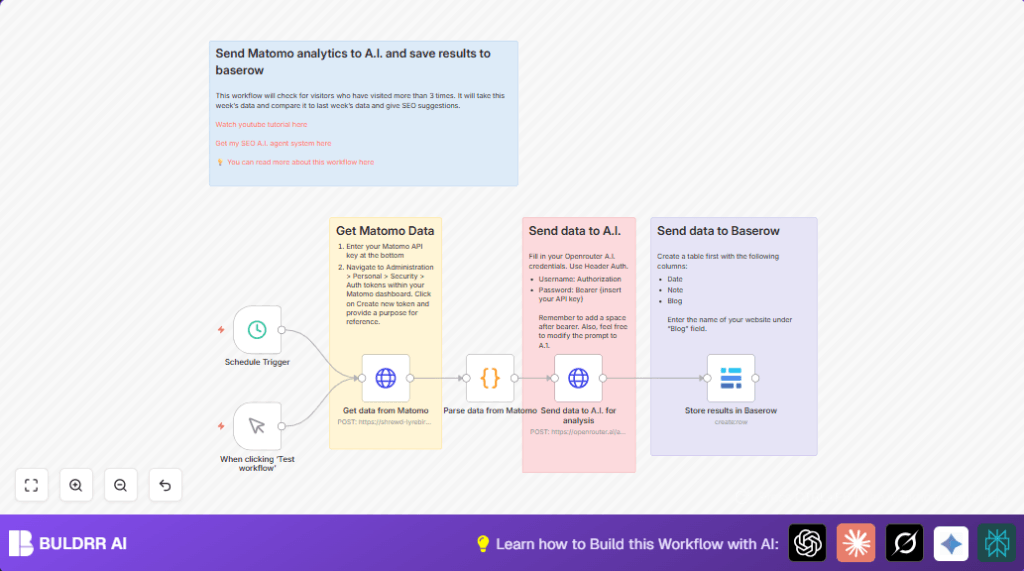

What this workflow does
This workflow fetches data from Matomo Analytics for visitors who visited the site more than three times in the last 30 days.
It sends this data to an AI model that gives back insights about which pages are popular, common visitor paths, and user engagement patterns.
Finally, it saves those insights into a Baserow database, helping users get clear SEO advice without manual work.
Who should use this workflow
Users who manage websites and use Matomo Analytics but want to avoid manual exporting and analysis.
Digital marketers who want fast SEO insights from visitor data without extra work.
Tools / services used
- Matomo Analytics: Source of visitor and page data.
- OpenRouter AI (Meta LLaMA model): Processes visitor data into insights.
- Baserow Database: Stores AI-generated insights for reporting.
- n8n Automation Platform: Runs the workflow with triggers and nodes.
Inputs, processing steps, and output
Inputs
- Scheduled or manual trigger starts the workflow.
- API token and site details to fetch Matomo data.
Processing steps
- Retrieve recent visitor data with over three visits via Matomo API.
- Format visitor actions into a clear text prompt.
- Send prompt to AI chat model to get SEO and engagement analysis.
- Receive AI response and prepare for storage.
Output
- New record is created in Baserow database with analysis date, AI note, and website name.
Beginner step-by-step: How to use this workflow in n8n production
Import the workflow
- Download the workflow file using the Download button on this page.
- In n8n editor, click on Import from File and upload the downloaded file.
Configure credentials and IDs
- Add required credentials like Matomo API Key and OpenRouter API Key in n8n credentials manager.
- Update the HTTP Request node that fetches Matomo data with the correct site ID and token_auth.
- Check Baserow node and add your database ID, table ID, and API Key for access.
- Make sure any URLs or other IDs match your accounts.
Test and activate
- Run the workflow manually with Manual Trigger node to verify each step works.
- Check that the AI response is received and stored in Baserow correctly.
- Once confirmed, switch on the workflow toggle to activate the schedule trigger for weekly runs.
- Optionally explore this link for hosting n8n server yourself: self-host n8n.
How the workflow works
First, the Schedule Trigger or Manual Trigger starts the flow.
Then, an HTTP Request makes a POST call to Matomo API using your token_auth and site ID to get visitor data.
The retrieved visitor actions data is sent to a Code node which formats it into a readable prompt.
This prompt goes to the HTTP Request node calling OpenRouter AI, asking for SEO insights on pages visited and user behavior.
The AI answer is captured and sent to the Baserow node that adds an entry with the date, AI-generated note, and site name.
Code and prompt examples
The code node uses JavaScript to turn raw visitor JSON into a clear text prompt.
// Get input data
const items = $input.all();

// Format the visitor data into a clear prompt
const visitorData = items.map(item => {
  const visit = item.json;

  const visitorActions = visit.actionDetails.map(action =>
    `  - Page ${action.pageviewPosition}: ${action.pageTitle}\n    URL: ${action.url}\n    Time Spent: ${action.timeSpentPretty}`
  ).join('\n');

  return `- Visitor (ID: ${visit.visitorId}):\n  Visit Count: ${visit.visitCount}\n${visitorActions}`;
}).join('\n\n');

// Create the prompt
const prompt = `Please analyze this visitor data:\n\n${visitorData}\n\nPlease provide insights on:\n1. Common visitor paths\n2. Popular pages\n3. User engagement patterns\n4. Recommendations for improvement`;

// Return formatted for LLaMA
return [{
  json: {
    messages: [
      {
        role: "user",
        content: prompt
      }
    ]
  }
}];
The AI request body example sends a chat completion call to OpenRouter with a LLaMA model and user prompt.
= {
  "model": "meta-llama/llama-3.1-70b-instruct:free",
  "messages": [
    {
      "role": "user",
      "content": "You are an SEO expert. This is data of visitors who have visited my site more than 3 times and the pages they have visited. Can you give me insights into this data:${encodeURIComponent($json.messages[0].content)}"
    }
  ]
}
Customization ideas
- Change visitor filter in HTTP Request (Matomo) by adjusting the “segment” parameter to capture different user groups.
- Switch AI model or revise the prompt to target specific marketing questions by editing the AI request node.
- Modify schedule frequency from weekly to daily or monthly in Schedule Trigger.
- Add notification nodes like Gmail or Slack after Baserow to alert marketing teams when new insights arrive.
- Expand the data saved in Baserow to include visitor counts or specific page URLs by mapping more fields.
Troubleshooting
- Matomo HTTP Request fails: Check API URL and verify token_auth is correct and active.
- Empty AI response or 401 errors: Confirm OpenRouter API Key is valid and the Authorization header is “Bearer <key>” with proper spacing.
- Baserow node not storing data: Ensure correct database and table IDs are set and API key has proper write access.
Pre-production checklist
- Verify all API keys for Matomo and OpenRouter are up-to-date.
- Test Matomo HTTP node separately by running it manually.
- Run code node on sample data to check prompt formation.
- Test AI request node with a simple prompt.
- Insert test record in Baserow manually to verify permissions.
- Document all keys and endpoints safely for future troubleshooting.
Deployment
Switch on the workflow toggle to run on schedule.
Use Manual Trigger anytime to test.
Check logs in Execution History for success or errors.
Summary
✓ Saves hours by automating Matomo data fetching and analysis.
✓ Provides easy SEO insights from repeat visitor data.
✓ Automatically stores AI insights in central Baserow database.
✓ Runs weekly or on-demand inside n8n with minimal setup.
✓ Helps marketing teams act faster with clear engagement info.
