

What this workflow does
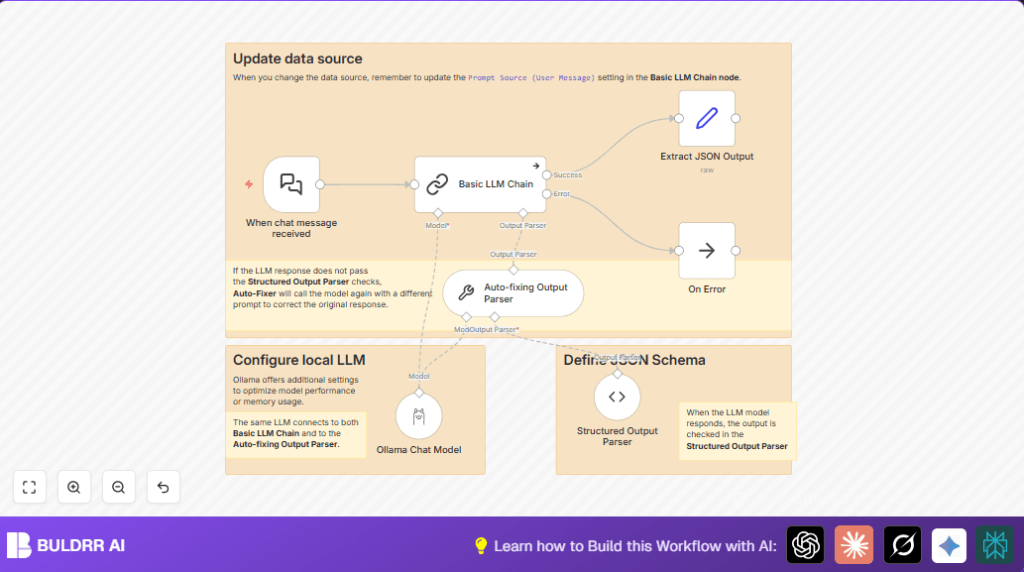
This workflow listens to chat messages and pulls out personal data like name, contact info, and message time. It uses a self-hosted Mistral NeMo language model in n8n to do this automatically. The result is clean JSON data ready to use without typing everything by hand.
The goal is to save time and avoid mistakes when copying data from chats into other systems.
Who should use this workflow
This is useful for anyone handling many chat messages with personal details. It fits well for small to medium businesses where manual data entry is slow and error-prone.
You should use this if you want to speed up your team’s work and reduce missed follow-ups.
Tools and services used
- Langchain Chat Trigger: Listens for incoming chat messages.
- Basic LLM Chain: Uses Mistral NeMo model to extract data.
- Ollama Chat Model: Self-hosted Mistral NeMo accessed via Ollama.
- Structured Output Parser: Checks output matches JSON schema.
- Auto-fixing Output Parser: Retries extraction if validation fails.
- No Operation (NoOp) node: Handles errors without stopping the workflow.
How this workflow works
Inputs
The workflow starts when a chat message arrives via Langchain Chat Trigger. This message contains text with names, emails, phone numbers, times, and subjects.
Processing Steps
- The message goes to Basic LLM Chain which uses the Mistral NeMo model to read and find personal info.
- Structured Output Parser checks if the output matches the JSON format including required fields like name and communication type.
- If the data is wrong or missing fields, the Auto-fixing Output Parser tells the model to try again and fix mistakes.
- If errors occur that stop the process, the No Operation (NoOp) node catches them to avoid crashing.
Output
The final result is a structured JSON object with extracted data ready for use in CRM systems or other tools.
Beginner step-by-step: How to use this workflow in n8n production
Download and Import the Workflow
- Click the Download button on this page to get the workflow file.
- Open your n8n editor.
- Use the Import from File feature to add the workflow.
Configure the Workflow
- Add your Ollama API Key in the Ollama Chat Model node credentials.
- Check any IDs, emails, chat channels, folders, or table names the workflow uses and update them to match your setup.
- Review the JSON schema in the Structured Output Parser if you want custom fields.
Test and Activate
- Send a test chat message to the webhook URL shown in Langchain Chat Trigger to confirm data extraction works.
- If output looks correct, toggle the switch in the top right corner of the editor to activate the workflow.
- This workflow now runs automatically when new chat messages arrive.
If you want to keep everything private, consider self-host n8n.
Inputs, Processing, and Outputs
Input Details
- Chat message text with possible name, surname, contact, timestamp, and subject.
Processing Details
- Uses Basic LLM Chain with self-hosted Mistral NeMo model.
- Validates output format with Structured Output Parser.
- Retries with Auto-fixing Output Parser if needed.
- Handles errors with No Operation (NoOp).
Output Details
- JSON with keys: name, surname, commtype, contacts, timestamp, subject.
- Data ready to send to other apps or stored easily.
Customizations and ideas
- Change
commtypeenum in the Structured Output Parser to include more communication types like “fax”. - Tweak the Ollama Chat Model temperature to make answers more random or exact.
- Add new fields like “priority” or “tags” in the JSON schema to capture extra info.
- Connect final JSON output to tools like Airtable, Google Sheets, or Slack for tie-in automation.
Common problems and fixes
Repeating “output did not satisfy constraints” errors
This means output from Basic LLM Chain does not match the JSON schema.
Check the required fields and data types in Structured Output Parser. Make prompts clearer in Auto-fixing Output Parser.
No data from chat triggers
Webhook URL could be tested wrong or blocked by firewall.
Verify Webhook from Langchain Chat Trigger. Test by sending a fake chat message using curl or Postman. Check firewall rules allow incoming POST.
Pre-production checklist
- Make sure webhook URL in Langchain Chat Trigger is public and active.
- Test Ollama Chat Model connection and model availability.
- Send sample chat messages and check structured outputs.
- Try broken or incomplete data to observe Auto-fixing Output Parser in action.
- Save/export workflow backup before production.
Deployment guide
Activate the workflow in n8n using the switch on the editor’s top right corner.
Ensure the Ollama API Key is saved in credentials and secure.
Use execution logs to watch for errors and debug data at each node.
Summary
→ Automated chat message data extraction using self-hosted LLM.
→ Saves time by removing manual data entry.
✓ Reduces errors from typing and copying.
✓ Provides validated, ready-to-use JSON outputs.
→ Improved privacy by running the Mistral NeMo model locally.
