
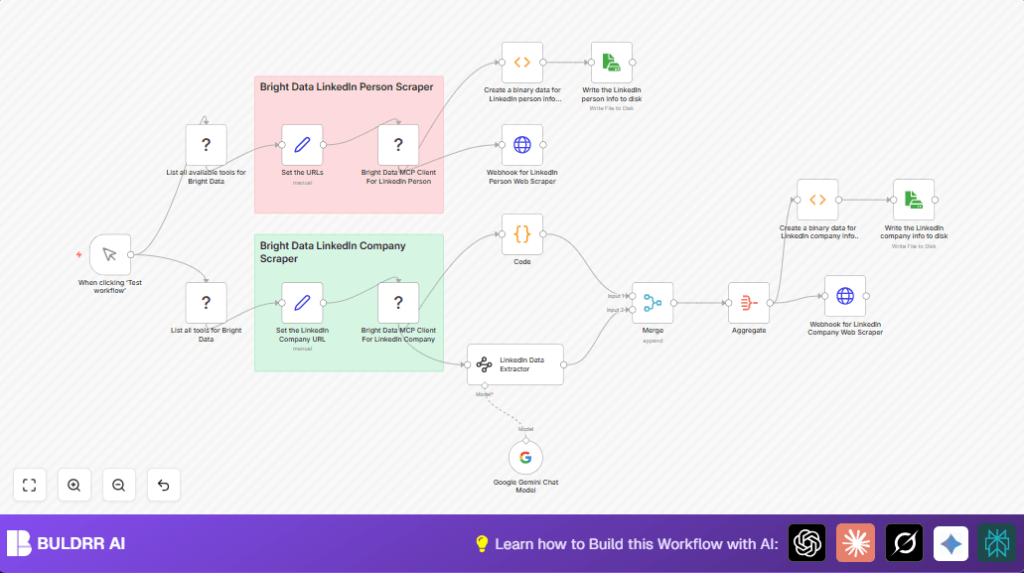

What this workflow does
This workflow automates data collection from LinkedIn person and company profiles using Bright Data MCP Client and Google Gemini AI.
It solves the problem of spending many hours manually copying profile info and creating readable stories.
The result is fast, error-free data saved as JSON files and sent to webhooks for further use.
Who should use this workflow
This is for people who need LinkedIn profile data often, like market researchers, sales teams, or recruiters.
No special tech skills needed, but basic familiarity with n8n helps.
It works well for people wanting to save time and get clean, clear profile data automatically.
Tools and services used
- n8n Automation Platform: Runs and connects all workflow parts.
- Bright Data MCP Client API: Provides reliable LinkedIn scraping via proxies.
- Google Gemini: AI model to convert data into readable stories.
- Webhook endpoints: Receives data externally for other apps.
- Local file system: Saves scraped JSON data as files.
Inputs, process, and output explained
Inputs
- LinkedIn person profile URLs (set by user).
- LinkedIn company profile URLs (set by user).
- Valid Bright Data MCP API credentials.
- Google Gemini API key.
- Webhook URLs for sending data.
Processing steps
- The MCP Client nodes call the Bright Data API to fetch person and company profiles.
- Scraped data comes back as JSON in Markdown format.
- A Code node parses company data from the Markdown to JSON.
- A Langchain extractor uses Google Gemini AI to turn company JSON into a story.
- Person and company data streams merge and aggregate into one combined object.
- Data packets post to webhook URLs, then encode and save as JSON files locally.
Outputs
- Scraped LinkedIn person profile JSON saved as “d:LinkedIn-Person.json” on disk.
- Scraped LinkedIn company profile JSON saved as “d:LinkedIn-Company.json.
- Both outputs also sent as HTTP POST to configured webhooks.
- Company stories enhanced by AI for easier reading.
Beginner step-by-step: How to use this workflow inside n8n for production
Step 1: Get the workflow file
- Download the workflow file using the Download button on this page.
- Open the n8n editor where you want to run the automation.
- Use “Import from File” and select the downloaded workflow.
Step 2: Configure credentials and URLs
- Add your Bright Data MCP Client API Key under Credentials in n8n.
- Enter your Google Gemini API Key in the AI node credentials.
- Update the Set nodes labeled “Set the URLs” and “Set the LinkedIn Company URL” by replacing sample LinkedIn profile URLs with ones you need.
- Replace webhook URLs in the same Set nodes with your actual webhook endpoints.
Step 3: Test the workflow
- Run the workflow manually by clicking the Manual Trigger node and hitting “Execute Workflow”.
- Monitor each node’s output to verify there are no errors and data looks correct.
Step 4: Activate for production use
- Turn the workflow ON from the editor’s top right corner.
- Use n8n’s scheduling or external triggers to run this workflow automatically as needed.
- Ensure permissions to write files to the disk path exist or update path in Read & Write File nodes.
- If self hosting n8n, consult self-host n8n for proper server setup.
Customizations ✏️
- Change LinkedIn URLs: Update
urlvalues in the Set the URLs nodes to target any LinkedIn profiles. - Modify output file paths: Change file names and paths in the Read & Write File nodes to save JSON files wherever preferred.
- Switch AI model: Replace Google Gemini with another AI language node if desired, updating prompts accordingly.
- Add data fields: Adjust MCP Client tool parameters for more LinkedIn profile details if supported.
- Webhook integration: Point webhook URLs to your APIs or services for further automation.
Troubleshooting ????
Problem: “MCP Client API authentication failed”
This happens if the Bright Data MCP API Key is invalid or expired.
Fix by updating the MCP Client API credentials in n8n with a valid key from Bright Data.
Problem: “JSON.parse error in Code node”
Means the input JSON string is malformed or API response format changed.
Check the MCP Client node output to confirm JSON format and adjust parsing code in Code node if needed.
Problem: “File write permission denied”
Occurs if n8n user lacks permissions to write the JSON files in specified folders.
Change output folder to one with write access or fix OS file permissions for the n8n process.
Pre-production checklist ✅
- Verify Bright Data MCP Client API Key is correct and active.
- Confirm Google Gemini API Key works and has usage quota.
- Test webhook endpoints accept HTTP POST requests properly.
- Run workflow manually, check every node for success or errors.
- Ensure file write paths are accessible by n8n.
Summary of benefits and results
✓ Saves many hours of manual LinkedIn research and data entry.
✓ Gets clean, structured LinkedIn profiles fast.
✓ Removes errors caused by copying and pasting.
✓ Provides AI-enhanced readable stories from raw data.
→ Enables smart, quick decisions based on fresh LinkedIn insights.
→ Outputs organized JSON files plus webhook delivery for extra automation.
