

What This Workflow Does
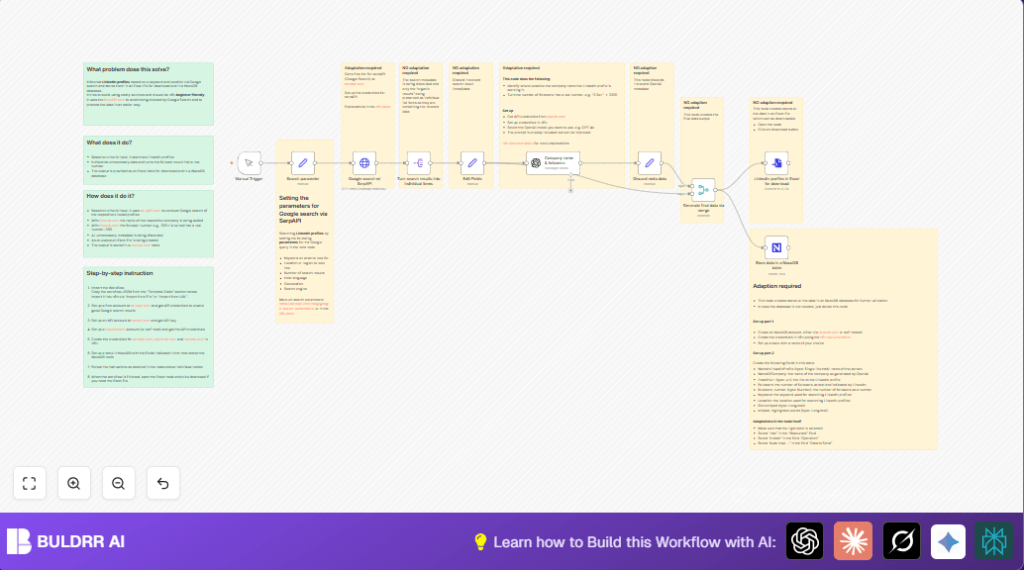
This workflow finds LinkedIn profiles based on keywords and location using Google search through SerpAPI.
It cleans data like follower counts and extracts company names with OpenAI.
Then, it saves the data in an Excel file and NocoDB for easy use.
This helps avoid manual searching errors and saves time spent on lead finding.
Who Should Use This Workflow
If you want to get LinkedIn leads quickly and avoid hunting manually, this workflow fits well.
It is good for sales reps or marketers who need clean profile data with follower info and company details.
Tools and Services Used
- n8n Automation Platform: Runs the workflow and connects all nodes.
- SerpAPI: Searches Google with filters to get LinkedIn profiles.
- OpenAI: Extracts company names and turns follower counts into numbers.
- NocoDB: Stores the final clean data in a database table.
- Excel Node: Converts data into an Excel file for download.
Beginner Step-by-Step: How to Build This in n8n
Step 1: Download and Import Workflow
- Click the Download button on this page to get the workflow JSON file.
- Open your n8n editor (cloud or self-host n8n on server).
- Go to Workflows > Import from File in n8n and select the downloaded JSON file.
Step 2: Add Credentials
- Find the Google search w/ SerpAPI node and add your SerpAPI API Key in credential settings.
- Locate the Company name & followers node and input your OpenAI API Key and select OpenAI model (e.g., GPT-4o).
- Fill NocoDB credentials and specify the database table ID in the Store data in a NocoDB table node.
Step 3: Update Search Parameters
- Open the Search parameter node.
- Set the Keyword to your target term (e.g., “nocode”).
- Set Location to target area (e.g., “Germany”).
- Adjust Number of search results if needed.
Step 4: Test and Activate
- Run the workflow once manually inside n8n to check for errors and see output.
- If all works fine, activate the workflow using the toggle switch.
- Use manual or scheduled trigger to run it in production.
Workflow Inputs, Processing, and Outputs
Inputs
- Keyword for search (e.g., “nocode”).
- Location to filter profiles (e.g., “Germany”).
- Number of Google search results to retrieve.
Processing Steps
- Use SerpAPI to get Google search results restricted to LinkedIn profiles.
- Split each search result into individual profile items.
- Keep only important fields like LinkedIn name, URL, snippet, and follower count.
- Use OpenAI to clean follower counts to numbers and pull company names from snippets.
- Drop unnecessary data and merge AI results with profile info.
Outputs
- Downloadable Excel file with cleaned LinkedIn profile data.
- Entries stored in NocoDB table for database access and future use.
Customization Ideas
- Change keywords or locations in the Search parameter node to find different leads.
- Switch OpenAI model in Company name & followers to balance cost and accuracy.
- Export data as CSV by updating the LinkedIn profiles in Excel for download node’s file type.
- Remove NocoDB node if no database storage is wanted.
- Increase the number of search results to gather more profiles per run.
Edge Cases and Troubleshooting
- No search results from SerpAPI:
Check SerpAPI API key correctness and quota availability. - OpenAI errors or no data processed:
Confirm OpenAI API key is valid and prompt is set well. - Excel download fails or button missing:
Make sure the workflow finished running fully; download is manual.
Pre-Production Checklist
- Verify all API keys for SerpAPI, OpenAI, and NocoDB are correct.
- Test a manual execution to confirm nodes return expected data.
- Ensure NocoDB fields match the data fields sent by the workflow.
- Back up NocoDB data before first inserts to avoid accidental loss.
- Review workflow and activate only after successful testing.
Deployment Guide
After setup and tests, activate the workflow in n8n by switching it on.
Run the workflow manually to fetch LinkedIn profiles on demand.
Schedule periodic runs with a Cron Trigger if ongoing lead updates are needed.
Monitor execution logs on the n8n dashboard for errors.
Download Excel reports anytime from the workflow’s Excel node.
Manage profile leads in the NocoDB table with a UI or API.
Summary
✓ The workflow gets LinkedIn profiles by keyword and location from Google searches.
✓ It cleans follower counts and retrieves company names using OpenAI.
✓ Results save as Excel file and in NocoDB for easy review or further use.
✓ Time spent looking for leads manually goes down a lot.
✓ Data quality rises with less manual mistakes.
