
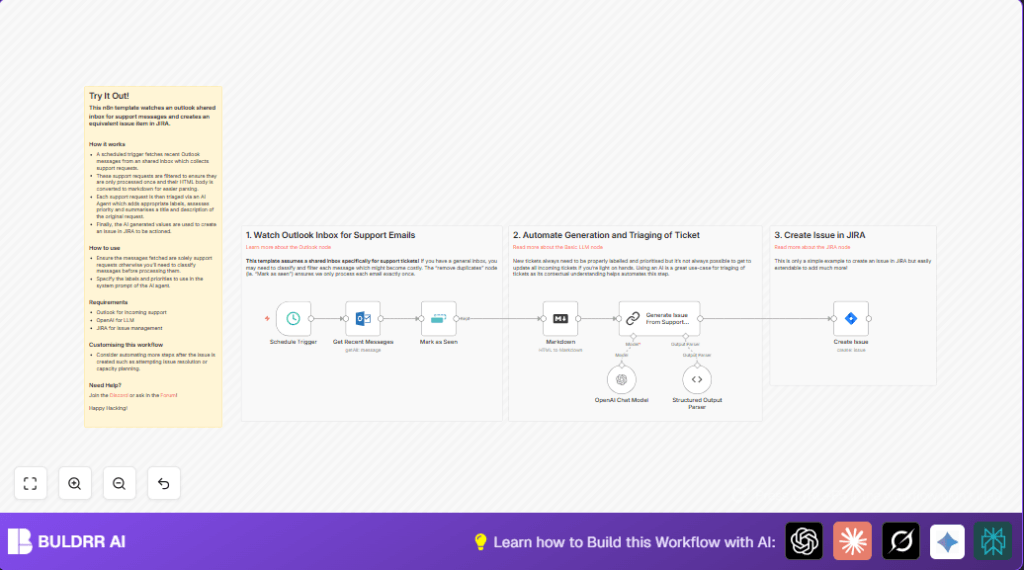

What this workflow does
This workflow checks a shared Microsoft Outlook inbox every hour for new support emails.
It removes copied or repeated emails so tickets do not get duplicated.
It changes the format of the email body from HTML into markdown for easier reading.
Then it uses OpenAI’s GPT-4o-mini model to read the email and decide labels, priority scores, and clear summaries for JIRA tickets.
Finally, it creates a new issue in JIRA with the AI-made summary, description, and priority for fast team action.
Who should use this workflow
This workflow is for customer support teams with many emails to handle every hour.
It helps people who want to save time and avoid mistakes when turning emails into tickets.
It is good for those using Microsoft Outlook shared inboxes and JIRA to track support requests.
Tools and services used
- Microsoft Outlook: To read the support emails from a shared inbox.
- OpenAI GPT-4o-mini: To analyze the email text and create labels, priority, and clear summaries.
- JIRA Software Cloud: To create new tickets with AI-made details.
- n8n: To run the whole automation workflow every hour.
How the workflow works (Input → Process → Output)
Input
Support emails received in the last hour into the shared Outlook inbox.
Processing Steps
- Get all emails from Outlook sent in the last hour.
- Remove duplicates using unique message IDs to avoid repeated tickets.
- Convert email HTML body to markdown text for better AI understanding.
- Send email content and metadata to OpenAI GPT-4o-mini model using a prompt that includes reporter info, time, subject, and markdown description.
- Receive AI response with JSON fields: labels array, numeric priority, summary, and description of the issue.
- Parse AI response into structured data for JIRA issue creation.
- Create a new JIRA issue with AI-generated fields for summary, description, labels, and priority.
Output
New JIRA tickets matching support email content, each with correct labels, priority level (1 to 5), and clear text for easier team work.
Beginner step-by-step: How to use this workflow in n8n
Import the workflow
- Download the workflow file using the Download button on this page.
- Open n8n editor and choose “Import from File” to load the downloaded workflow.
Configure credentials and settings
- Add Microsoft Outlook OAuth2 credentials to the Outlook node.
- Add OpenAI API key to the OpenAI Chat Model node.
- Add JIRA Cloud credentials and set project ID and issue type IDs in the JIRA node.
- Check the filter for emails received in the last hour is correct in the Outlook node (
receivedAfterexpression as={{ $now.minus({ "hour": 1 }).toISO() }}). - Adjust any project or folder IDs, or email categories if needed.
Test the workflow
- Run the workflow manually to make sure it fetches recent emails, calls the AI model, and creates a JIRA issue correctly.
- Check the JIRA project to see if the ticket was created with the expected fields.
Activate the workflow for production
- Turn on the workflow toggle in n8n to activate scheduling.
- Let it run automatically every hour to process new emails without manual steps.
If self hosting n8n, the same steps apply. For more on this check self-host n8n.
Common issues and edge cases
No new emails processed
Check if the receivedAfter filter is too strict or incorrect.
Also confirm system time is synced and correct.
Try testing without filtering to see if emails are fetched.
AI returns invalid JSON
Make sure the prompt format in the Chain LLM node is correct and includes all needed fields.
Check the output parser JSON schema matches the AI output.
Test the prompt in OpenAI playground to see its response format.
Duplicate tickets created
Verify that the Remove Duplicates node uses unique message ID from the email ($json.id).
Check node placement is right after Outlook fetch node.
Customization ideas
- Add more custom labels in AI prompt for specific company needs.
- Change priority scale in the AI prompt or map it differently in the JIRA node.
- Include attachments from emails and add files to JIRA issues (needs extra nodes).
- Add steps to post automatic comments or status updates back to JIRA after issue creation.
- Filter emails by categories like “support” in Outlook node to limit processing.
Summary and result
→ Workflow automates support email triage every hour from Outlook.
→ AI creates labels, priority, and clear summaries for JIRA tickets.
→ Removes duplicate emails to avoid repeated tickets.
✓ Saves significant time by skipping manual processing.
✓ Improves ticket accuracy and priority decisions.
✓ Enables faster response from support teams.
