

What This Automation Does
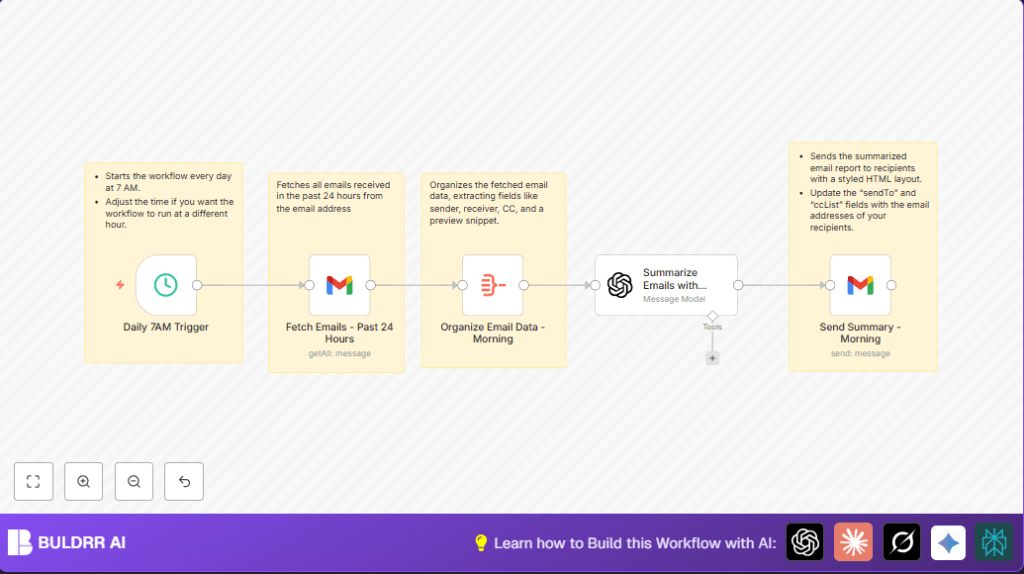
This workflow runs every day at 7 AM.
It gets all emails from the past 24 hours in a Gmail account.
It picks out who sent the email, who got it, and a short preview.
It uses OpenAI’s GPT-4o-mini to make a short summary of emails.
Then it finds any tasks or actions that need doing.
Finally, it sends a nice email with these summaries and actions to the team.
This saves hours of reading time and helps keep everyone on track.
Who Should Use This Workflow
This workflow is for people or teams who get many emails every day.
It helps catch important points fast without reading every mail.
Tools and Services Used
- n8n platform: To create and run the workflow.
- Gmail API with OAuth2: To read and send emails securely.
- OpenAI GPT-4o-mini: To summarize email text and find action items.
How the Workflow Works (Input > Process > Output)
Inputs
- Gmail account with new emails from last 24 hours.
- OAuth2 access for Gmail to read/send emails.
- OpenAI API Key to call GPT-4o-mini for text summarizing.
Processing Steps
- Trigger runs every day at 7 AM.
- Fetch all emails received in the past 24 hours from Gmail.
- Extract key details: sender, recipients, CC, snippet.
- Feed email data to OpenAI GPT-4o-mini with a special prompt.
- OpenAI returns a JSON with summary points and action items.
- Format this into an HTML email.
- Send the summary email to the team.
Output
- Daily email showing key points from all recent emails.
- List of action items and responsible people clearly shown.
- Time saved reading emails and fewer missed tasks.
Beginner Step-by-step: How to Use This Workflow in Production
Step 1: Download and Import
- Click the Download button on this page to save the workflow JSON file.
- Go to the n8n editor.
- Choose “Import from File” and upload the downloaded file.
Step 2: Configure Credentials
- Add your Gmail OAuth2 credentials in n8n.
- Add your OpenAI API Key in the credentials node.
Step 3: Update Workflow Settings
- Check the email IDs in the Gmail nodes and change them if needed.
- Check and update Send To and CC email addresses in the send email node.
- Review the OpenAI prompt and copy/paste the prompt code if necessary.
Step 4: Test the Workflow
- Run the workflow manually to make sure it fetches emails and sends summaries.
Step 5: Activate for Daily Use
- Turn the workflow Active by switching the toggle in n8n.
- The workflow will now run automatically every day.
Customizations and Tips
- Change the trigger time in the Schedule Trigger node for a different daily run.
- Add more email fields in the Aggregate node, like subject or date.
- Adjust the OpenAI prompt to focus on certain projects or urgent topics.
- Change recipients in the final Gmail node for different teams.
- Try other OpenAI models if desired.
Troubleshooting
Problem: No emails from Gmail node
Check that Gmail OAuth2 credentials allow reading emails.
Try simpler search like “newer_than:1d” in the query.
Problem: OpenAI API errors or rate limits
Verify API key is correct.
Reduce workflow frequency or upgrade API plan.
Pre-Production Checklist
- Test Gmail OAuth2 credentials work.
- Check email query returns expected messages.
- Test OpenAI API calls with a sample prompt.
- Run whole workflow manually once to verify.
- Confirm all email addresses in send node are correct.
Deployment Guide
Switch the workflow to active in n8n.
Workflow runs automatically daily.
Use n8n’s execution logs to see if errors occur.
Monitor output email for success.
You can refine or expand workflow anytime.
For running n8n on own server, see self-host n8n to maintain full control.
Summary
✓ Runs daily at 7 AM to gather last 24 hours of emails.
✓ Summarizes emails with GPT-4o-mini for easy reading.
✓ Shows clear action items with responsible names.
✓ Sends a tidy email to keep the team informed.
✓ Saves hours otherwise spent reading every email.
✓ Reduces missed tasks and communication gaps.
