
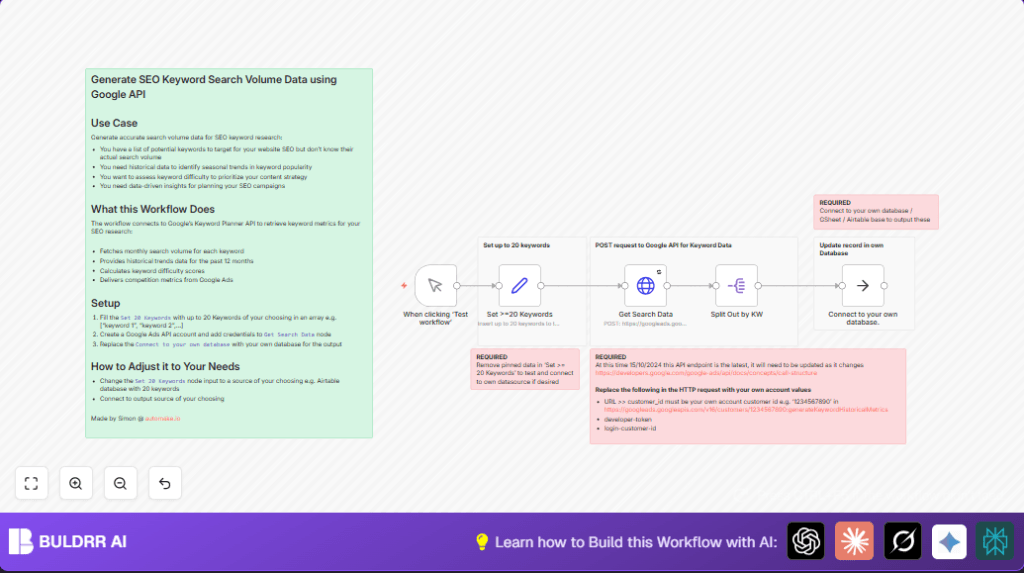

What This Workflow Does ⚙️
This workflow automatically fetches search volume, trends, and competition info for up to 20 SEO keywords from Google Ads API.
It stops hours of manual checking and error in data copying.
You get clear keyword metrics fast for better SEO choices.
It takes keywords, calls Google Ads, and breaks down results by each keyword.
The data is ready for export to Google Sheets, databases, or Airtable.
Inputs, Processing, and Output
Inputs
- Up to 20 keywords: Provided as an array of strings.
- Google Ads credentials: OAuth2 tokens and API keys for authentication.
- Customer ID & Developer Token: Used to identify Google Ads account and authorize API calls.
Processing Steps
- The keywords list is sent to Google Ads API using a POST request.
- The API returns monthly search volume, past 12 months trend, and competition details.
- The response is split so each keyword and its metrics become one item.
- This fine-grained output is easy to handle or store.
Output
- Detailed JSON per keyword: Including search volume and difficulty.
- Ready to export: Into Google Sheets, Airtable, or a database.
Who Should Use This Workflow
This workflow is good for SEO marketers who need fast big keyword data.
It helps users avoid slow manual Google Ads web interface work.
It fits small agencies, freelancers, or marketing teams with API access.
People wanting to automate keyword research and stop data errors should try this.
Tools and Services Used
- n8n: Automation platform to build workflows.
- Google Ads API Keyword Historical Metrics Endpoint: Provides keyword search data.
- Google Ads OAuth2 Credentials: For secure API authentication.
- Google Sheets, Airtable, or Database: Optional storage/destination for results.
Beginner Step-by-Step: How to Use This Workflow in n8n Production
Step 1: Download and Import Workflow
- Click the Download button on this webpage to get the workflow file.
- Open the n8n editor.
- Click “Import from File” in n8n and select the downloaded workflow.
Step 2: Configure Credentials and IDs
- Add your Google Ads OAuth2 credentials in n8n credential manager.
- In the HTTP Request node, replace placeholder
{customer_id}with your real Google Ads customer ID. - Update
developer-tokenandlogin-customer-idin HTTP headers with correct values.
Step 3: Provide the Keywords
- Open the Set >=20 Keywords node.
- Edit the array to include the keywords to check.
Step 4: Test the Workflow
- Click “Execute Workflow” to run manually.
- Check output in the Split Out node and verify keyword metrics.
Step 5: Activate for Production
- After confirming the test works, toggle the workflow “Active” at top right.
- Run manually or set up a scheduled trigger to automate.
You can add database or Google Sheets nodes where the placeholder node is to save results.
If using self-host n8n, import the workflow the same way.
Customization Ideas ✏️
- Replace the static keywords Set >=20 Keywords node with an Airtable or Google Sheets node for dynamic input.
- Swap the placeholder database node with MySQL or PostgreSQL nodes to store keyword data directly.
- Use a Schedule Trigger to automate keyword checks daily or weekly.
- For more than 20 keywords, split input into batches and run multiple times.
Edge Cases and Troubleshooting ????
401 Unauthorized Error
Usually from wrong OAuth2 credentials or missing developer token.
Double-check API keys, header values, and OAuth2 setup.
Invalid Request Body or Bad API Response
Often caused by wrong JSON format or incorrect keyword array format.
Verify the POST body and make sure keywords are an array of strings.
Split Node Not Working
Must match the field name exactly where keywords data lives.
Check the Get Search Data node output and adjust split field to results or correct field.
Pre-Production Checks ✅
- Ensure Google Ads API access is enabled for Keyword Historical Metrics.
- Run tests with a small keyword list to check response.
- Replace all placeholders like
{customer_id},developer-token, andlogin-customer-idwith real values. - Verify HTTP Request outputs correct metrics.
- Confirm splitting steps properly divide keywords.
- Prepare database or sheet destination to receive data.
Deployment Guide
Turn workflow toggle to “Active”.
Run manually first to ensure working.
Monitor n8n logs and execution status for errors.
Fix issues related to API limits or credentials before automatic runs.
Schedule or trigger runs as needed for regular updates.
Summary and Results
✓ The workflow gets keyword search volume and competition data fast.
✓ It saves at least 3-4 hours compared to manual research.
✓ There is less chance of data errors or missed keywords.
✓ Keywords metrics are ready to be stored or used in SEO planning.
→ This makes SEO campaigns better and faster to launch.
