

What This Automation Does
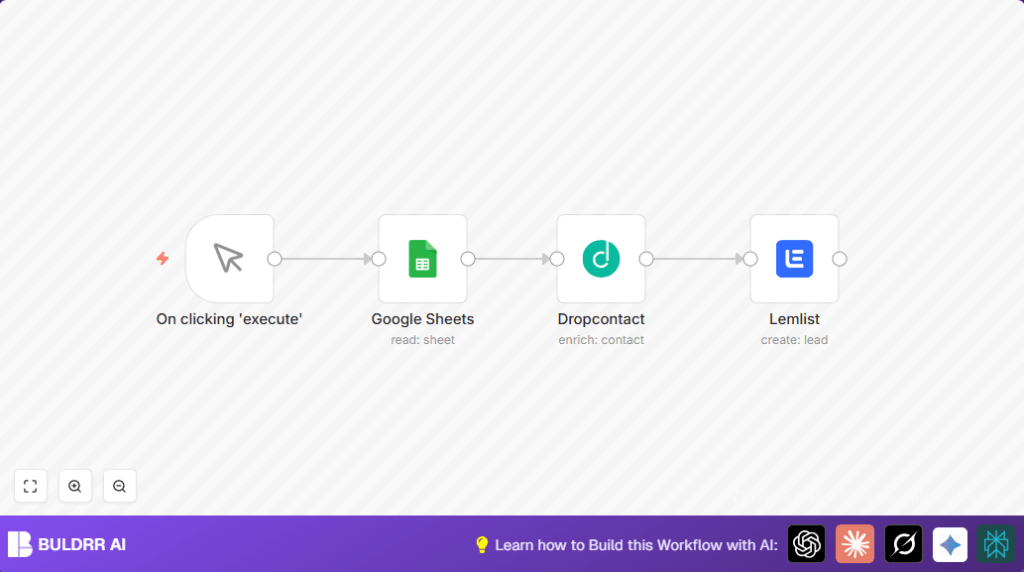
This workflow reads lead data from Google Sheets, cleans and verifies emails using Dropcontact, and adds leads to Lemlist campaigns automatically.
It solves the problem of manual copy-pasting, errors, and missing contact info.
The final result is accurate leads ready for email outreach without extra manual work.
Inputs and Processing Steps
Inputs: Lead information such as emails, names, company names, LinkedIn profiles, and websites stored in a Google Sheet.
Processing: The workflow pulls rows from Google Sheets. Then, it sends each lead’s email and details to Dropcontact for cleaning, enrichment, and deduplication.
Dropcontact returns verified emails and company info.
Output: Enriched leads are added one by one into a specific Lemlist campaign with personalized fields.
Who Should Use This Workflow
This automation fits marketers who manage lead lists manually in Google Sheets and want to save hours spent on cleaning data and importing leads.
Users wanting better email accuracy and campaign delivery will benefit from this workflow.
Tools and Services Used
- Google Sheets: Stores raw lead data with columns for emails, names, companies, LinkedIn, and websites.
- Dropcontact: Cleans emails, enriches contact data, verifies info, and removes duplicates using an API key.
- Lemlist: Receives enriched leads for personalized email campaigns using API credentials and campaign IDs.
- n8n: Automation platform that runs the workflow to connect all services.
Beginner Step-by-Step: How to Use This Workflow in N8N
Download and Import
- Click the Download button on this page to get the workflow file.
- Open the n8n editor where you want to run the automation.
- Click “Import from File” and select the downloaded workflow file.
Configure Credentials
- Inside n8n, add your Google Sheets OAuth2 credentials to the Google Sheets node.
- Enter your Dropcontact API Key into the Dropcontact node.
- Connect your Lemlist API Key and set the campaign ID in the Lemlist node.
Update IDs and Ranges
- If needed, update the Google Sheet ID and cell range to match your leads sheet.
- Confirm the Lemlist campaign ID matches your target campaign.
Test and Activate
- Run the workflow once using the Manual Trigger node to test data fetching, enrichment, and lead addition.
- Check for errors and fix any credential or range issues.
- Activate the workflow when ready to start automatic lead processing.
Customizations
- Change the language in the Dropcontact node from “fr” to “en” for English data enrichment.
- Adjust the Google Sheets node range from “A:K” to include more columns if the sheet grows.
- Switch Lemlist campaign IDs to send leads to different campaigns based on segments.
- Add more fields in the Dropcontact additional parameters, like job title or phone, as needed.
Troubleshooting Common Issues
No Data From Google Sheets
Cause: OAuth2 credentials missing or wrong Sheet ID/range.
Solution: Double-check authentication and test connection inside Google Sheets node.
Dropcontact Returns Errors
Cause: Invalid API key or email field not passed properly.
Solution: Verify Dropcontact API Key and ensure email parameter uses correct expression.
Production Readiness Checklist
- Make sure all lead columns are included in the Google Sheets range.
- Confirm all API keys are entered correctly in Dropcontact and Lemlist nodes.
- Run test with a small group of leads for proper enrichment and campaign adding.
- Save workflow and set version tracking for rollback if needed.
Deployment Guide
- Run manually via Manual Trigger or add scheduled trigger for automatic runs.
- Monitor workflow executions in n8n dashboard for errors.
- Optionally use notifications or logging for tracking workflow activity.
- Consider using self-host n8n for better control and reliability.
Summary of Benefits and Results
✓ Saves hours every week by automating lead cleaning and import
✓ Improves email accuracy and removes duplicate leads
✓ Sends enriched contacts directly to Lemlist campaigns
✓ Reduces manual errors in copy-pasting data
✓ Lets marketers focus on messaging and strategy instead of busy work
Code and Expressions for Key Nodes
In Dropcontact node, use this to pass email:
{{$json["email"]}Set additional fields with expressions like:
{
  "company": {{$json["companyName"]}},
  "website": {{$json["website"]}},
  "linkedin": {{$json["LinkedIn"]}},
  "full_name": {{$json["fullName"]}},
  "last_name": {{$json["lastName"]}},
  "first_name": {{$json["firstName"]}}
}
In Lemlist node, set email from Dropcontact result with:
{{$node["Dropcontact"].json["email"][0]["email"]}