
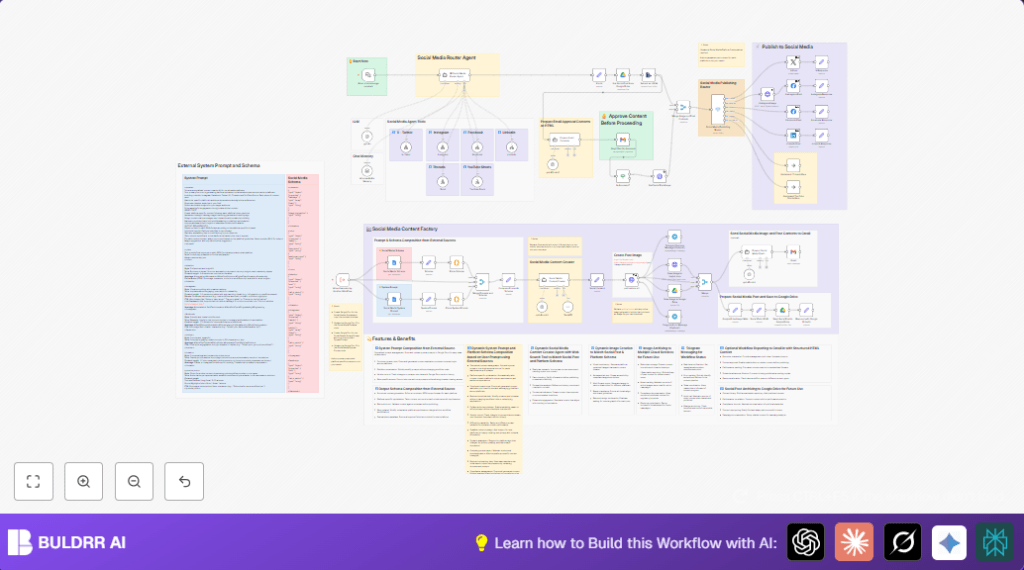

What This Workflow Does
This workflow takes a simple message and makes a ready social media post for many platforms.
It solves the problem of making unique posts and images for each platform by itself.
The result is posts with matching images that are sent for review and then posted automatically.
Who Should Use This Workflow
This is for people working with content on Twitter (X), Instagram, Facebook, LinkedIn, Threads, and YouTube Shorts.
Users want to save time and keep messages and images clear and on-brand for each platform.
Teams needing approval steps and archives find it useful too.
Tools and Services Used
- Langchain AI Agents: Generate social media text posts using OpenAI models.
- Google Docs: Store system prompts and post schema as documents externally.
- Pollinations.ai API: Generate matching post images from text prompts.
- Google Drive: Save generated images and archives.
- imgbb.com: Backup image hosting.
- Social Media Platform APIs: Publish posts directly to Twitter, Instagram, Facebook, LinkedIn.
- Gmail with OAuth2: Manage email-based approval workflows.
- Telegram Bot API (optional): Notify team on workflow progress or errors.
Workflow Inputs, , and Outputs
Input
A user sends a short prompt message through a chat message trigger node in n8n.
Steps
- Fetch system prompt and social media JSON schema from Google Docs nodes.
- Parse the prompt and schema XML content into clear JSON objects using code nodes.
- Merge prompts and schema to build a structured input for AI generation nodes.
- Generate platform-specific content using Langchain AI nodes powered by OpenAI.
- Request a matching image from Pollinations.ai based on the AI-suggested concept.
- Save the image to Google Drive and imgbb.com for storage and backup.
- Combine post content and image data for final payload.
- Route the payload to respective social platform publishing nodes.
- Send an approval email via Gmail node to get user confirmation before posting.
- Check approval response and continue if allowed.
- Archive the final posts and images again in Google Drive.
- Optionally send notifications to Telegram channel.
Output
The published social media posts appear on each platform with matching images and are stored in cloud storage archives.
Teams get notified of status and any errors through email or Telegram.
Beginner Step-by-Step: How to Use This Workflow in n8n
1. Importing the Workflow
- Download the workflow file by clicking the Download button on this page.
- Inside the n8n editor, click the menu and choose Import from File.
- Select the downloaded workflow JSON file to load it.
2. Configuring Credentials and IDs
- Add or update API Keys and OAuth credentials for OpenAI, Pollinations.ai, Google Drive, Gmail, and social media platforms.
- Set the Google Docs document IDs for Social Media System Prompt and Social Media Schema nodes.
- Update email addresses in the approval process if needed.
- Check folders and channels in Google Drive and Telegram nodes.
3. Testing the Workflow
- Send a test message to the chat message trigger to start the workflow.
- Check logs and outputs in n8n to ensure AI content and images generate correctly.
- Verify that the approval email is received and that responding approves or rejects the posting.
- Check social media accounts for the published post.
4. Activating for Production
- Turn the workflow status to active in n8n.
- Ensure all credentials are valid and refreshing properly.
- Start using chat messages to produce posts automatically as needed.
Remember to consult self-host n8n if running a private workflow server.
Troubleshooting Common Issues
- Trigger Not Starting: Check the webhook ID and link in the chat message trigger node.
- Parsing Errors in Schema: Verify that Google Docs content is valid JSON; use JSON lint tools.
- Image Generation Fails: Make sure Pollinations.ai API Key is correct and endpoint is stable.
- Posts Not Publishing: Review OAuth permissions and renew tokens for social APIs.
Customization Ideas
- Add more social platforms by copying router and publishing nodes and updating schema documents.
- Change the image AI service by editing the HTTP Request node’s URL and parameters.
- Adjust approval process timings or add multiple approvers in the Gmail approval node.
- Edit external Google Docs prompts to change brand voice or update content style rules.
- Update hashtags or trending topics in the social media schema document.
Summary of Results
✓ Saves many hours writing and scheduling posts for multiple platforms.
✓ Ensures each post matches platform rules and style for best impact.
✓ Uses AI to create both text and images that fit together.
✓ Adds an email approval step to avoid posting mistakes.
✓ Keeps archives in Google Drive for record and reuse.
→ Automates social media posting from a single prompt, making teamwork easier and faster.
