

What This Automation Does
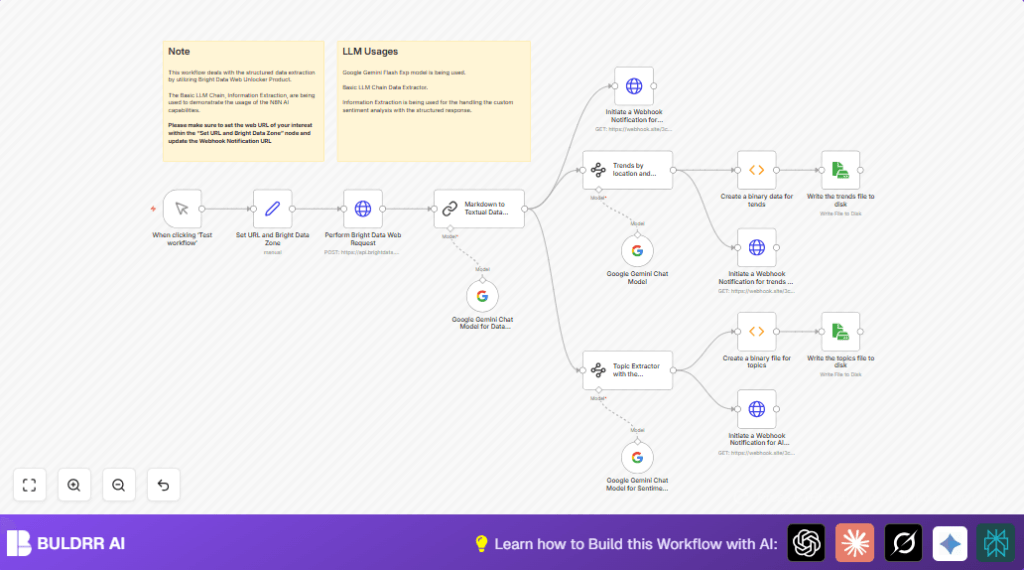
This workflow gets raw web content from any website, cleans markdown into easy-to-read text, finds main topics with details, groups trends by place and category, and checks the feelings behind the words. It saves JSON files on the computer and sends updates to a webhook. This stops you from wasting time copying, fixing text, and guessing important points.
The main goal is to help users see clear, organized news or data from complex web pages. It works by using Bright Data to get web data, then Google Gemini to clear markdown and find topics and mood.
- Input: URL is taken and sent through a proxy to get raw markdown content.
- Processing: The markdown is changed to clean text. Then tools pick out topics with scores, summaries, and keywords.
- More processing: Trends are grouped by location and category.
- Sentiment analysis: AI checks if the text is positive, negative, or neutral.
- Output: Data is sent to a webhook and saved as JSON files on disk.
The result is easy-to-use structured data from noisy web pages, helping you find patterns and feelings fast.
Who Should Use This Workflow
This workflow suits people who collect data from news or web pages but find manual work slow and messy.
Users include marketers, analysts, or any one needing clear topics and feelings from many websites regularly.
No deep technical skills are needed if the workflow is set up.
Tools and Services Used
- Bright Data Web Unlocker: Gets web content bypassing typical blockers.
- Google PaLM API with Google Gemini: Converts markdown to text and does AI topic and sentiment analysis.
- n8n automation platform: Runs the workflow linking all needed steps.
- Webhook services like webhook.site: Receives live data updates.
Beginner Step-by-Step: How to Use This Workflow in n8n
Importing the Workflow
- Download the workflow file using the Download button on this page.
- In n8n editor, click on the menu, choose Import from File, then pick the downloaded workflow file.
Configuring the Workflow
- Add your Bright Data API credentials in n8n under credentials. Use the HTTP Header Auth type with your API Key.
- Add your Google PaLM API Key credentials for the Google Gemini nodes.
- Check and update the Set URL and Bright Data Zone node to the website you want to scrape and your Bright Data proxy zone name.
- If webhook URLs need changing (for example, to use Slack or Discord), update the HTTP Request nodes with new URLs.
- If saving files locally, verify the file paths in the Read & Write File nodes are correct and writable on your machine.
Testing and Activating
- Run the Manual Trigger once to test the workflow flow and check no errors happen.
- Watch the webhook or file locations for expected outputs.
- When happy, activate the workflow in n8n by pressing Activate.
- Schedule or trigger as needed for your work.
For stable use, consider self-host n8n to keep the workflow running without interruptions.
Inputs, Processing Steps, and Outputs
Inputs
- The website URL to scrape, e.g., a news page.
- Bright Data proxy zone to route requests.
- User API Keys for Bright Data and Google PaLM.
Processing Steps
- Send POST request to Bright Data’s API to get web data in markdown.
- Use Google Gemini to clean markdown into readable text.
- Extract main topics with details like confidence and keywords using Information Extractor nodes.
- Group trends by location and category.
- Analyze sentiment on the topics using Google Gemini chat model.
- Send results to webhook URLs for real-time alerts.
- Save extracted JSON data locally as files.
Outputs
- Structured JSON files saved on disk with topics and trends.
- Webhook notifications carrying text, trends, and sentiment data.
Edge Cases and Failures
- Wrong Bright Data API Key or expired token causes authentication failure in the HTTP Request node.
- Bad JSON schema for Information Extractor nodes leads to extraction errors.
- Webhook Request nodes with “Send Body” disabled send empty payloads.
- Insufficient write permissions or invalid file paths cause file saving errors.
Checking credentials, JSON syntax, and node options helps avoid these.
Customization Ideas
- Change the target website by editing the URL in Set node to any supported site.
- Switch Bright Data proxy zone to target different geographic regions.
- Use different Google Gemini model versions for deeper or lighter analysis.
- Edit Information Extractor JSON schemas to add fields like sentiment scores or named entities.
- Replace webhook URLs with Slack, Discord, or custom notification endpoints.
Example Encoding Function for Saving JSON Files
This Function node code converts extracted JSON topics into base64 binary format so the Read & Write File node can save them.
items[0].binary = {
  data: {
    data: Buffer.from(JSON.stringify(items[0].json, null, 2)).toString('base64')
  }
};
return items;
Use similar code blocks for trends JSON files if needed.
Summary of Results
✓ Quickly get clean text from complex markdown web pages.
✓ Extract detailed topics with confidence and keywords.
✓ Group important trends by location and category.
✓ Analyze text sentiment to see positive or negative views.
✓ Save results as JSON files and send live notifications by webhook.
