

What This Workflow Does
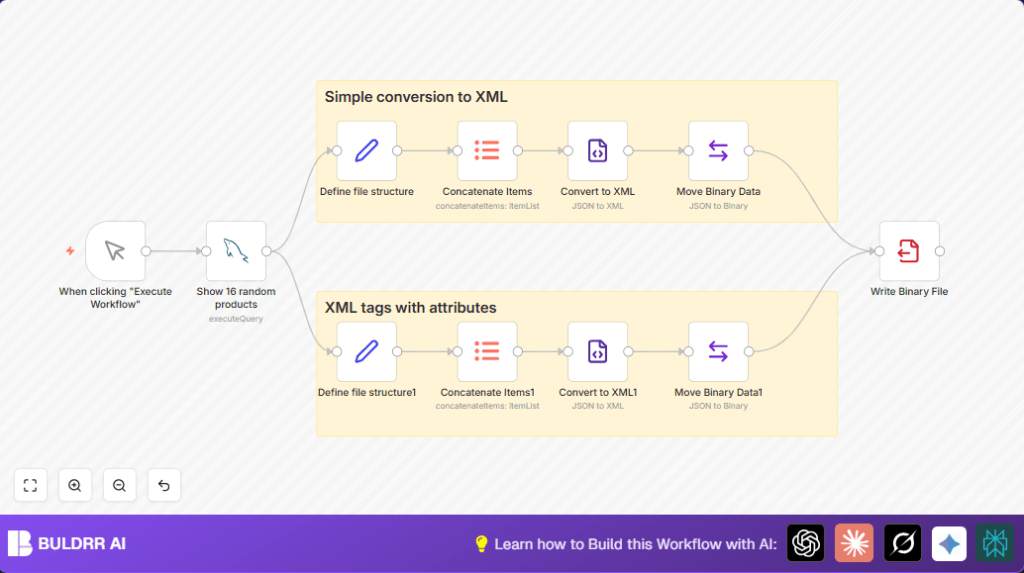
This workflow picks 16 random product records from a MySQL database and turns them into two different XML file types.
It solves the problem of manual export errors and slow exports.
The result is two saved XML files, one simple and one with attributes, ready to share.
Tools and Services Used
- n8n: automation platform to build and run the workflow.
- MySQL database: source of product data.
- File system: location where XML files are saved.
Inputs, Processing, and Outputs
Inputs
- Access to a MySQL database with a products table.
- n8n access for workflow run.
Processing Steps
- Manual Trigger node starts the process.
- MySQL node fetches 16 random products.
- Set nodes format product data into JSON structures for XML.
- Item Lists nodes combine all products into arrays.
- XML nodes convert JSON to XML files, one normal and one using XML attributes.
- Move Binary Data nodes prepare XML data for file writing.
- Write Binary File nodes save XML files to the file system.
Outputs
- Two XML files: one named simple.xml and another named intermediate.xml.
- Files stored in configured directory for partner sharing.
Who Should Use This Workflow
This workflow fits anyone who must export product data regularly without errors.
Especially useful if exports now take a long time or cause format issues.
Beginner Step-by-Step: How to Use This Workflow in n8n
Step 1: Import the Workflow
- Download the workflow file using the Download button.
- Go inside the n8n editor.
- Click on the top menu and select “Import from File”.
- Choose the downloaded workflow file to load.
Step 2: Configure Credentials and Settings
- Add MySQL credentials for your database.
- Check and update SQL query if product table or fields are different.
- Update file paths in Write Binary File nodes if needed.
Step 3: Test the Workflow
- Use the Manual Trigger node to run the workflow once.
- Check for errors and ensure files are created correctly.
Step 4: Activate for Production
- Enable the workflow in n8n.
- Run manually anytime, or replace Manual Trigger with Schedule Trigger to run regularly.
If hosting n8n yourself, see self-host n8n for options.
Customization Ideas
- Change the MySQL query to select specific products or filter by category.
- Edit which fields become XML attributes in the Set node for attribute XML.
- Add timestamps or unique ids in file names in Move Binary Data nodes using expressions.
- Replace Write Binary File nodes with AWS S3 or other cloud storage nodes.
- Add email nodes like Gmail to send generated XML files automatically.
Troubleshooting Common Issues
- MySQL connection error: Check credentials and database access.
- XML attributes missing: Confirm the attrkey “$” setting in XML node and JSON structure.
- File writing fails: Verify file path exists and permissions allow writing.
Pre-Production Checklist
- Verify MySQL credentials and product table layout.
- Run SQL query manually to confirm it returns data.
- Test XML nodes with sample JSON data to check format.
- Make sure Write Binary File file paths are correct and writable.
- Run full workflow once with Manual Trigger to verify end-to-end.
- Backup workflow settings before making big changes.
Conclusion
This workflow automatically exports product data from a MySQL database and creates two XML files.
It avoids slow and error-prone manual exports.
Files save consistently in the right format for partner sharing.
Final results save lots of time and avoid mistakes.
You can add email sending or cloud storage next.
Scheduling triggers make exports fully automatic.
Learning to use this workflow helps handle data export tasks more easily in n8n.
Sample SQL Query for MySQL Node
SELECT * from products
ORDER BY RAND()
LIMIT 16;
This selects 16 random products from the products table for XML export.
Example Expression for Dynamic File Naming
{{new Date().toISOString().slice(0,10) + '_products.xml'}}Use this in Move Binary Data node to add a date prefix to the XML file names.
XML Node Attribute Setting
Enable “attrkey” option and set it to “$” in the XML node.
This tells the node which JSON keys represent XML attributes.
Move Binary Data Node Setup
- Convert JSON data field to binary.
- Name field “data” by default.
- Set “File Name” to something like “simple.xml” or “intermediate.xml”.
Write Binary File Node File Path Setup
Use path like /home/node/.n8n/{{ $binary.data.fileName }} to save files.
Make sure directory exists and is writable.
Summary of Benefits
✓ Saves hours by automating product data exports.
✓ Avoids formatting mistakes that cause delays.
✓ Exports both simple and attribute-rich XML files.
✓ Files are ready for partners without manual edits.
✓ Workflow simple to trigger manually or schedule.